Isolation
The Isolation page answers one question: does your index keep your customers apart? In a multi-tenant RAG system each customer (a tenant) must only ever get answers built from their own documents. If one customer's document is indexed under another customer's name, the other customer's searches can return it. The Isolation page turns what the latest full audit already read into one clear answer for the whole index and one answer for every tenant. It shows a status banner, six cards, five checks, a table of tenants and the open findings behind the result. It also has a safe practice run, the isolation drill, which shows what RAGGuard would report if a leak happened without touching your data, and a downloadable evidence report you can hand to a customer or an auditor. Everything on this page is read-only.
On this page
- Purpose, who needs it, how to open it
- The page at a glance
- Words used on this page
- The header buttons
- The status banner
- When there is no result yet
- The six cards
- The Checks list
- The Tenants table
- Open findings (live)
- The How to read this page card
- The limited state
- The only one tenant state
- The Run isolation drill dialog
- Download evidence report (.md)
- Where isolation findings also appear
- Step-by-step tasks
- States you may see
- The API
- Tips and common mistakes
- Related chapters
Purpose, who needs it, how to open it
Purpose. Tenant isolation means that one customer's content never shows up for another customer. Here is why it matters. Suppose customer B's private pricing policy is indexed with the label of customer A, because of a bug in the ingestion code. When someone from customer A asks the assistant a question, the search for customer A can return customer B's policy, and the assistant may quote it. Nobody sees an error, and the pipeline reports success. This is a data leak, and it is one of the most serious problems RAGGuard reports. The Isolation page exists so you can check for it on purpose, after every audit, and prove the result to someone else.
RAGGuard looks for the two ways this happens inside the index:
| How isolation fails | What it means | How RAGGuard finds it |
|---|---|---|
| A document is indexed under the wrong tenant | The vectors of a document are labelled with a tenant that does not own the document. A search for that tenant can return the content. | The existing Tenant mismatch finding (always Critical). |
| Permission labels disagree with the manifest | Inside one tenant, the access-control label stored with the vectors differs from the one your pipeline recorded, so someone may see content they should not. | The existing Metadata mismatch finding that includes the problem acl_mismatch (High). |
The page also checks that every vector carries a tenant label and, when your index records them, a permission label. A vector with no tenant label cannot be kept apart from the others reliably.
How the result is built. Every full audit builds an isolation picture from the vectors, manifest rows and source documents it already read, and stores it with that audit. The Isolation page shows the picture of the latest completed full audit. It needs no extra reading of your systems. A scoped audit (one tenant, or one document) does not replace it, because the picture needs the whole index. The page refreshes by itself when an audit you started finishes.
Who needs it.
- The owner of a multi-tenant RAG product, to know that customers are kept apart.
- A security or compliance owner, to check for leaks and to keep evidence.
- Anyone answering a customer's question such as "can another customer see my documents?", using the evidence report.
- Anyone who wants to see the feature work before there is anything to find: the drill.
If your documents belong to only one tenant there is nothing to keep apart. The page then says so (the only one tenant state) and the drill still works.
How to open it. Choose Isolation (the padlock icon) in the left menu. It sits right after Integrity Issues and before Documents. The address is /isolation. The page header reads "Isolation" with the sentence "Tenant isolation means one customer's content never shows up for another customer. This page shows whether your index keeps tenants apart."
If you use a hosted RAGGuard workspace and have not connected your three systems yet, the page shows Connect your data first instead (see States you may see).
The page at a glance
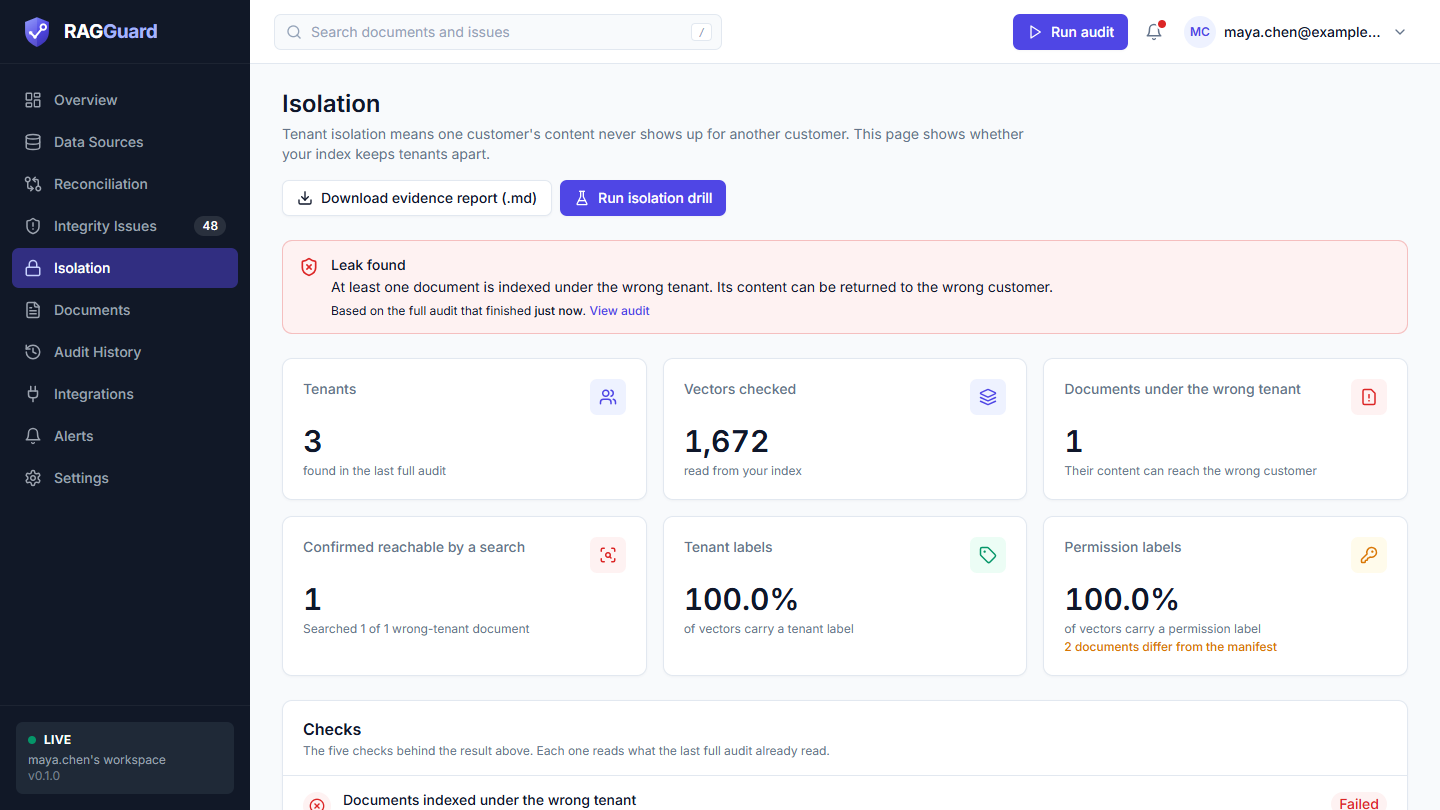
The top of the Isolation page when a leak is found: the header buttons, the red banner and the six cards.
From top to bottom:
- Header: the title, a one-sentence description, and two buttons on the right: Download evidence report (.md) and Run isolation drill.
- Status banner: the result in one glance, coloured by how serious it is, with a link to the audit it is based on.
- An explanation card, only in two states: Why this check is limited or Why there is nothing to compare yet.
- Six cards: Tenants, Vectors checked, Documents under the wrong tenant, Confirmed reachable by a search, Tenant labels and Permission labels.
- Checks: the five checks behind the result, each with a badge.
- Tenants: one row per tenant, worst first.
- Open findings (live): the issues that are open right now, with a note when they no longer match the summary above.
- How to read this page: four short explanations.
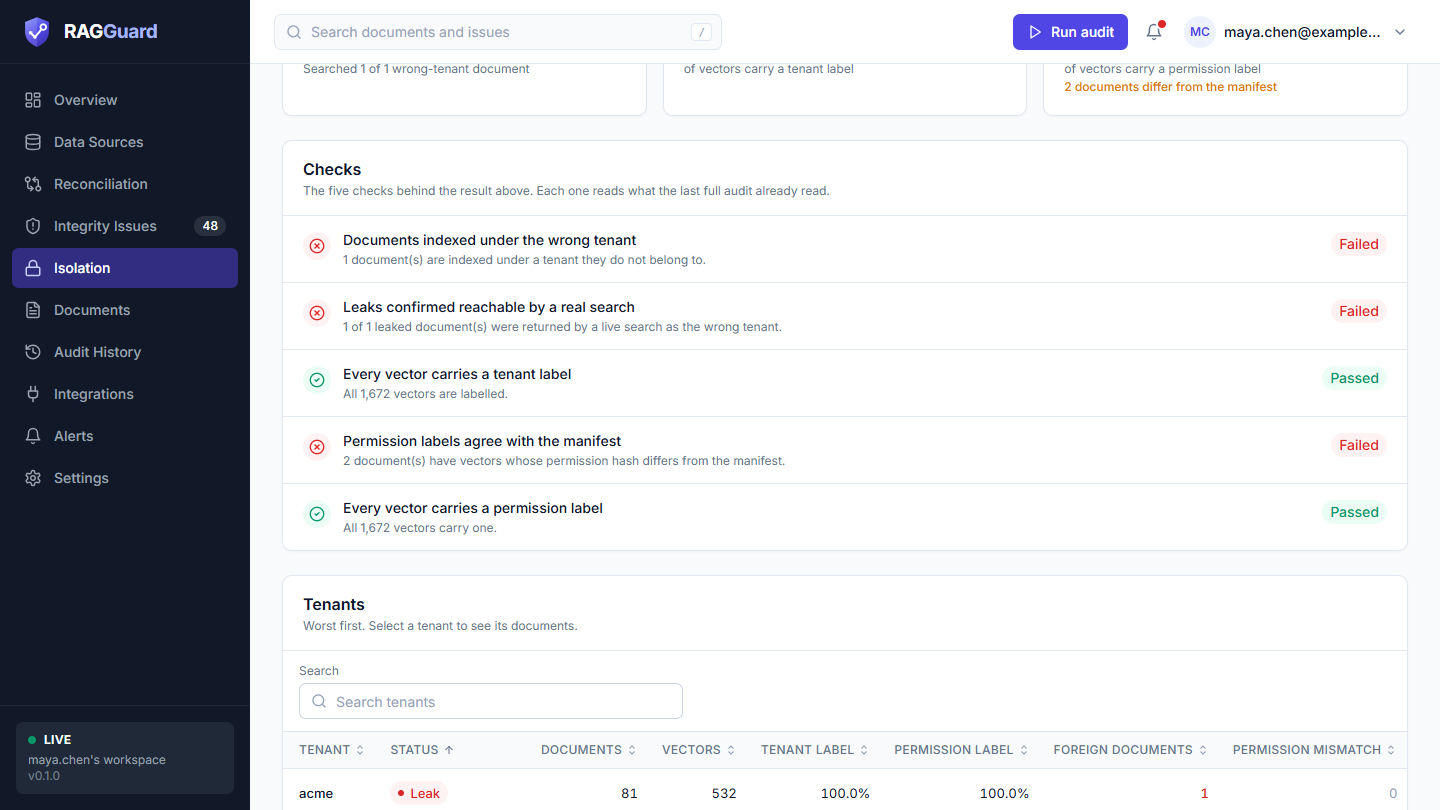
The three lower cards: the Checks list, the Tenants table and the Open findings table.
Before the first full audit, the page shows a single "No isolation result yet" card and the How to read this page card instead (see When there is no result yet).
Words used on this page
| Word | Meaning |
|---|---|
| Tenant | One customer, team or business unit whose documents must stay separate. See Concepts you need. |
| Vector | One searchable piece of a document in the index (Qdrant). A document is cut into chunks and each chunk has one vector. See Concepts you need. |
| Tenant label | The tenant_id stored next to each vector. It says which tenant the vector belongs to. A search for a tenant only looks at vectors with that label. A vector with no tenant label is treated as belonging to the Default tenant (see Settings). |
| Permission label | The access-control fingerprint (acl_hash) stored next to a vector and in the manifest row. It says who may read the document. RAGGuard compares the two. |
| Leak | A document whose vectors are indexed under a tenant it does not belong to. |
| Foreign document | A document that belongs to another tenant but is indexed under this one. The tenant that holds the foreign document is the one whose searches can return it. |
| Confirmed reachable | RAGGuard searched your live index as the wrong tenant and the document really came back. It turns a likely leak into a proven one. This is the same Retrieval probe described in Concepts you need. |
| Full audit | An audit of the whole corpus. Only a full audit builds the isolation picture. See Reconciliation. |
The header buttons
Two buttons sit at the top right. On a narrow screen they wrap under the title.
| Button | What it does | When it is disabled |
|---|---|---|
| Download evidence report (.md) | Downloads the evidence report as a Markdown file named rag-isolation-report.md. See Download evidence report (.md). | Grey, with the reason in a tooltip: "Loading the latest result" while the page loads, "The result could not be loaded" if loading failed, and "Run a full audit first to create a report" when there is no result yet. |
| Run isolation drill | Opens the drill dialog and starts the practice run at once. See The Run isolation drill dialog. | Never disabled while the page is shown. |
The drill button is the bright (primary) button when the page has a result that is not limited and not single-tenant. In the limited and one tenant states, and when there is no result yet, it is the quieter (secondary) button, because the explanation card or the empty state carries the main action.
In a hosted workspace that is not connected yet, neither button is shown.
The status banner
The banner is the first thing under the header (see the first screenshot above). It is one box with a coloured icon, a title, one sentence written by RAGGuard, and a line at the bottom: "Based on the full audit that finished 5 min ago. View audit". The time is a short phrase such as "just now", "12 min ago", "3 h ago", "2 d ago", or a date when the audit is older than about a month. Hover over it to see the exact date and time. View audit opens that audit's page in Audit history.
The banner has five states. The page works out the state in this order: limited first, then one tenant only, then leak, then attention, then clean.
| Title | Colour | The sentence under it | What it means | What to do |
|---|---|---|---|---|
| Leak found | Red | "At least one document is indexed under the wrong tenant. Its content can be returned to the wrong customer." | At least one document is indexed under a tenant that does not own it. Treat it as a security incident. | Open the Tenants table to see which tenants hold foreign documents, then the Open findings (live) table. Follow Fix a leak. |
| Needs attention | Amber | "No leak was found, but some vectors lack a tenant or permission label, or permissions disagree with the manifest." | Nothing is indexed under the wrong tenant, but the labels that keep tenants apart are incomplete or inconsistent. It is not a leak yet, but it can become one. | Find the tenants marked Needs attention and fix your pipeline so every vector carries its labels. Follow Fix a Needs attention result. |
| No leaks found | Green | "No document is indexed under another tenant, and the labels that keep tenants apart are present and consistent." | The audit found no wrong-tenant document and the labels are complete. | Nothing to do. Check again after every full audit. |
| This check is limited | Blue | "The audit only read the vectors of documents found in the source, so vectors filed under another tenant cannot be seen. A full isolation check has to read the whole index. On a large index that can run past the time limit, so run ragi audit on your own computer, or turn off "Only audit documents found in the source (S3)" only when the index is small." | The audit could not look at the whole index, so it cannot say "no leaks". It says so instead of showing green. | Read The limited state. |
| Only one tenant | Grey | "Only one tenant was found, so there is nothing to keep apart. Isolation checks apply once documents belong to several tenants." | Only one tenant exists, so there is no other customer to leak to. | Nothing to do. See The only one tenant state. |
What "No leaks found" cannot see. A leak is recognised by document id: vectors filed under one tenant count as a leak when the same document id exists in another tenant's source. Vectors for a document that exists under no tenant at all are reported as Orphan vectors in Integrity issues, not here.
When there is no result yet
If no full audit has finished yet, the page shows a card with a padlock icon, the title No isolation result yet, and this text: "Run a full audit first: the isolation picture is built from it." followed by "You can still run the isolation drill, with the button at the top of this page, to see how RAGGuard reacts when a document is indexed under the wrong tenant."
Below it is the Run full audit button. While an audit runs it reads Audit running with a spinner. It is greyed out, with a tooltip, in two cases: "Connect your data sources first" (hosted workspace, not connected yet) and "An audit is already running". When the audit finishes, the page fills in by itself.
You also see this state when your last full audit finished before the Isolation page existed, because older audits did not record an isolation picture. Run a new full audit. A failed audit, a scoped audit or a verify audit does not count: only a completed full audit builds the picture.
The drill still works in this state if the latest audit left at least one healthy, indexed document. If it did not, the drill says "There is no healthy, indexed document to use yet. Run a full audit first."
The six cards
The cards sit in a grid: two rows of three on a wide screen, two columns on a medium screen, one column on a phone. Each card has a label, a large value, a short line of explanation under it, and a small icon at the top right. On the first two cards the icon keeps the product colour. On the other four it turns red, amber, green or grey to show how the card reads. The value itself never changes colour.
| Card | What it counts | Good looks like |
|---|---|---|
| Tenants | How many different tenants the last full audit found, counted across your S3 source, your manifest and your index. The line under it reads "found in the last full audit". | Matches the number of customers you expect. |
| Vectors checked | How many vectors the audit read from your index. The line reads "read from your index", or "only those of documents found in the source" in the limited state. | A large number that is close to the size of your index. |
| Documents under the wrong tenant | How many documents have vectors filed under a tenant that does not own them. | 0 ("None found"). |
| Confirmed reachable by a search | Of those documents, how many a live search actually returned as the wrong tenant. The line under it says how many of them were searched at all. | 0, with "Nothing to confirm". |
| Tenant labels | The share of all vectors that carry a tenant label. The line reads "of vectors carry a tenant label". | 100.0%. |
| Permission labels | The share of all vectors that carry a permission label. The line reads "of vectors carry a permission label". | 100.0% and no documents that differ from the manifest. |
Percentages show one decimal place, for example 98.5%. A dash means there was nothing to measure, for example no vectors.
Documents under the wrong tenant
| What you see | Icon | Meaning |
|---|---|---|
| A number above 0, with "Their content can reach the wrong customer" | Red | That many documents are leaking. |
| 0, with "None found" | Green | No wrong-tenant document was found. |
| Not checked, with "Needs a full read of the index" | Grey | The state is limited. The audit could not look. |
| Not applicable, with "Only one tenant exists" | Grey | One tenant only. |
Confirmed reachable by a search
| What you see | Icon | Meaning |
|---|---|---|
| A number above 0, with a line such as "Searched 3 of 3 wrong-tenant documents" | Red | That many leaks were proven: a real search returned the wrong tenant's content. The line says how many of the leaks were searched. |
| 0, with a line such as "Reachability is unknown: none of the 3 wrong-tenant documents were searched" | Amber | The leaks exist, but none was searched, so nobody knows whether a search can return them. |
| 0, with a line such as "Searched 2 of 3 wrong-tenant documents" (fewer searched than there are leaks) | Amber | The searched leaks were not returned, but some leaks were never searched. |
| 0, with a line such as "Searched 3 of 3 wrong-tenant documents" (every leak searched) | Green | Every leak was searched and none came back. The documents are still under the wrong tenant: the card above is still red. |
| 0, with "Run a full audit to refresh this" | Amber | The result was stored by an older version that did not record how many leaks were searched. Run a new full audit. |
| 0, with "Nothing to confirm" | Green | There are no leaks to confirm. |
| Not checked or Not applicable | Grey | Same meaning as in the card above. |
A 0 here is not a clean bill of health. By default an audit sends at most 25 searches ("probes"), starting with wrong-tenant documents, and it sends none if searching was turned off for that audit. A leak that was not searched is not proven safe: its reachability is unknown, which is why the card now says how many were searched. Treat every number in Documents under the wrong tenant as a real leak, whatever this card says. How a probe works is explained in Concepts you need.
Tenant labels
| What you see | Icon | Meaning |
|---|---|---|
| 100.0% | Green | Every vector carries a tenant label. |
| Below 100% | Amber | Some vectors have no tenant label. They are treated as belonging to the Default tenant, and they cannot be kept apart reliably. |
| 0.0%, with the line "The payload has no tenant field, so every vector counts as the default tenant" | Amber | No vector carries a tenant field at all, so your index does not record tenants in its payload. Every vector is treated as belonging to the Default tenant. This is not a fault in the audit: it tells you the index has nothing to keep tenants apart with. The same words appear when you hover over the Tenant label column heading in the Tenants table. |
| A dash | Grey | There were no vectors to measure. |
Permission labels
| What you see | Icon | Meaning |
|---|---|---|
| 100.0%, and no warning line | Green | Every vector carries a permission label and every document agrees with the manifest. |
| A percentage below 100%, or a line in amber such as "2 documents differ from the manifest" | Amber | Some vectors have no permission label, or some documents' labels differ from the manifest. |
| Not recorded, with "Your index does not record permissions, so there is nothing to check" | Grey | Neither your vectors nor your manifest rows carry a permission label. This is not a failure. It only means RAGGuard has nothing to compare. |
The three "not" words
| Word | Where you see it | What it means |
|---|---|---|
| Not recorded | Permission labels card, Permission label column | Your index does not store permission labels. There is nothing to check. |
| Not checked | Two cards and the check badges, in the limited state only | The audit could not look at the whole index, so this was not tested. It is not a pass. |
| Not applicable | Two cards in the one-tenant state; check badges | The check does not apply: only one tenant exists, there are no leaks to confirm, or permissions are not recorded. |
The Checks list
The Checks card has the description "The five checks behind the result above. Each one reads what the last full audit already read." Each row has a round icon, the name of the check, a line of detail, and a badge on the right.
| Badge | Colour | Icon | Meaning |
|---|---|---|---|
| Passed | Green | Tick in a circle | The check found nothing wrong. |
| Warning | Amber | Triangle | Something is incomplete or unknown (for example vectors without a label, or leaks that were not searched). On its own it is not proof of a leak. |
| Failed | Red | Cross in a circle | A real problem was found. |
| Not applicable | Grey | Minus in a circle | The check does not apply. |
| Not checked | Grey | Minus in a circle | Shown instead of Not applicable when the whole result is limited. |
The five checks, in the order of the page:
| # | Check | Passed when | Warning or Failed when | Not applicable when |
|---|---|---|---|---|
| 1 | Documents indexed under the wrong tenant | No document is under the wrong tenant. | Failed when at least one is. | One tenant only. |
| 2 | Leaks confirmed reachable by a real search | There are leaks, every one was searched live, and none was returned. The labels are still wrong, so check 1 still fails. | Failed when a live search returned at least one leak. Warning when there are leaks and none, or only some, were searched, so reachability is unknown. | There are no leaks, or one tenant only. |
| 3 | Every vector carries a tenant label | Every vector has a tenant label. | Warning when some do not. | One tenant only. |
| 4 | Permission labels agree with the manifest | Every document's permission label equals the manifest's. | Failed when at least one differs. | Permissions are not recorded. |
| 5 | Every vector carries a permission label | Every vector has a permission label. | Warning when some do not. | Permissions are not recorded. |
"Permissions are recorded" means that at least one vector or one manifest row has a permission label. If none does, checks 4 and 5 are Not applicable.
The line of detail under each check tells you the numbers behind the badge:
| # | Detail lines you may see |
|---|---|
| 1 | "None found." or "N document(s) are indexed under a tenant they do not belong to." |
| 2 | "N of M leaked document(s) were returned by a live search as the wrong tenant." (Failed). "None of the M leaked document(s) were searched, so reachability is unknown (live searches are off, or the audit's limit on searches was reached)." or "T of M leaked document(s) were searched and none was returned; the other X were not searched." (Warning). "All M leaked document(s) were searched and none was returned. The labels are still wrong." (Passed). "No leaks, so there is nothing to confirm." (Not applicable). |
| 3 | "All N vectors are labelled." or "N of M vectors have no tenant label." |
| 4 | "All permission hashes agree." or "N document(s) have vectors whose permission hash differs from the manifest." |
| 5 | "All N vectors carry one." or "N of M vectors have no permission hash." |
A check that was not run says why. Its badge is Not applicable (or Not checked when the whole result is limited) and its detail line starts with "Not checked:" and gives the reason. It never reads like a pass. The reasons are:
| Detail line | When |
|---|---|
| "Not checked: the audit only read the documents found in the source, so this needs a full audit." | The result is limited. |
| "Not checked: only one tenant exists, so there is nothing to keep apart." | One tenant only (checks 1, 2 and 3). |
| "Not checked: permissions are not recorded in this index." | No vector and no manifest row has a permission label (checks 4 and 5). |
The only Not applicable check whose detail does not start with "Not checked:" is check 2 when there are simply no leaks: "No leaks, so there is nothing to confirm."
Reading check 2. It can show Warning or Passed while check 1 shows Failed, because it only answers one question: could a live search return the leaked content? Failed means yes, it did. Warning means nobody knows, because not every leak was searched (searches are off, or the audit sends at most 25 per audit; see the warning under Confirmed reachable by a search). Passed means every leak was searched and none came back. Even then, check 1 still fails: the documents are under the wrong tenant, and that is a leak you should fix.
In the limited state every check shows Not checked, with the first reason in the table above.
In the one tenant state checks 1, 2 and 3 show Not applicable. Checks 4 and 5 can still pass, warn or fail if your index records permissions.
The Tenants table
The Tenants card has the description "Worst first. Select a tenant to see its documents." It lists every tenant the last full audit saw.
Search and the "worst N of M" note
- Search (placeholder "Search tenants") keeps only tenants whose name contains what you type. Case does not matter and any part of the name counts. The text is kept in the page address as
q, so a filtered view can be shared or survive a refresh. Clear filters and the small cross in the box empty it. The search box appears only when there is at least one tenant. - The table lists at most the 200 worst tenants. When there are more, a grey line above the table reads "Showing the worst 200 of 640 tenants." (the numbers are an example). The rest are only counted.
The columns
| Column | What it shows | How to read it |
|---|---|---|
| Tenant | The tenant's name. Long names are cut off; hover to see the whole name. | |
| Status | A badge: Leak (red), Needs attention (amber), Clean (green), Single tenant (grey), or Not fully checked (grey, shown instead of Clean in the limited state, because "clean" would claim more than the audit looked at). | See the rules below. |
| Documents | How many documents the audit compared for this tenant. | |
| Vectors | How many vectors are indexed under this tenant. | |
| Tenant label | The share of this tenant's vectors that carry a tenant label. Hover over the heading for "Share of this tenant's vectors that carry a tenant label. 0% means the payload has no tenant field, so every vector counts as the default tenant." | Below 100% is shown in bold amber. Vectors with no tenant label count under the Default tenant, so a shortfall usually appears on that tenant's row. |
| Permission label | The share of this tenant's vectors that carry a permission label. | Below 100% is shown in bold amber. Not recorded (grey) when your index does not record permissions. |
| Foreign documents | Documents that belong to another tenant but are indexed under this one. | 0 is grey. Above 0 is bold red: this tenant's searches can return another customer's content. |
| Permission mismatch | Documents whose vectors carry a permission label that differs from the manifest. | 0 is grey. Above 0 is bold amber. |
The numbers are right-aligned. A dash means no value.
What decides the status
| Status | Rule |
|---|---|
| Leak | The tenant has at least one foreign document. |
| Needs attention | No foreign document, but at least one document with a permission mismatch, or some vectors with no tenant label, or (when permissions are recorded) some vectors with no permission label. |
| Clean | None of the above. |
| Single tenant | The only tenant that exists. |
The leak is attributed to the tenant whose index holds the foreign content, because that is the tenant whose searches can return it. The document's real owner does not turn red.
Sorting, paging and opening a row
- The table starts sorted by Status, worst first. Click a column heading to sort by it; click again to reverse. Sorting works on the rows loaded, which is at most 200.
- The table shows 25 rows per page. Use Rows (10, 25, 50 or 100) and the previous and next arrows under the table.
- Click a row, or focus it with
Taband press Enter or Space, to open Documents filtered to that tenant. This is the quickest way to see what a tenant holds.
Empty states
| Title | Text | When |
|---|---|---|
| No tenants match | "Try a different search." | Your search matches no tenant. |
| No tenants found | "The last full audit found no documents or vectors, so there are no tenants to list." | The audit read nothing. |
Open findings (live)
The card is titled Open findings (live) and has the description "These are the issues open right now that put one tenant's content at risk of reaching another." It lists the open issues behind the result:
- every open Tenant mismatch issue (a document under the wrong tenant), and
- every open Metadata mismatch issue that includes an
acl_mismatchproblem (a permission label that disagrees with the manifest).
Up to 100 of each kind are loaded. Resolved and ignored issues are not listed, so the Status column always reads Open.
Why it says "live". Everything above this card (the banner, the six cards, the Checks and the Tenants table) describes the last full audit. This list is read from the issue list as it is now. After a scoped audit, a Re-audit document, an Ignore or a repair, the two can differ. When they do, a blue note appears at the top of the card: "These changed since the last full audit. Run a full audit to refresh the summary above." with a small Run full audit button. Press it, and the summary catches up when the audit finishes. The note appears when the number of open Tenant mismatch issues, or of open permission mismatches, no longer equals the count the last full audit recorded.
| Column | What it shows | How to read it |
|---|---|---|
| Severity | A badge: Critical (red) for a Tenant mismatch, High (amber) for a permission mismatch. | A Tenant mismatch is always Critical. A Metadata mismatch with an acl_mismatch problem is High. The table starts with the most severe at the top. |
| Issue | The issue's title, as a link, with its type under it ("Tenant mismatch" or "Metadata mismatch"). | Click the title (it can open in a new tab), or click anywhere on the row, to open the issue panel. See Integrity issues. |
| Tenant | The tenant the document's vectors are indexed under. Hover the heading for "The tenant the document's vectors are indexed under". | For a leak, this is the tenant that can return the foreign content. |
| Document | The document's file name. Hover to see its full id. A finding about a whole collection reads "Whole tenant". | |
| Status | A badge, always Open here. |
A Metadata mismatch row carries the issue's overall title. To see the permission problem, open the issue and read Problems found, where the code acl_mismatch is listed.
When there are more findings than the table holds, a grey line reads "Showing 200 of 340 findings. The rest are in Integrity Issues." (example numbers). The table pages 25 rows at a time.
Below the table are two links, each opening Integrity issues already filtered:
| Link | Opens |
|---|---|
| Wrong-tenant issues | The list with Type set to Tenant mismatch. |
| Permission mismatches | The list with Type set to Metadata mismatch. That filter shows every Metadata mismatch issue, not only those with an acl_mismatch problem, so open an issue and read Problems found to see which problems it has. |
Empty state. The title is No tenant isolation findings. The text is "No wrong-tenant issue and no permission mismatch is open right now." In the limited state it is "This check could not see vectors under another tenant, so an empty list does not prove isolation."
The How to read this page card
The last card repeats four ideas in plain words. Its description is "The result comes from the latest full audit. A scoped audit does not change it."
| Lead-in | What it says |
|---|---|
| A leak | A document whose vectors are indexed under a tenant it does not belong to. A search made for that other tenant can return its content. |
| Confirmed reachable | RAGGuard searched your index as the wrong tenant and the document really came back. It turns a likely leak into a proven one. Not every leak is searched, so 0 can mean unknown: the card says how many were searched. |
| The label percentages | How many vectors carry a tenant label (tenant_id) and a permission label. Below 100% means some vectors cannot be kept apart reliably. A tenant label of 0% means the payload has no tenant field at all, so every vector counts as the default tenant. Permission labels are only checked when your index records them. |
| The isolation drill | A practice run on one of your own documents. It pretends in memory that its vectors belong to another tenant, and shows what the audit would raise and the alert it would send. It never writes to your S3, database or index, saves no issue and sends no alert. |
The limited state
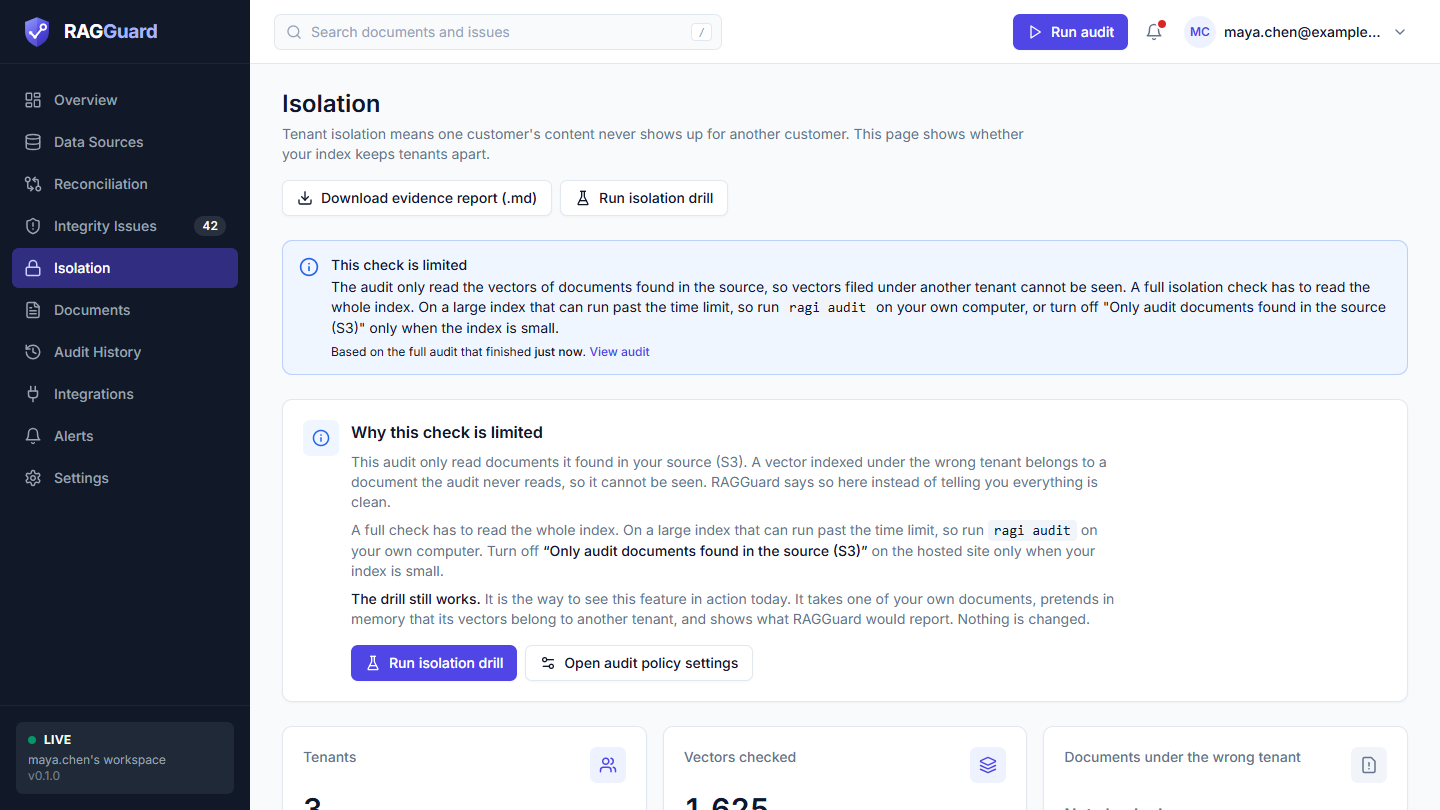
The limited state: a blue banner, the explanation card, and two cards that read Not checked.
What it is. The policy setting Only audit documents found in the source (S3) tells an audit to read only the documents it finds in your S3 listing, and only their vectors in the index. That is faster on a large collection that is shared with other products. The cost is that a vector filed under the wrong tenant belongs to a document the audit never reads. RAGGuard cannot see it, so it does not call the index clean. It calls the result limited.
If your manifest or index is shared with more than your bucket covers, you probably switched this setting on, and then this is the state you will see. It is normal and it is honest. It is not an error.
What you see.
- The banner is blue, titled This check is limited.
- A card titled Why this check is limited explains it: "This audit only read documents it found in your source (S3). A vector indexed under the wrong tenant belongs to a document the audit never reads, so it cannot be seen. RAGGuard says so here instead of telling you everything is clean."
- The card tells you what to do next, and the advice depends on how big your index is. In a hosted workspace: "A full check has to read the whole index. On a large index that can run past the time limit, so run
ragi auditon your own computer. Turn off "Only audit documents found in the source (S3)" on the hosted site only when your index is small." On a single-user server: "To check for real, runragi auditwithRAGI_SOURCE_DOCUMENTS_ONLY=false, or set it to false on the server only when the index is small (it is the "Only audit documents found in the source (S3)" setting)." - The card says: "The drill still works." It is the way to see the feature in action while limited.
- Two buttons: Run isolation drill and Open audit policy settings (which opens Settings, Policy).
- Documents under the wrong tenant and Confirmed reachable by a search read Not checked, with the line "Needs a full read of the index".
- Vectors checked says "only those of documents found in the source".
- All five checks show Not checked.
- A tenant that would be Clean shows Not fully checked.
- An empty Open findings (live) list says an empty list does not prove isolation.
How to get a real result. A full isolation check has to read the whole index, so how you get one depends on how big your index is.
Small index (well under about 700,000 vectors, which is roughly what a hosted audit can read in its 270-second budget).
- Click Open audit policy settings, or open Settings and the Policy tab (Settings).
- Switch off Only audit documents found in the source (S3) and Save.
- Run a full audit (Run audit in the top bar).
- Return to Isolation. The banner now shows a real result.
Large index (about 700,000 vectors or more). Do not switch the setting off on the hosted site. Reading a very large index can run past the time limit of a hosted audit, and the audit then fails (cleanly, with a clear message) and your Last audit shows Failed until the next audit completes. Run ragi audit on your own computer instead, with RAGI_SOURCE_DOCUMENTS_ONLY=false in its environment. It runs the same audit from your own machine, where the hosted time limit does not apply. On a self-hosted server, run ragi audit with RAGI_SOURCE_DOCUMENTS_ONLY=false, or set RAGI_SOURCE_DOCUMENTS_ONLY to false on the server only when the index is small. The Isolation page shows the result of the latest full audit that its server's ledger holds.
What turning it off changes. The audit reads the whole index, not only the documents in your bucket. On a large collection that takes much longer and, on the hosted site, can run past the audit's time limit. The audit also starts to report findings the setting was hiding: left-over vectors for deleted files (Orphan vectors), manifest rows for deleted files (Orphan manifest row) and Tenant mismatch. If your collection is shared with other products, orphan findings for those products' documents may appear. See the setting's description in Settings.
The only one tenant state
When only one tenant was found, the banner is grey and titled Only one tenant. A card titled Why there is nothing to compare yet says: "Only one tenant was found, so there is no other customer whose content could reach its answers. Isolation checks apply once your documents belong to several tenants." and "The drill still works. It is the way to see this feature in action with a single tenant." It has one button, Run isolation drill.
What else changes:
- Documents under the wrong tenant and Confirmed reachable by a search read Not applicable, with the line "Only one tenant exists".
- The Tenants table has one row, with the status Single tenant.
- Checks 1, 2 and 3 show Not applicable. Checks 4 and 5 still run if your index records permissions.
If you expected several tenants, look at the Key pattern on Data Sources and at the tenant_id your pipeline writes: if the pattern gives every document the same tenant, or your manifest and vectors carry no tenant_id, everything lands in the Default tenant. See Concepts you need.
The Run isolation drill dialog
The drill is a practice run. It shows what RAGGuard would do if one of your documents were indexed under the wrong tenant, without changing anything. Use it to see the feature work before there is a real problem, to show a colleague or a customer, or to check that detection works on your data.
How to start it. Click Run isolation drill in the header, or in the explanation card in the limited and one-tenant states. A dialog opens and the drill starts at once. There is nothing to configure: RAGGuard picks a healthy document that has vectors in the index, from your latest audit. (Through the API you can choose the document yourself.)
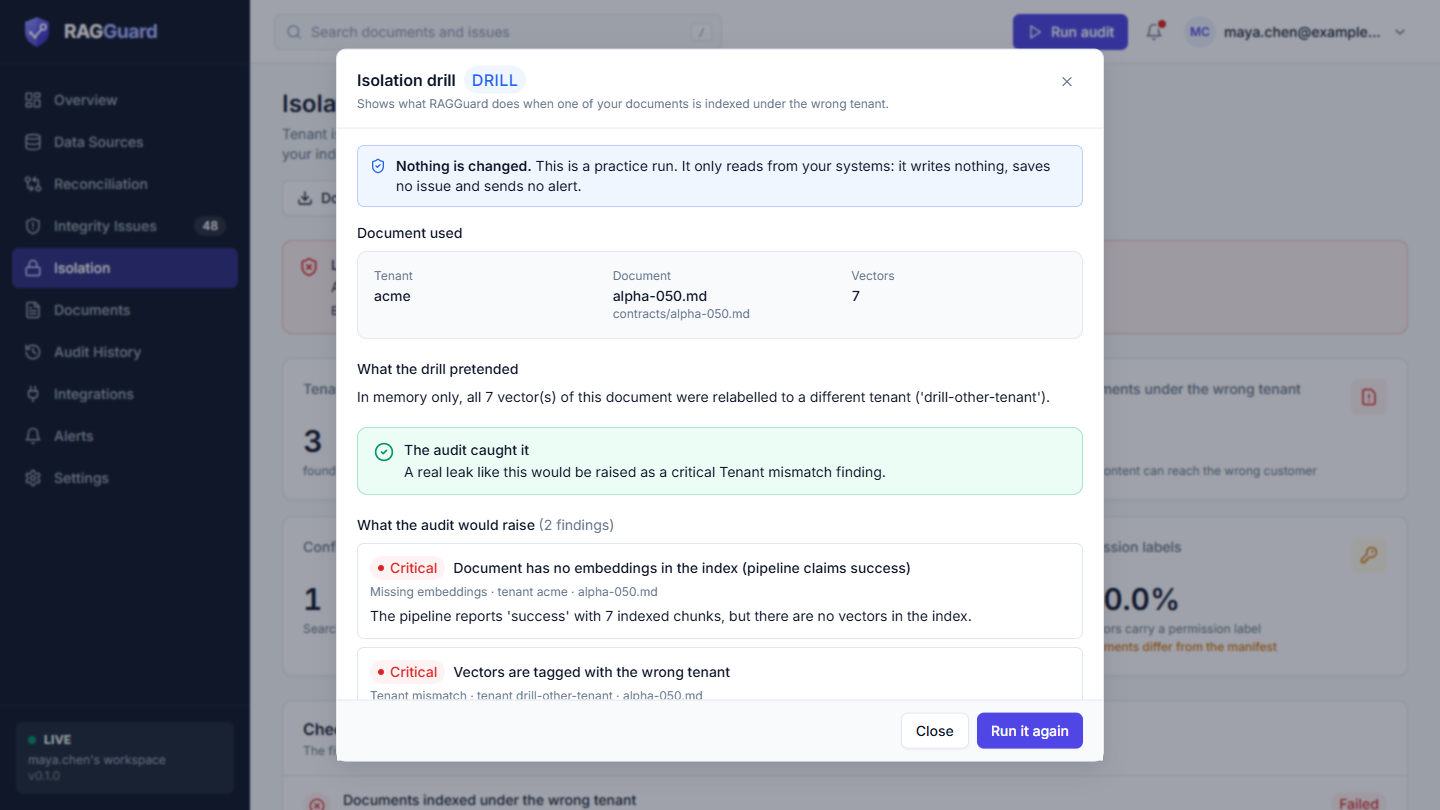
The drill dialog after it ran: the document used, what was pretended, the verdict, the finding and the alert.
What the drill really does. It reads that one document exactly as an audit does (from S3, the manifest and the index, read-only). Then it pretends, only in memory, that all of the document's vectors carry a different tenant name, drill-other-tenant. It runs the normal checks on that pretend picture and reports what they raise. Nothing is written to S3, the database or the index, no issue is saved, no alert is sent, and no live search is made.
The dialog, section by section
| Part | What it shows |
|---|---|
| Title | "Isolation drill", followed by a blue DRILL badge. The badge is there so a drill can never be mistaken for a real finding. |
| Description | "Shows what RAGGuard does when one of your documents is indexed under the wrong tenant." |
| Nothing is changed. | A blue box, always visible while the dialog is open: "This is a practice run. It only reads from your systems: it writes nothing, saves no issue and sends no alert." |
| Running | While the drill runs: "Running the drill on one of your documents..." and "This can take a few seconds.", with grey placeholder blocks. |
| Document used | Three facts: Tenant (the document's real tenant), Document (its file name, with the full id under it when they differ) and Vectors (how many vectors it has in the index). |
| What the drill pretended | One sentence, for example "In memory only, all 12 vector(s) of this document were relabelled to a different tenant ('drill-other-tenant')." |
| The audit caught it | A green box: "A real leak like this would be raised as a critical Tenant mismatch finding." This is the result you want. |
| The audit did not catch it | A red box instead: "The audit did not raise a Tenant mismatch finding for this pretend leak." This would mean the detection failed. |
| What the audit would raise | The number of findings, such as "(2 findings)", then one box per finding. Each shows a severity badge, the title, a line "Tenant mismatch · tenant drill-other-tenant · document name", and the detail sentence. "No finding would be raised." appears when there are none. |
| Alert it would have sent | A severity badge, then the real alert message in a box, then a note under it: "This is the message an audit posts to your alert webhook for a new issue. The drill never sends it." The message is shown the way Slack shows it: bold where the text is starred, code style where it is in backticks. "No alert would be sent." appears when there is none. See the example below. |
| Green box at the bottom | "This was a read-only drill. Nothing was written to your S3, database or vector index, saved as an issue, or sent as an alert." |
| Close and Run it again | Close (or the cross at the top, or Escape) closes the dialog and forgets the result. Run it again repeats the drill. |
About the finding list. The list always holds the Tenant mismatch the drill is about: Critical, under the pretend tenant. It can hold more than one finding, because the pretend move leaves the real document with no vectors under its real tenant, which can raise a finding of its own, for example Missing embeddings. Read the Tenant mismatch as the point of the drill, and any other finding as a side effect of the pretend move.
About the alert text. It is not a mock-up. RAGGuard builds it with the same function an audit uses to build its alert, from the pretend finding. So it is the real wording and the real format described in Alerts. For example, for a document called policies/leave-policy.md:
RAG Integrity: 1 new issue(s) at or above `high` (health 87.5%)
• [CRITICAL] Vectors are tagged with the wrong tenant - `drill-other-tenant/policies/leave-policy.md`
(The numbers and the document are only an example, and the product separates the title from the document with a long dash. The first line follows your Minimum severity setting on Alerts and shows the health score of your latest full audit. The tenant in the bullet is the pretend tenant, drill-other-tenant, because that is where the pretend leak sits. A Tenant mismatch is always Critical, so this message appears whatever minimum severity you chose.) In a real audit the message is posted to your alert webhook if one is saved. The drill only shows it and never sends it.
If the drill cannot run
A red box titled The drill could not run shows the reason. Common reasons:
| Message | What it means | What to do |
|---|---|---|
| "There is no healthy, indexed document to use yet. Run a full audit first." | The ledger has no healthy document that is in the index. | Run a full audit, then try again. |
| A message from the server about one of your systems, followed by "One of your systems did not answer in time. Nothing was changed. Try again in a moment." | S3, the manifest or Qdrant failed or did not answer in time (the server answered with a 502, 503 or 504). | Press Run it again. If it keeps failing, check Data Sources. |
| Any other message, in the same red box | The server refused the request and says why. | Read the message. If it says a connection is missing, open Connect your data sources. |
In every case, nothing was changed.
Download evidence report (.md)
The report is a plain page you can hand to a customer's own customers or to an auditor as evidence of the result.
How to get it. Click Download evidence report (.md) in the header. The button shows a spinner while it works. The browser saves a file named rag-isolation-report.md, and a notice reads "Evidence report downloaded" with the file name. If it fails, a notice reads "Couldn't download the evidence report" with the reason. The button is disabled until a result exists (see The header buttons).
What the file contains, in this order:
- The heading "Tenant isolation report".
- A line "Result:" with the state in capitals (for example LEAK, ATTENTION, CLEAN, LIMITED or NOT APPLICABLE) and the same sentence as the banner.
- A short list: the audit it is based on (its run id and finish time), the number of tenants and vectors checked, the number of documents under the wrong tenant and how many were confirmed reachable, the share of vectors with a tenant label, and the share with a permission label (or "permissions are not recorded"). A percentage that has nothing to measure, for example because there were no vectors, is written
n/a. - A Checks table: each check, its result as
pass,warn,failorna, and its detail line. - A Tenants table: tenant, status, documents, vectors, tenant label, permission label and foreign documents. A percentage with nothing to measure, or a permission label that is not recorded, is written
n/a. The table has no Permission mismatch column. - An Open findings section, only when there are open findings: one line of note ("These findings are read live from the issue list." or, when they no longer match the audit, "These findings are read live and have changed since that audit."), then the severity, the title, the document and the tenant, one finding per line.
- A closing line in italics: "Generated read-only: nothing in your S3, database or vector index was changed."
The report holds the same picture as the page: the latest full audit, plus the findings open at the moment you download it. It is a snapshot, so download a new one after each audit you want to keep.
Before you share it. The report contains your tenant names and document ids. If tenant names are your customers' names, check that you are happy to share them.
Where isolation findings also appear
The Isolation page is a summary. The issues behind it live in other places.
| Where | What you see there |
|---|---|
| Integrity issues | The Tenant mismatch issues (Critical) and the Metadata mismatch issues with the problem acl_mismatch (High). Open an issue for its evidence, including the Retrieval probe, the Expected tenants and the vectors to remove. Filter with Type. |
| Documents | Click a row in the Tenants table to see that tenant's documents. A document's Issues tab lists its isolation findings. |
| Overview | The findings are counted in Open issues, Open issues by severity, Issues by type and Top open issues. |
| Alerts | After an audit that finds a new Tenant mismatch, RAGGuard sends an alert if an alert webhook is saved. A Tenant mismatch is always Critical, so no Minimum severity setting hides it. A permission mismatch is High, so it alerts only when Minimum severity is high, medium or low. Only new, reopened or escalated issues alert. |
| Repair plans | A Tenant mismatch's recommended action is Remove old vectors: your worker removes the wrongly tagged vectors, only after you approve the cleanup. A Metadata mismatch's action is Fix metadata, with no re-embedding. The Isolation page does not create plans. Open the issue and use Create repair plan. |
| Audit history | The banner's View audit link opens the audit the picture comes from. |
Step-by-step tasks
Check isolation after every audit
- Run a full audit (Run audit in the top bar, or Run full audit on Reconciliation). A scoped audit does not update this page.
- Open Isolation in the left menu.
- Read the banner. No leaks found is the goal.
- Glance at the Checks list: a Warning or Failed badge tells you which kind of problem it is.
- If anything is amber or red, open the Tenants table and find the tenants marked Leak or Needs attention.
If you run audits from a scheduler, call GET /api/isolation afterwards and fail the job when overall.status is leak (see The API).
Demonstrate the feature with the drill
Use this when you show RAGGuard to a colleague, a customer or an auditor, or when your result is limited or single-tenant and there is nothing real to show.
- Open Isolation.
- Click Run isolation drill. The dialog opens and runs.
- Wait a few seconds. Read Document used and What the drill pretended.
- Point to The audit caught it, the Tenant mismatch finding in What the audit would raise, and the Alert it would have sent.
- Point to the blue Nothing is changed. box and the green confirmation at the bottom. Nothing was written, saved or sent.
- Click Run it again to repeat, or Close.
Hand the evidence report to a customer or an auditor
- Run a full audit so the result is current.
- Open Isolation and read the banner. Make sure it says what you want to show. A limited result is not evidence of isolation (see The limited state).
- Click Download evidence report (.md).
- Open the file and check it, including the tenant names and document ids it contains.
- Send the file. It is Markdown, so any text editor opens it, and many tools turn it into a page or a PDF.
Fix a leak
- Open Isolation. The banner reads Leak found.
- In the Tenants table, find the tenants with a red Leak badge and a number above 0 in Foreign documents. Those tenants hold content that belongs to someone else.
- In Open findings (live), click the first Tenant mismatch row. The issue panel opens. What's wrong says how many vectors are indexed under the tenant while the document exists only under another. Expected vs actual and Evidence name the real owner under Expected tenants. The Retrieval probe says whether a search returned the content.
- Contain it in your own systems. RAGGuard never changes your data. Decide whether the wrongly tagged vectors should be deleted or relabelled. The evidence lists the collection and sample vector ids, and Raw evidence (JSON) holds the full list.
- If you want your worker to remove them, use Create repair plan. Read the limit for removal-only plans in Practical use cases, and Repair plans.
- Fix the cause: find the step in your ingestion code that writes the wrong
tenant_id. Consider who may already have seen the content. - Confirm. A Scoped audit of the affected tenant or Re-audit document resolves the issue in Integrity Issues. To refresh the summary on this page (the banner, the cards, the Checks and the Tenants table), run a full audit. Until you do, Open findings (live) can already be empty while the banner still says Leak found, and the blue note at the top of that card tells you so. After the full audit the banner should read No leaks found.
Fix a Needs attention result
- Open the Tenants table. Look at each tenant marked Needs attention: a Tenant label or Permission label below 100% (bold amber), or a number in Permission mismatch.
- Missing tenant labels. Make your pipeline write
tenant_idon every vector. Vectors without it count under the Default tenant, which is why that tenant's row usually shows the shortfall. - Missing permission labels. If your pipeline records permissions, make it write
acl_hashon every vector. - Permission mismatch. Open the Metadata mismatch issue in Open findings (live). Under Problems found the code
acl_mismatchsays some vectors carry a different access-control hash than the manifest. Correct whichever side is wrong, the manifest or the vectors. No re-embedding is needed. - Run a full audit and check that the tenant becomes Clean.
Turn a limited result into a real one
Follow How to get a real result in the limited section. On a small index, turn off Only audit documents found in the source (S3), save and run a full audit. On a large index, do not turn it off on the hosted site: run ragi audit on your own computer instead, because a full read can run past the hosted time limit and the audit then fails.
States you may see
| State | What you see | What to do |
|---|---|---|
| Loading | Grey blocks in the shape of the banner, the six cards, the Checks list, the Tenants table and the findings card. Screen readers hear "Loading the isolation result". | Wait a moment. |
| Error | A red warning icon, We couldn't load this, the reason, and Try again. | Press Try again. |
| Not connected (hosted) | The header without its buttons, and a card titled Connect your data first: "Isolation is checked from a full audit of your S3 documents, your PostgreSQL manifest and your Qdrant index. Connect all three, then run your first audit." with a Go to Data Sources button. | Follow Connect your data sources. |
| Not connected (the server says so) | The heading Connect your data sources first with a Go to Data Sources button. | Same. |
| No result yet | No isolation result yet and Run full audit. | When there is no result yet. |
| Limited | Blue banner and the explanation card. | The limited state. |
| Only one tenant | Grey banner and the explanation card. | The only one tenant state. |
| Result | The banner, six cards, Checks, Tenants, Open findings (live). | Read from the top. |
On a demo server the demo data holds planted faults, so the page normally shows Leak found.
The API
Everything on this page is also available over HTTP, so a script can check isolation. All three calls are read-only: they never change your S3 bucket, your database or your index, and they save nothing. (The drill is a POST request, but it only reads.)
| Method | Path | What it returns |
|---|---|---|
| GET | /api/isolation | The isolation picture of the latest full audit, as JSON. Before the first full audit it returns available: false and a note. |
| GET | /api/isolation/report?format=md | The evidence report as Markdown, sent as a download named rag-isolation-report.md. With no format, or format=json, you get the same JSON as /api/isolation. |
| POST | /api/isolation/drill | The drill result as JSON. The body is optional. |
Who may call them. A signed-in browser session, or a RAGGuard API key sent as Authorization: Bearer ragi_... (see Integrations). On a single-user server with a shared key, send it in the X-API-Key header or as a Bearer token.
curl -H "Authorization: Bearer ragi_YOUR_KEY" https://your-ragguard-address/api/isolation

curl -H "Authorization: Bearer ragi_YOUR_KEY" \
  "https://your-ragguard-address/api/isolation/report?format=md" -o rag-isolation-report.md

curl -X POST https://your-ragguard-address/api/isolation/drill \
  -H "Authorization: Bearer ragi_YOUR_KEY"
Choosing the drill document. The web page lets RAGGuard pick. Through the API you can send both tenant and document_id in a JSON body, for example {"tenant": "customer-a", "document_id": "policies/leave-policy.md"}. Send both or neither. The document must already be in an audit.
| Response | When |
|---|---|
400 with a message | You sent only one of the two fields ("Give both tenant and document_id, or neither to let RAGGuard pick a document."), the document has not been audited ("That document has not been audited yet. Run a full audit first, or leave both fields empty."), or there is no healthy indexed document ("There is no healthy, indexed document to use yet. Run a full audit first."). |
422 | tenant is longer than 256 characters or document_id is longer than 2,048. |
502, 503, 504 | One of your systems did not answer. Nothing was changed. |
The main fields of /api/isolation.
| Field | Meaning | Shown on the page as |
|---|---|---|
available | true when a result exists | The result, or No isolation result yet |
audit | run_id, finished_at and kind (full) of the audit used | The banner's last line |
overall.status | leak, attention, clean, limited or not_applicable | The banner |
overall.summary | The banner's sentence | The banner |
overall.tenants | Number of tenants | Tenants |
overall.points_checked | Vectors read | Vectors checked |
overall.leaking_documents | Documents under the wrong tenant | Documents under the wrong tenant |
overall.leaks_tested_by_search | Of those, how many were searched live as the wrong tenant (absent in a result stored by an older version) | The line under Confirmed reachable by a search |
overall.leaks_confirmed_reachable | Of the searched ones, how many a live search returned | Confirmed reachable by a search |
overall.tenant_label_pct, overall.permission_label_pct | Share of vectors with each label, or null | Tenant labels, Permission labels |
overall.permissions_recorded | Whether any permission label exists | Not recorded when false |
overall.permission_mismatch_documents | Documents whose permission label differs from the manifest | The amber line on Permission labels |
tenants | The worst 200 tenants, worst first (status leak, attention, clean or single_tenant), with tenants_total | The Tenants table |
checks | Always five checks, each with a status pass, warn, fail or na | The Checks list |
findings | The issues open right now, with findings_total. findings_live is always true. | Open findings (live) |
findings_changed_since_audit | true when the open counts no longer match what the last full audit recorded | The blue note "These changed since the last full audit. Run a full audit to refresh the summary above." |
The drill's answer. POST /api/isolation/drill returns drill, document (tenant_id, document_id, points), simulated, caught, findings, nothing_changed and would_alert. would_alert holds severity, sent (always false), text (the real alert message, Slack-style) and a note, or null when nothing would be raised.
Tips and common mistakes
- Run a full audit, then read the page. Only a full audit updates the banner, the cards and the Tenants table. A scoped audit or Re-audit document does not.
- A green banner is only as good as the audit behind it. No leaks found covers the documents the audit could read, and recognises a leak by document id. A limited result is deliberately not green.
- Do not read "Not recorded", "Not checked" or "Not applicable" as a failure. They mean "nothing to compare" or "not looked at". Do not read them as a pass either.
- A 0 in "Confirmed reachable by a search" does not clear a leak. By default at most 25 searches are sent per audit, so some leaks may never be searched. Read the line under the number ("Searched 2 of 3 wrong-tenant documents") and the Warning on the check "Leaks confirmed reachable by a real search". Judge by Documents under the wrong tenant.
- A Tenant label below 100% is usually about the Default tenant. Vectors with no label are counted there. Fix the pipeline that writes the label.
- The drill is a demonstration, not a test of your application. It shows that RAGGuard's detection works on your data and what it would say. It does not send a search to your index, and it does not prove that your application filters by tenant.
- The drill never leaves a trace. It saves no issue, sends no alert and does not change the numbers on the page. It is safe to run in production, as often as you like.
- The page changes nothing. Every button here either reads, downloads or opens another page. The only thing that starts work is Run full audit, and an audit only reads your systems.
- Check what you share. The evidence report names your tenants and documents.
- The tenants list stops at 200. With more tenants, search by name, or call the API (it also returns at most 200 and tells you the total).
- Open findings (live) can be ahead of the banner. After a scoped audit resolves an issue, or you ignore one, the list changes at once and a blue note says so. The banner, cards, Checks and Tenants table wait for the next full audit: press Run full audit in the note.
- Menu name and page title are the same. The menu item and the page title both read Isolation.
Related chapters
- Concepts you need: tenant, vector, payload and the retrieval probe
- Reconciliation: running the full audit this page is built from
- Integrity issues: the Tenant mismatch and Metadata mismatch issues in depth
- Repair plans: removing wrongly tagged vectors safely
- Documents: what a tenant holds
- Audit history: the audit a result comes from
- Integrations: API keys, for calling the isolation endpoints from a script
- Alerts: how a new leak reaches your channel
- Settings: the Only audit documents found in the source (S3) switch and the Default tenant
- Practical use cases: responding to a tenant mismatch
- Reference: every value and Troubleshooting