Documents
The Documents page lists every document RAGGuard has compared, one row per document, with the state of its index. Five cards at the top count the documents by status, filters narrow the list, and clicking a row opens a panel about that one document: what the last audit saw (Overview), a live re-read of your three systems with every chunk in the index (Chunks), and the issues found on it (Issues). From the panel you can re-audit just that document or create a repair plan for it. Use this page when you know which document is wrong, or want to find out why one specific answer from your assistant was out of date.
On this page
- Purpose and who needs it
- How to open it
- The page at a glance
- Step-by-step tasks
- The five cards
- Filters
- The table
- The document panel
- States you may see
- Tips and common mistakes
- Related chapters
Purpose and who needs it
Use the Documents page to answer "what is the state of this document?" It is for the engineer who has a specific complaint ("the assistant quotes the old leave policy"), for the owner of a tenant who wants to see all of that tenant's documents, and for anyone who wants to double-check a repair.
Words used here (see Concepts you need):
- Document: one file in your source (Amazon S3), identified by its tenant and its document id, which is usually a folder path such as
policies/leave-policy.md. - Tenant: one customer, team or business unit whose documents are kept apart.
- Manifest: the PostgreSQL table where your pipeline recorded what it processed.
- Vector and chunk: the index (Qdrant) stores each document cut into pieces called chunks, with one searchable vector per chunk.
- Audit result: the status the latest audit gave the document (healthy, degraded, broken, pending or orphaned).
How to open it
- Click Documents in the left menu.
- Use the search box in the top bar, type a word and choose "Documents".
- Click a row in the Reconciliation table (Reconciliation), a document link in an issue panel (Integrity issues), in a repair plan (Repair plans) or in an impact analysis result (Impact analysis). They all open this page with the document panel already open.
- The address is
/documents. Filters are kept in the address asq,statusandtenant; an open panel addstenantanddoc. You can bookmark or share a view.
The page at a glance
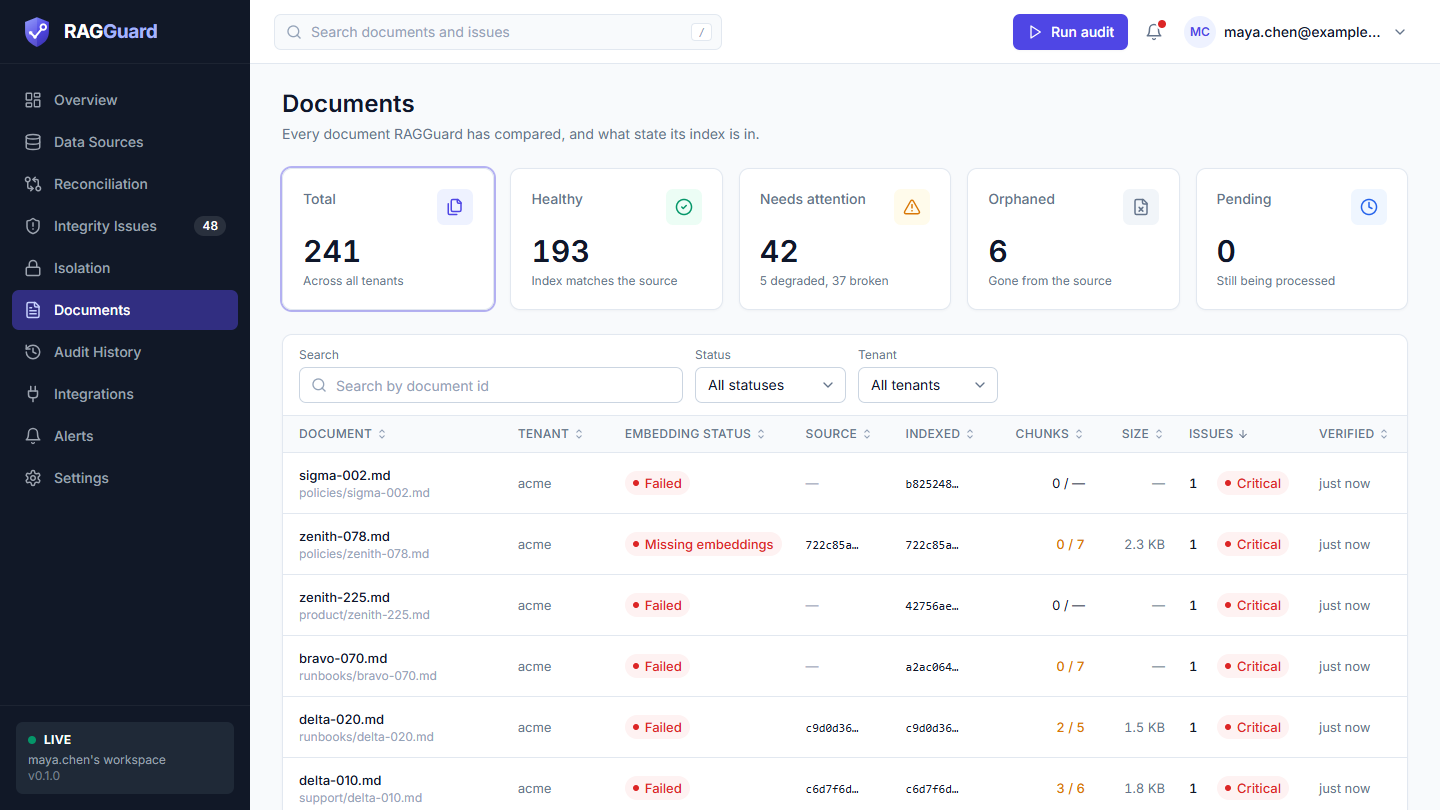
The Documents page: the five cards, the filter bar and the table.
- Title: "Documents" with the line "Every document RAGGuard has compared, and what state its index is in."
- Five cards that count documents by status. Click one to filter.
- Filter bar: Search, Status, Tenant.
- Table: one row per document. Click a row to open its panel.
Step-by-step tasks
Find out why a document gives an old answer
- Type part of its name into Search.
- Click the row.
- On the Overview tab, check Status, the three boxes under Where this document exists, and whether Indexed version has a warning triangle.
- Open the Chunks tab and click Inspect live to see what the index holds right now.
- Open the Issues tab to read what is wrong and click an issue for the explanation.
Check a document after you fixed it
- Open the document.
- Click Re-audit document. Wait for the notice "Audit finished" or "Audit complete".
- The status, the chunk counts and the Issues tab update.
Repair one document
- Open the document. If it has open issues, the main button Create repair plan is shown.
- Click it. The plan opens in Repair plans.
Review one tenant
- Choose the tenant in Tenant.
- Click the Needs attention card, or choose it in Status.
The five cards
The cards count all documents of your latest audit, whatever tenant or search you chose. A thin ring around a card shows which status filter is active. Click Total to remove the filter.
| Card | Number | Hint | What it means |
|---|---|---|---|
| Total | All documents | "Across all tenants" | The number of documents on record from your audits (found in your source, manifest or index). |
| Healthy | Documents with no findings | "Index matches the source" | The three systems agree about them. |
| Needs attention | Degraded plus broken documents | "N degraded, N broken" | Degraded: only Medium or Low findings. Broken: at least one High or Critical finding. Open these first. |
| Orphaned | Documents gone from the source that still have vectors | "Gone from the source" | Deleted or withdrawn content that can still be searched. |
| Pending | Documents changed or being processed within the grace period | "Still being processed" | Too new to judge, probably still being ingested. The grace period is 10 minutes unless you changed it under Audit policy in Settings. Pending documents count as good for the health score. |
While loading the cards are grey blocks. If they cannot be loaded you see an error with Try again.
Filters
All filters combine. Clear filters appears on the right when one is active and resets all of them (it also closes an open panel).
| Filter | Choices | What it does |
|---|---|---|
| Search (placeholder "Search by document id") | Free text | Shows documents whose document id contains the text, ignoring capitals. It applies a moment after you stop typing. The small cross inside the box clears it. |
| Status | All statuses, Healthy, Needs attention, Degraded, Broken, Pending, Orphaned | The audit result. Needs attention is degraded and broken together; Degraded and Broken separate them. |
| Tenant | All tenants and each tenant | Only documents of that tenant. |
The table
Click a column title to sort; click again to reverse. The first sort is by Issues, most first. The table shows 25 rows per page; the Rows drop-down offers 10, 25, 50 and 100, and the arrows move between pages ("Page 1 of 5"). The page loads at most 500 documents; when there are more matches a note says "Showing the first 500 of N. Narrow the filters." Click a row, or focus it and press Enter, to open the panel. The row stays highlighted while its panel is open.
| Column | What it shows | How to read it |
|---|---|---|
| Document | The file name in bold and the full document id under it. Hover for the full text. | |
| Tenant | The tenant that owns it. | |
| Embedding status | A badge with one of five states, see below. | A quick answer to "is it searchable and current?" |
| Source | The version of the document in S3, shortened to its first 7 characters (hover for the full value), or a dash. | |
| Indexed | The version of the document that the index was built from, shortened the same way. An amber warning triangle appears when both versions are known and differ ("Index was built from a different version"). | A triangle means the index is out of date for this document. |
| Chunks | Indexed chunks over expected chunks, for example "8 / 8". The text turns amber with a tooltip "Indexed chunks differ from the chunks expected" when the two numbers differ. A dash for the second number means the manifest records no expected count. | The first number counts distinct current chunks in the index. A lower number than expected means missing chunks; a higher one means chunks the manifest does not list. |
| Size | The size of the source file, for example "12.4 KB" (a dash when the source is missing). | |
| Issues | "None", or the number of issue types found on the document with the worst severity as a badge. | Sorting by this puts the sickest documents first. |
| Verified | How long ago the latest audit that covered this document checked it ("just now", "5 min ago", "3 h ago", "2 d ago"). Hover for the exact time. | If it is old, run an audit or use Re-audit document. |
The Embedding status badge
| Badge | Colour | Shown when | What to do |
|---|---|---|---|
| Healthy | green | The audit found nothing wrong. | Nothing. |
| Stale | amber | The document has a Stale document version issue (and no Missing embeddings issue), or it is only degraded (the index is there but something minor needs attention). | Open the panel. If the source changed, reindex it; if it is degraded, read the Issues tab. |
| Missing embeddings | red | The document has a Missing embeddings issue: nothing is searchable. | Reindex it (Repair plans). |
| Processing | blue | The audit status is pending (within the grace period). | Wait, then audit again. |
| Failed | red | The document is broken or orphaned for a reason other than missing or stale vectors, for example a Partial index, Orphan vectors, Empty embeddings or a Tenant mismatch. | Open the panel and the Issues tab. "Failed" here does not mean that a job failed. |
The badge is worked out in this order: pending gives Processing; a Missing embeddings issue gives Missing embeddings; a Stale document version issue gives Stale; a healthy document gives Healthy; a broken or orphaned document gives Failed; anything else (degraded) gives Stale. Because it combines these rules, always read the Issues column and the panel for the real reason.
The document panel
Click a row to open the panel on the right. Close it with the cross or Escape. The list stays behind it.
The header shows the file name (hover for the full id) and under it the embedding status badge and "Tenant" with the tenant name. Under the header are two buttons, then three tabs.
The two buttons
| Button | What it does |
|---|---|
| Re-audit document | Runs a scoped audit of just this document: it reads the document from S3, the manifest and Qdrant, updates its status and issues everywhere in the product, and records the run in Audit history. It is the quickest way to check a fix. It uses the server's default for retrieval probes. It is disabled, with the tooltip "Connect your data sources first", when your three systems are not connected, and it shows a spinner while any audit is running (only one audit can run at a time). |
| Create repair plan | Shown only when the document has at least one open issue on it. Creates a plan from all its open issues, shows "Repair plan created" ("Review it, then trigger the repair."), and opens it in the Repair plans tab (Repair plans). If it fails you see "Couldn't create the repair plan" with the reason. |
Overview tab
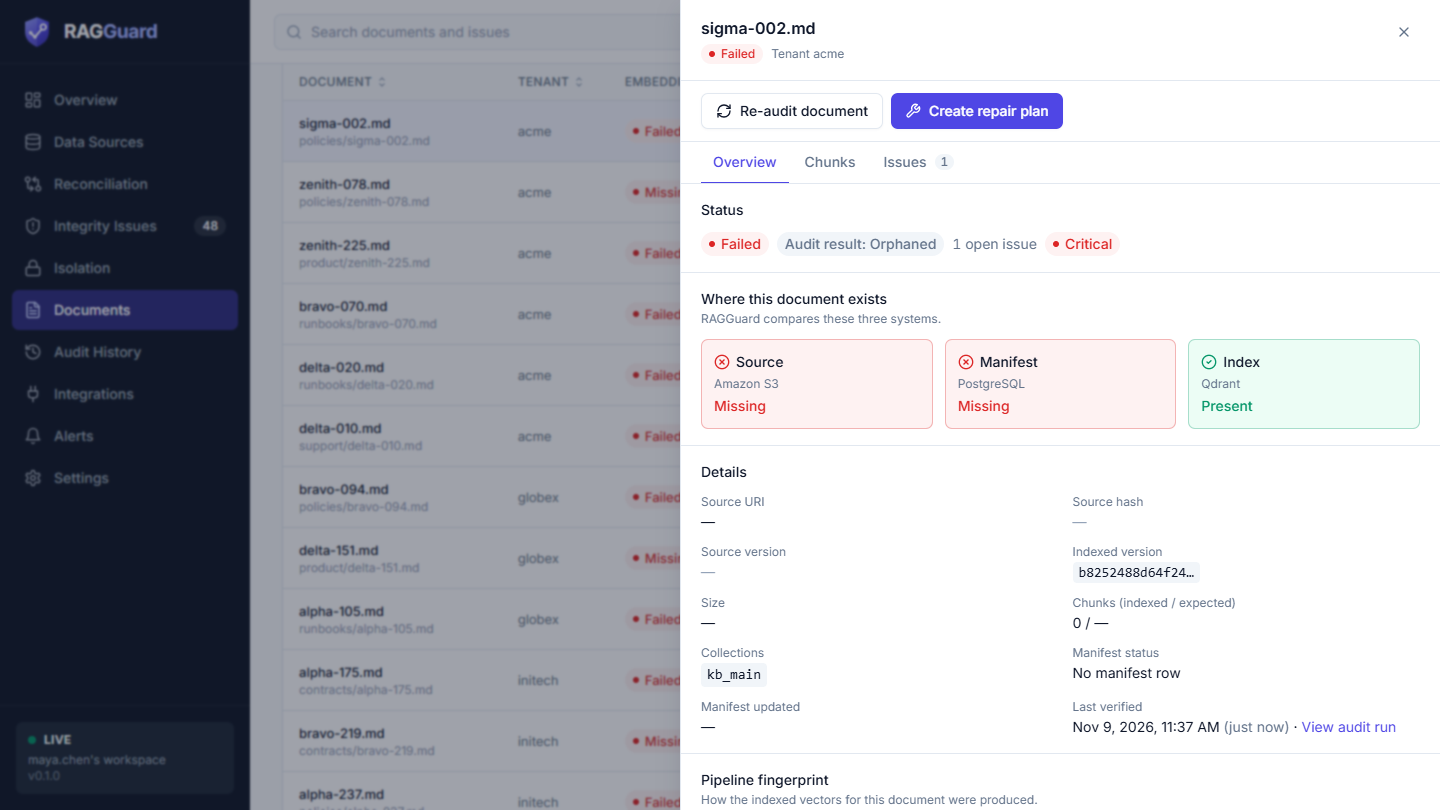
The Overview tab.
This tab shows what the last audit saw. It does not read your systems again.
Status. The embedding status badge, a second badge "Audit result:" with Healthy (green), Degraded (amber), Broken (red), Pending (blue) or Orphaned (grey), and a text such as "2 open issues" or "No open issues". When there are open issues, the worst severity is shown as a badge.
Where this document exists (line: "RAGGuard compares these three systems."). Three boxes: Source (Amazon S3), Manifest (PostgreSQL) and Index (Qdrant). A green box says Present, a red box says Missing. Read them as a pattern:
| Source | Manifest | Index | Usually means |
|---|---|---|---|
| Present | Present | Present | Normal. Check Chunks and Issues for subtler problems. |
| Present | Present | Missing | The pipeline has a record, but nothing is searchable: Missing embeddings (or still processing). |
| Present | Missing | Missing | The pipeline never picked the document up. |
| Present | Missing | Present | Vectors exist that the pipeline has no record of: a Metadata mismatch. |
| Missing | Present or missing | Present | Deleted from S3 but still searchable: Orphan vectors. |
| Missing | Present | Missing | Only a leftover manifest row: Orphan manifest row. |
Details. Label and value pairs:
| Label | Value |
|---|---|
| Source URI | Where the file is, for example an s3:// address, or a dash. |
| Source hash | A fingerprint of the file's content (first 14 characters, hover for all). It changes when the file changes. |
| Source version | The version id of the file in S3. |
| Indexed version | The version the index was built from, with a warning triangle if it differs from the source version. This is what the vectors say; if the vectors carry no version, it is what the manifest claims. |
| Size | File size. |
| Chunks (indexed / expected) | As in the table, amber when the numbers differ. |
| Collections | The index collections that hold vectors for this document. |
| Manifest status | The processing status in the manifest, for example "Success", or "No manifest row". |
| Manifest updated | When the manifest row was last changed. |
| Last verified | When the latest audit checked it, with "(5 min ago)" and a View audit run link. |
Pipeline fingerprint (line: "How the indexed vectors for this document were produced."). The settings used to produce the vectors, one row per recorded setting: Parser version, Chunking version, Chunk size, Chunk overlap, Embedding model, Embedding model version, Embedding dim and Preprocessing. RAGGuard takes them from the vectors in the index (the most common setup among the current vectors) and fills in what is missing from the manifest. If nothing was recorded it says "No pipeline details were recorded for this document." Compare these rows with your target pipeline in Settings: a difference is what raises a Pipeline drift issue.
If the audit knows the document only from issue records (usually because it no longer exists anywhere), the tab says: "RAGGuard has issues recorded for this document but no audit snapshot of it, which usually means it no longer exists in any system. See the Issues tab."
Chunks tab
Before you ask for it, the tab shows a card Inspect this document live: "The Overview shows what the last audit saw. Live inspection reads the document from Amazon S3, its row in the manifest and its vectors in Qdrant right now, and lists every chunk in the index. It can take a few seconds." and the button Inspect live. (Clicking Inspect live from another tab switches to this one.)
While it reads you see "Reading Amazon S3, PostgreSQL and Qdrant. This can take a few seconds." and grey blocks. Live inspection only reads; it changes no issue and no record. If it fails you see the error with Try again; if no data comes back, "No live data came back" with Try again.
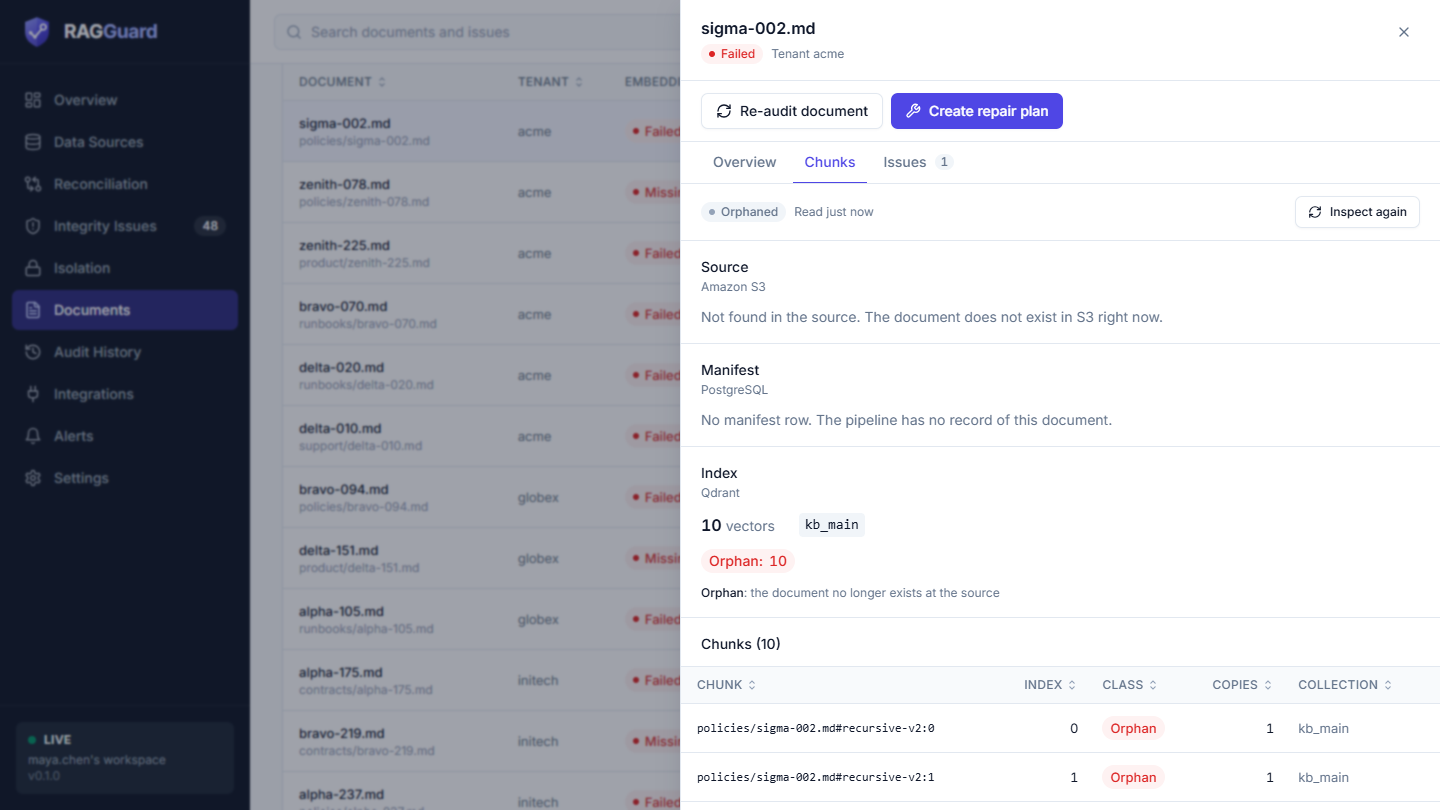
The Chunks tab after Inspect live.
At the top is a strip with the document's live status as a badge (for example Healthy, Broken or Orphaned), the text "Read just now" (with ", refreshing" while it reloads) and the button Inspect again.
Source (Amazon S3).
| Value | Meaning |
|---|---|
| Source URI | The file's location. |
| Version | The S3 version id or ETag. |
| Hash | The content hash. An amber Multipart ETag badge means S3 could only give an ETag from a multipart upload, which is not a true hash of the content: RAGGuard then lowers the severity of Stale document version findings, because identical content re-uploaded can look like a change. |
| Size | File size. |
| Last modified | When the file was last changed in S3. |
If the file does not exist: "Not found in the source. The document does not exist in S3 right now."
Manifest (PostgreSQL). Processing status, Last updated, Source hash, Source version, Indexed version, Chunks expected / indexed (what the manifest says, in that order), and then the pipeline fingerprint rows the manifest recorded (Parser version and so on). If the manifest keeps a chunk-level table, a line says "The manifest lists N expected chunks." If there is no row: "No manifest row. The pipeline has no record of this document."
Index (Qdrant). A large number with the word "vectors" and the collection names. Then coloured badges that count the vectors by class, and a line explaining each class:
| Class | Colour | Meaning |
|---|---|---|
| Fresh | green | Matches the current source and your target pipeline. |
| Stale | amber | Built from an older version of the document. |
| Outdated | amber | Current content, built with an older pipeline setup. |
| Orphan | red | The document no longer exists at the source. |
| Unknown | grey | The index does not say which version it is, so freshness cannot be judged from the index. |
If the vectors were built with more than one setup, an amber note says "Vectors for this document were built with N different pipeline setups."
Chunks. The heading shows the number, for example "Chunks (24)", with a plus sign ("Chunks (500+)") when the list is cut off. If none exist: "No chunks for this document are in the index." Otherwise a table (10 rows per page, sortable):
| Column | Meaning |
|---|---|
| Chunk | The chunk's id (hover for all of it). If your vectors carry no chunk id, RAGGuard makes one up: idx: followed by the chunk number, or pt: followed by the vector's own id. |
| Index | The chunk's position in the document (0 is the first), or a dash if unknown. |
| Class | The class badge from above. |
| Copies | How many vectors this chunk has. More than 1 is shown in bold amber with "This chunk is indexed more than once": a Duplicate chunks issue. |
| Collection | The index collection. |
The table lists the chunks that are in the index; missing chunks are, by definition, not in it. To see which are missing, compare the count with the manifest's expected number or open the Issues tab (a Partial index issue lists them). If there are more than 500 chunks, a note says "The index holds more chunks than are shown here. Only the first 500 are listed."
Findings from this check (line: "What an audit would report for this document right now."). One row per finding with its severity badge, its title and its issue type name, or "No integrity problems found." These findings are not saved. To update the records, click Re-audit document.
Issues tab
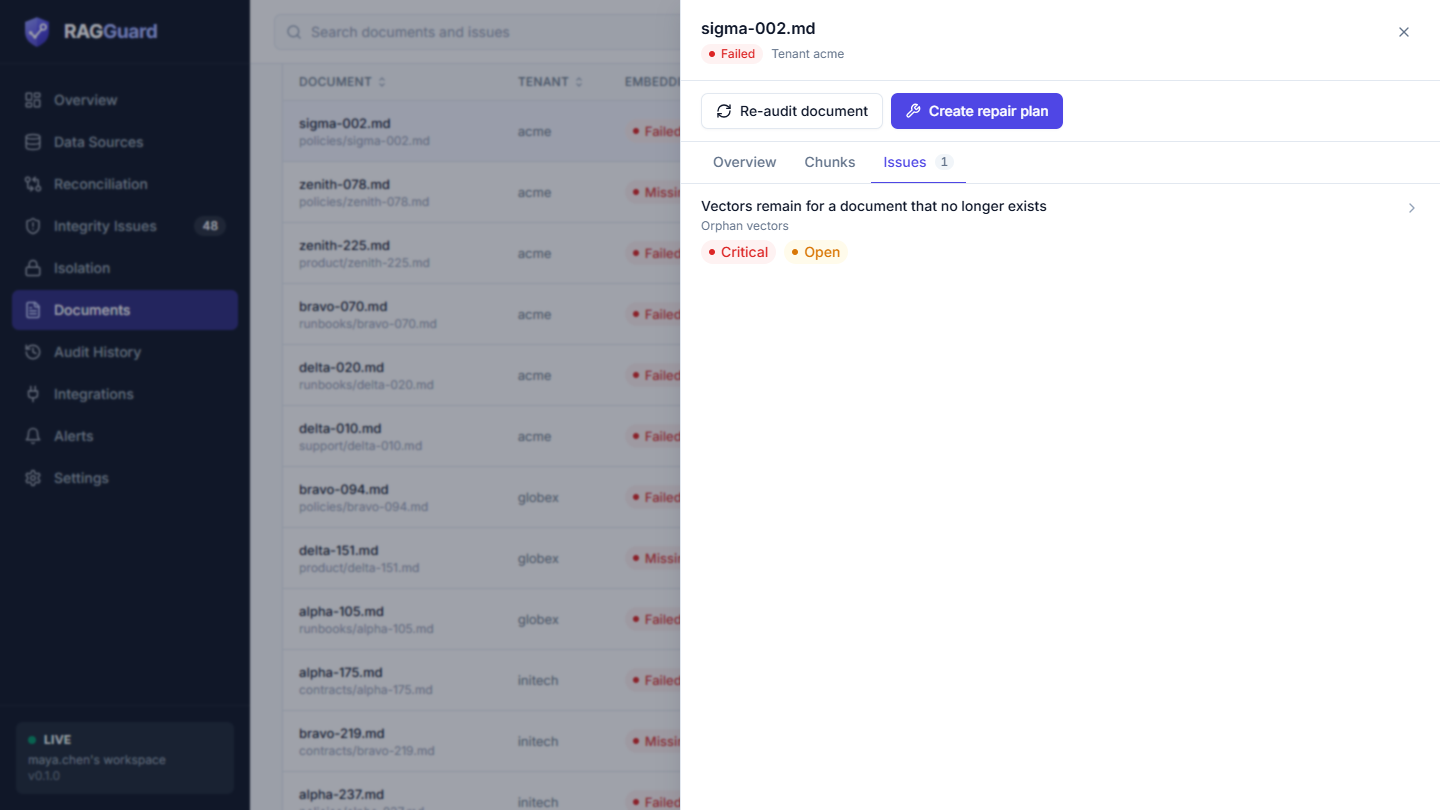
The Issues tab.
The tab title shows a count of all issues recorded for the document, including resolved and ignored ones. Each row shows the issue title, its type name, a severity badge and a status badge (Open, Resolved or Ignored). Click a row to open that issue on the Integrity Issues page (Integrity issues). With none, it says "No issues for this document": "The last audit found nothing wrong with it."
When the document is not found
The panel title becomes "Document not found" and the body says: "RAGGuard has no record of this document in this workspace. It may have been removed, or it was never part of an audit." with a Back to documents button. This happens with an outdated link, or a document that no longer exists in any of your three systems after an audit (such documents are dropped from the list; their old issues remain on the Issues page as resolved).
States you may see
| State | What you see | What to do |
|---|---|---|
| Not connected | "Connect your data sources first": "RAGGuard needs your S3 source, manifest database and Qdrant index before it can compare your documents." with Go to Data Sources. | See Connect your data sources. |
| Loading | Grey placeholder cards and rows. | Wait. |
| Error | "We couldn't load this" with the reason and Try again. | Try again, or see Troubleshooting. |
| No audit yet | "No audit has run yet": "Run your first audit and RAGGuard will list every document it compares, with the state of its index." and a Run audit button. | Click it. |
| Audit found nothing | "No documents found": "The last audit found no documents in your source, manifest or index." | Check that your connections point at the right bucket, table and collections. |
| Filters match nothing | "No documents match these filters": "Try a different search, or remove a filter to see more." and Clear filters. | Clear the filters. |
| Panel loading | Grey blocks. | Wait. |
Tips and common mistakes
- The list shows the last audit. If you changed things since, the rows are out of date until the next audit. Use Re-audit document for one document, or Inspect live to look right now.
- Orphaned and Pending are not errors you can fix by waiting. Pending resolves itself after the grace period; Orphaned needs the vectors removed (Repair plans).
- Read the Issues column, not just the Embedding status. "Stale" can mean a changed source or only a minor problem, and "Failed" does not mean a failed job.
- Chunks in amber are worth opening. Fewer than expected means missing chunks; more means chunks the manifest does not know.
- Documents and Reconciliation show the same documents. The Reconciliation table adds three Source, Manifest and Index icons; this page adds the versions, size and verification time (Reconciliation).
- A scoped re-audit does not refresh the Reconciliation totals. It updates the document, not the comparison cards.