Connect your data sources
RAGGuard cannot check anything until it can read two systems: the Amazon S3 bucket that holds your documents (the source) and the vector store that answers searches (the index: Qdrant, or a pgvector table in PostgreSQL). A third, the PostgreSQL table where your ingestion pipeline recorded what it processed (the manifest), is optional: it adds checks, and audits work without it (see The manifest is optional). This chapter explains the Data sources page and every control on it, then walks through each of the three connections field by field: where to find the values, what each field changes, what Test connection checks, what Save does, and the mistakes people make most often. RAGGuard only ever reads from these systems. It never writes to your bucket, your database or your index.
On this page
- The manifest is optional, and your vectors can live in pgvector
- Purpose, who needs it, how to open it
- What you need before you start
- The page at a glance
- Step by step: connect all three systems
- The three cards, element by element
- Status badges and what feeds them
- The configure dialog: every control
- Test connection and Test: what is the difference
- What Save does
- How secrets are stored and shown
- Hosted mode accepts public addresses only
- Amazon S3
- PostgreSQL manifest
- Qdrant
- The Setup check
- The Issue ledger card
- Single-user mode: a read-only page
- States you may see
- Mistakes that affect all three connections
- Related chapters
The manifest is optional, and your vectors can live in pgvector
In short: RAGGuard needs two connections to run an audit: your S3 bucket and your vector index. The manifest is optional. The vector index can be Qdrant or pgvector (a PostgreSQL table with a vector column).
| Connection | Needed? | What it is |
|---|---|---|
| Amazon S3 | Yes | The documents that should be searchable |
| Vector index | Yes | Qdrant, or a pgvector table in PostgreSQL (Supabase, Neon, AWS RDS or any Postgres) |
| Manifest | No | A table where your pipeline writes down what it processed. With it, RAGGuard can do a few extra checks |
If you have no manifest. Most pipelines read a file, cut it into chunks, embed them and save them, and record nothing. That is fine. Leave the Manifest card alone (it says Optional). RAGGuard then compares your files with the vectors directly. Each vector already carries its document id, and ideally the hash of the file it came from (source_hash):
| File | In S3 | In the index | What RAGGuard says |
|---|---|---|---|
| refund-policy.pdf | hash abc | hash abc | Healthy |
| pricing.pdf | hash xyz | hash old | Stale: the file changed, the vectors are old |
| faq.pdf | exists | nothing | Missing: it was never indexed |
| old-terms.pdf | deleted | still there | Orphan: a deleted file can still be found by a search |
Missing documents, stale vectors, deleted-but-searchable documents, duplicates, empty vectors and wrong-tenant vectors are all found without a manifest. Two things need more from your vectors, and one cannot be done:
- Half-indexed documents are found only if each vector stores its chunk number (
chunk_index). A gap in the numbers is a suspected problem. If each vector also stores the total (chunk_total), the missing chunks are confirmed. - A changed file is recognised from the
source_hashstored on each vector. The Setup check has a check, Vectors carry the file's hash, that warns you when it is missing. - "The pipeline said success, but nothing is indexed" cannot be checked: only a manifest records what the pipeline claimed. The document is still reported as missing, with high severity instead of critical.
Every audit run tells you which checks it left out because no manifest was connected. The run page shows the list under This audit ran without a manifest. Documents show Not connected for the manifest instead of Missing.
If your vectors are in pgvector. On Data sources, under Where are your vectors stored?, choose pgvector (PostgreSQL). The Qdrant card is replaced by a pgvector (PostgreSQL) card. Press Configure and fill in:
| Field | What to enter |
|---|---|
| Connection string | postgresql://user:password@host:5432/dbname?sslmode=require. Use a role that can only SELECT. It is saved encrypted and never shown again |
| Schema | The schema of the table. Default public |
| Table | The table with one row per chunk |
| Column map (JSON) | Only if your column names differ from ours. Point our names at your columns, or at a key inside a JSON column, for example {"document_id": "doc_id", "source_hash": "content_hash", "vector": "embedding"} or {"id": "uuid", "document_id": "cmetadata.doc_id"}. id is the row id (the primary key) |
| Distance | cosine (the usual one), l2 or inner_product: the operator your table's index uses |
| Detect empty embeddings | Also reads the vectors to find empty or all-zero ones. Slower |
Test connection checks that the database answers, that the pgvector extension is installed, that the table and its columns are found, the size of the vectors, and that the rows carry a document id and a source_hash. RAGGuard only reads: every query runs in a read-only transaction, and nothing is ever written to your table.
The rest of this chapter describes all three connections. If you have no manifest, skip the manifest parts. If you use pgvector, read the pgvector card where the chapter says Qdrant.
Purpose, who needs it, how to open it
Purpose. Tell RAGGuard where your documents, your manifest and your index are, check that it can reach each one, and keep an eye on their health.
Who needs it. Everyone, once, before the first audit. You will need credentials, so you may need help from the people who own your AWS account, your database and your Qdrant cluster. Later you come back here when a password changes, a collection is renamed or a connection shows an error.
How to open it. Choose Data sources in the left menu. You also land here from the Set up buttons on the Overview page while the workspace is new, and from the Go to Data Sources button that appears on any page that cannot load because a connection is missing. See Sign in and find your way around if you have not used the menu yet.
What you need before you start
Each connection needs a few values. Collect them first and the dialogs take a couple of minutes each.
| Connection | Values to have ready | Who usually has them |
|---|---|---|
| Amazon S3 (documents) | Bucket name, region code (for example us-east-1), an access key ID and secret access key for a user that may list the bucket and read its objects, and a clear idea of how your document keys (file paths) are laid out | Cloud or platform team |
| PostgreSQL (manifest) | A connection string for a database user that can read the manifest table, the table name (and the chunk table name, if you have one), and your column names if they differ from RAGGuard's | Data or pipeline team |
| Qdrant (index) | The cluster URL with its port, an API key if the cluster needs one, and the collection name or names | Whoever runs the vector store |
The three systems must agree on what a document is. RAGGuard joins them on two things: the tenant and the document id (see Concepts you need). For one document they must produce the same pair, and the same content hash:
| System | Where the tenant and document id come from | Where the content hash comes from |
|---|---|---|
| S3 | The object key, split by the Key pattern. Key acme/policies/leave.pdf with the default pattern gives tenant acme and document id policies/leave.pdf | A SHA-256 stored on the object, or S3's own checksum, or the ETag (see Content hash below) |
| Manifest | The tenant_id and document_id columns of that document's row | The source_hash column |
| Qdrant | The tenant_id and document_id fields in each point's payload | The source_hash field in each point's payload |
If your pipeline records a different id or a different hash, every document will look broken. That is the most common cause of a first audit full of issues, so check it before you blame the product.
The page at a glance
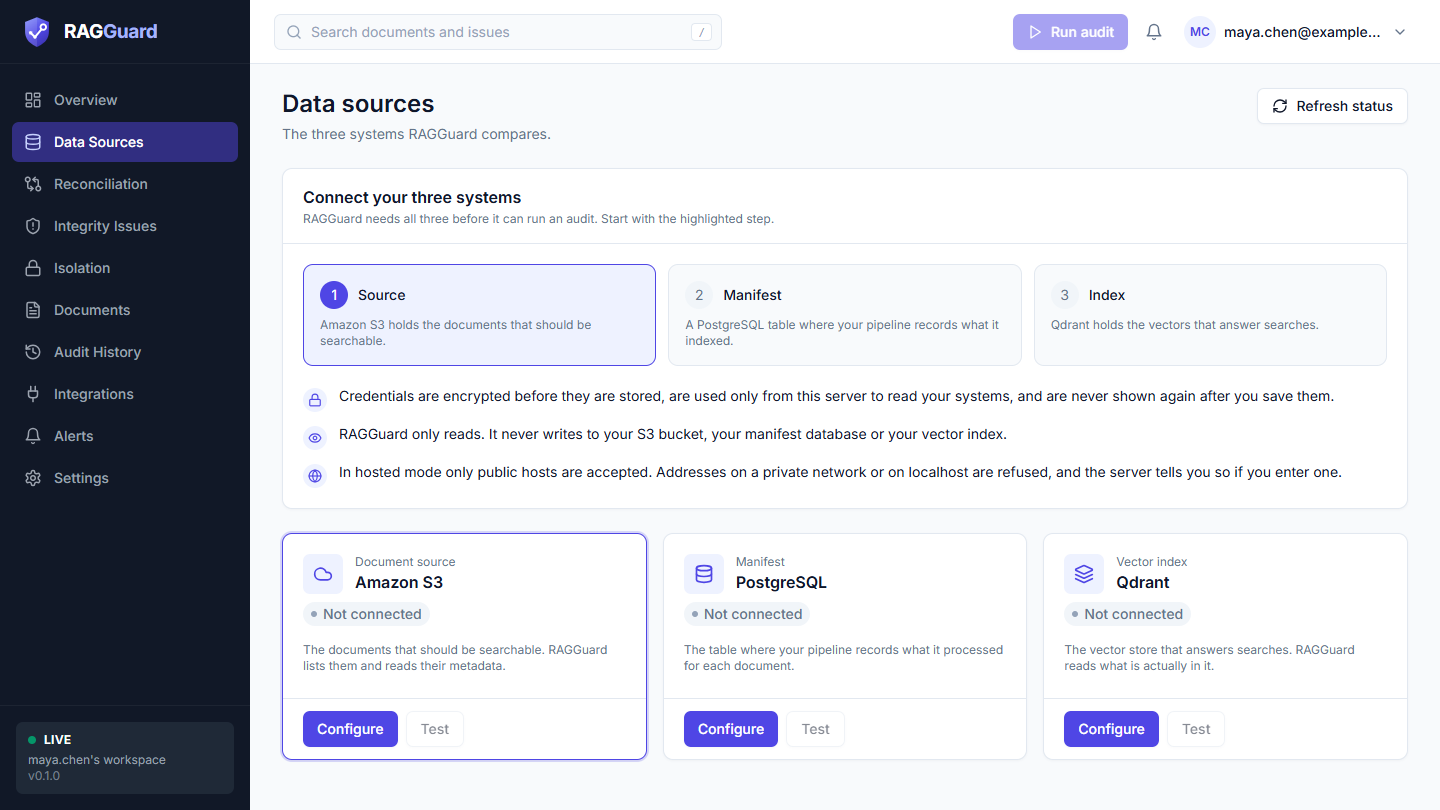
The Data sources page in a new workspace: the guide at the top and one card per system, all showing Not connected.
From top to bottom the page shows:
- Header. The title Data sources, the line "Your documents and your vector index, plus an optional manifest: the systems RAGGuard compares.", and a Refresh status button.
- Guide card (only until your source and your index are saved). Titled Connect your systems, with the line "RAGGuard needs your documents (S3) and your vector index before it can run an audit. The manifest is optional: add it for extra checks." It has the steps (the manifest marked optional) and three reassurances. Below it, Where are your vectors stored? lets you choose Qdrant or pgvector (PostgreSQL).
- System cards in a row: Amazon S3, the optional PostgreSQL manifest (its badge says Optional until you connect one) and the vector index you chose (Qdrant or pgvector). The first required card that is not yet saved has a coloured outline so you know where to start.
- Setup check card (appears once your source and your index are saved). It checks that your systems call the same documents by the same ID. See The Setup check.
- Issue ledger card (appears once at least one connection is saved).
- How RAGGuard connects card (only after the source and the index are saved). It repeats the three reassurances as a reminder.
Refresh status checks every saved connection again and reloads the saved settings. While it works the icon spins and the button is disabled. The page otherwise reuses the last check for up to 30 seconds, so press Refresh status after you fix something.
The guide card. Its three steps are:
| Step | Title | Text |
|---|---|---|
| 1 | Source | Amazon S3 holds the documents that should be searchable. |
| 2 | Manifest | A PostgreSQL table where your pipeline records what it indexed. |
| 3 | Index | Qdrant holds the vectors that answer searches. |
A step shows its number while it is waiting, a highlighted number when it is the next one to do, and a green check once that connection is saved. Below the steps, three reassurances appear:
- "Credentials are encrypted before they are stored, are used only from this server to read your systems, and are never shown again after you save them."
- "RAGGuard only reads. It never writes to your S3 bucket, your manifest database or your vector index."
- "In hosted mode only public hosts are accepted. Addresses on a private network or on localhost are refused, and the server tells you so if you enter one."
Step by step: connect all three systems
- Open Data sources. Start with the card that has the coloured outline. The suggested order is S3, then the manifest, then Qdrant, but any order works.
- On the Amazon S3 card press Configure. Fill in the fields (see Amazon S3).
- Press Test connection. Read every line of the result. A green line is good, an amber line is a warning that reduces what RAGGuard can check, a red line must be fixed. Change the form and test again until nothing is red.
- Press Save. The dialog closes, a message "Source documents (S3) saved" appears, and the card shows Checking for a moment and then Connected (or Error with the reason).
- Repeat steps 2 to 4 for PostgreSQL (see PostgreSQL manifest) and Qdrant (see Qdrant).
- When the third connection is saved, the guide card disappears, the Run audit button in the top bar becomes available, and the Connect your data card on the Overview page goes away.
- Optional but wise: press Test on each card. This tests what is saved and records the result, so the card shows "Last tested ... passed".
- Run your first audit. See Overview and Reconciliation.
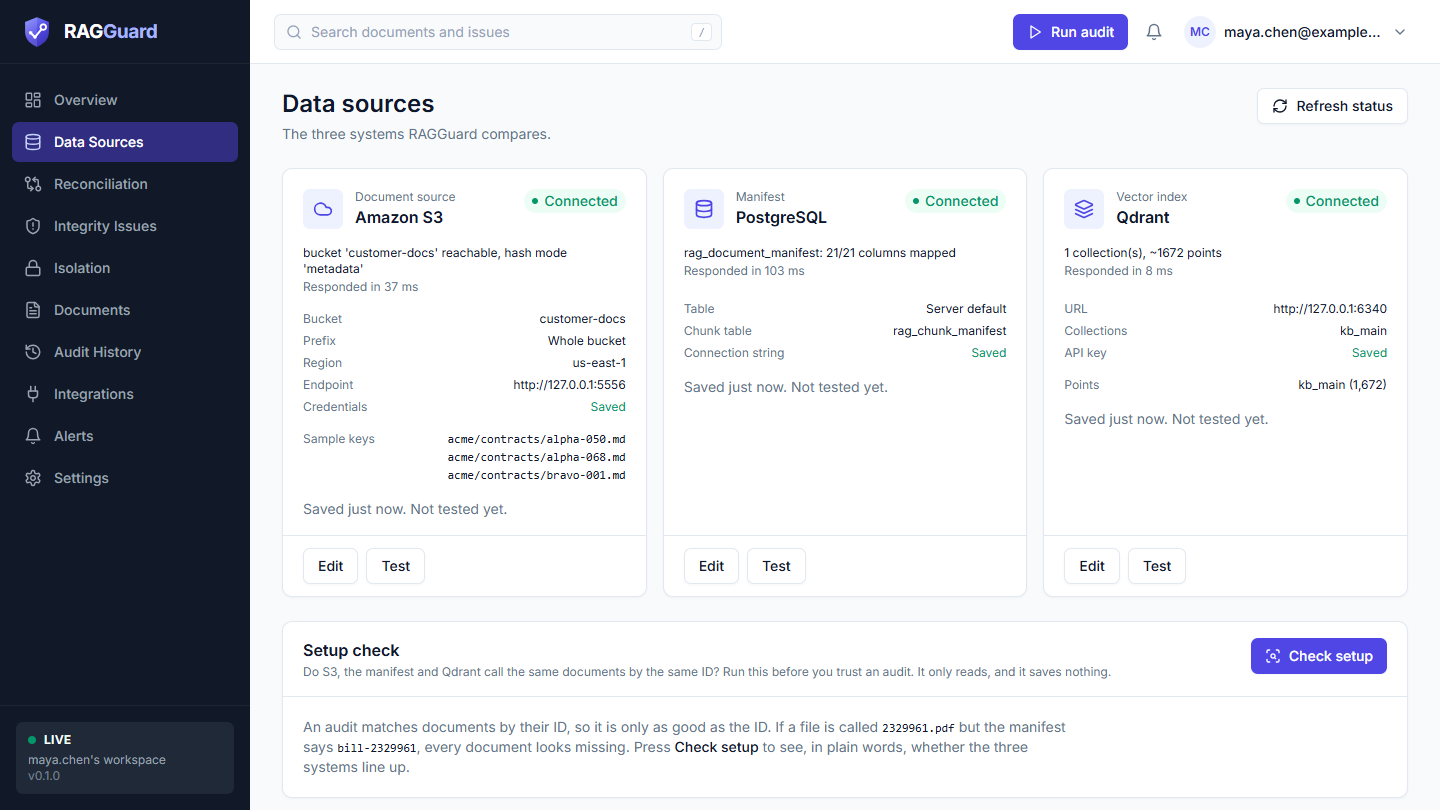
After all three connections are saved and healthy: three Connected cards, then the Setup check card (and below it, out of view, the Issue ledger card).
The three cards, element by element
Every card has the same layout. The three cards differ only in the settings rows they list.
| Element | What it shows | How to read it |
|---|---|---|
| Small label above the name | Document source, Manifest or Vector index | The job this system does for RAGGuard |
| Name | Amazon S3, PostgreSQL or Qdrant | The system |
| State badge | Connected, Not connected, Error, Checking or Status unavailable | See Status badges |
| Status text | What the server measured just now, for example that the bucket is reachable and which hash mode is set. In red when the check failed. Before a connection is saved it shows a one-line description of the system instead, or "Setup is incomplete. Still needed: ..." followed by the missing required fields if you saved only part of it | The newest health information |
| Responded in N ms | How long the live check took | A rough sense of distance and speed. A very large number suggests a slow or far-away system |
| Settings rows | The non-secret settings worth seeing at a glance (listed below) | Confirms what is saved without opening the dialog |
| Live rows | Facts the health check measured (listed below) | Evidence that RAGGuard sees what you expect |
| Saved line | "Saved 3 h ago. Last tested 5 min ago: passed." (the verdict word is green, amber or red). Before any test it says "Not tested yet." | When the settings were last changed, and the last remembered test |
| Test result panel | The check lines from the last press of Test on this card | Cleared whenever the settings are saved again |
| Configure or Edit button | Configure (blue) before the first save, Edit afterwards | Opens the configure dialog |
| Test button | Tests the saved connection. Greyed out until the connection is saved | See Test connection and Test |
Settings rows per card (shown once a connection is saved):
| Card | Row | What it shows |
|---|---|---|
| Amazon S3 | Bucket | The bucket name, or "Not set" |
| Amazon S3 | Prefix | The key prefix, or "Whole bucket" when empty |
| Amazon S3 | Region | The region, or "Not set" |
| Amazon S3 | Endpoint | Only appears when you set a custom endpoint |
| Amazon S3 | Credentials | Saved (green) when both the access key ID and the secret access key are stored, otherwise Missing (amber). The keys themselves are never shown |
| PostgreSQL | Table | schema.table, for example public.rag_document_manifest, or "Server default" when you left both empty (the defaults are schema public and table rag_document_manifest) |
| PostgreSQL | Chunk table | The chunk table name, or "Not set" |
| PostgreSQL | Connection string | Saved or Missing. The string itself is never shown |
| Qdrant | URL | The cluster URL, or "Not set" |
| Qdrant | Collections | The list you typed, or "All collections" when empty |
| Qdrant | API key | Saved (green) or "Not set" |
Live rows per card (shown when the health check measured something):
| Card | Row | What it shows | How to read it |
|---|---|---|---|
| Qdrant | Points | Up to four collections as name (count), then ", and N more" | The approximate number of vectors RAGGuard will scan. Zero or a surprising number means wrong collection |
| PostgreSQL | Unmapped columns (amber) | Columns RAGGuard looks for that your table does not have | Normal for optional columns. Worth reading for the important ones (see the manifest columns) |
| Amazon S3 | Sample keys | Up to three real object keys from your bucket | Check that they look like the documents you meant, and that your Key pattern can read them |
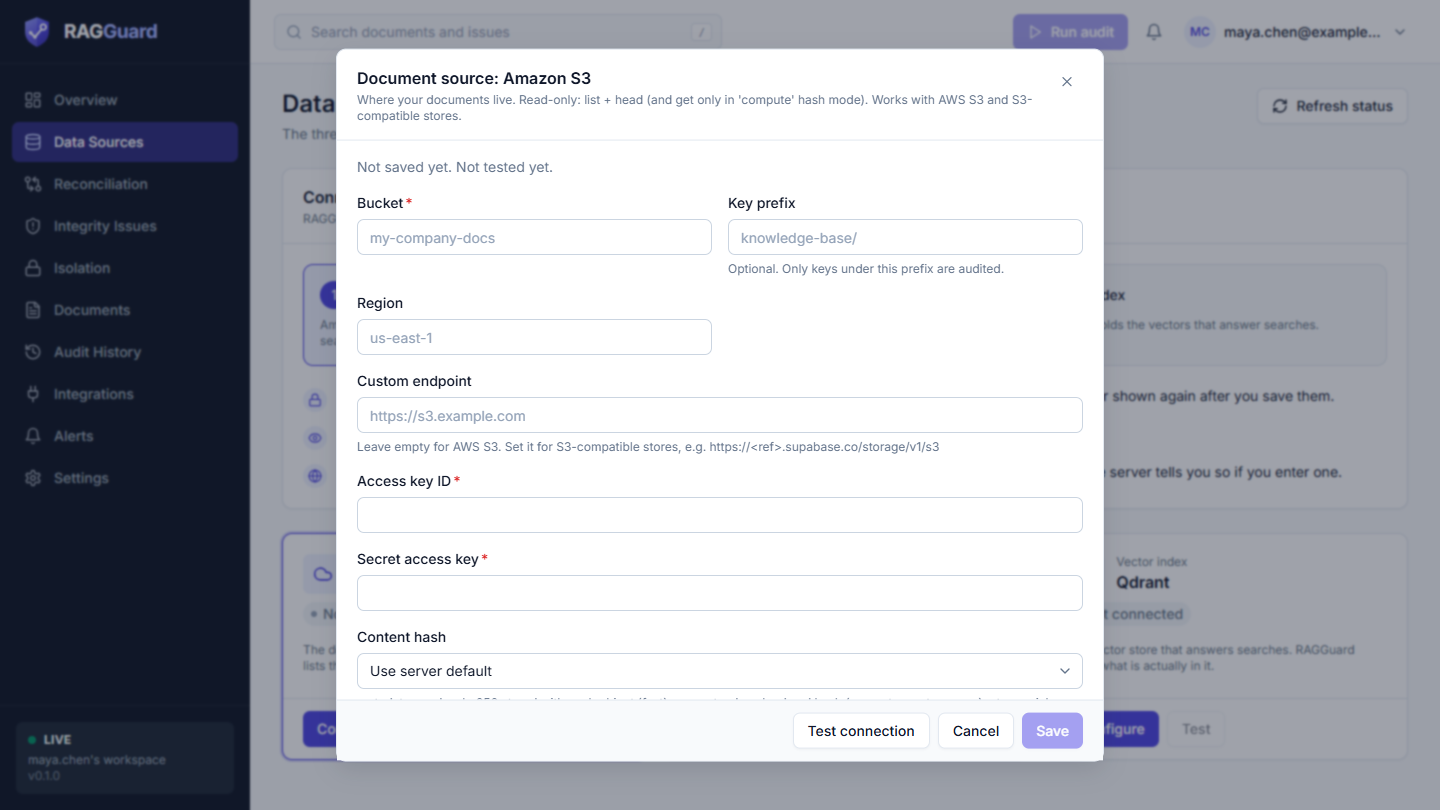
The Amazon S3 dialog opened from the card: title, saved line, then the first fields.
Status badges and what feeds them
Each badge is a small coloured pill with a dot.
| Badge | Colour | When it appears | What to do |
|---|---|---|---|
| Connected | Green | The connection is saved and the server's live check just succeeded | Nothing. Remember that it means "reachable", not "your data is correct". The audit judges the data |
| Not connected | Grey | The required fields for this connection are not saved yet | Press Configure |
| Error | Red | The connection is saved but the live check failed. The status text under the name says why | Read the message, press Edit, fix the value, Save, then Refresh status |
| Checking | Blue | The connection is saved and the live check has not finished yet | Wait a moment |
| Status unavailable | Amber | The connection is saved but the live check could not run at all. The card says "Live status is unavailable right now" and, when known, why | Press Refresh status. If it persists, press Test to get a precise message |
What feeds a badge. Two things, in this order:
- Saved settings. A connection counts as saved when its required fields are stored: for S3 the bucket, access key ID and secret access key; for the manifest the connection string; for Qdrant the URL. Everything else is optional.
- A live health check run by the server when you open the page (and again when you press Refresh status). It is one small read per system:
| System | What the live check does | Text you may see in the status line |
|---|---|---|
| Amazon S3 | Lists up to 5 objects under your prefix | "bucket '...' reachable, hash mode '...'". If some of those sample keys do not fit your Key pattern it adds "; N sample key(s) don't match RAGI_S3_KEY_PATTERN" (that name refers to the Key pattern (regex) field) |
| PostgreSQL | Looks at the columns of the manifest table | For example "rag_document_manifest: 18/21 columns mapped" (21 is the number of columns RAGGuard looks for). It is red when the table is not found or has no document id column |
| Qdrant | Lists collections and counts points | For example "1 collection(s), ~1500 points". It is red with "collection(s) not found: ..." when a collection you named does not exist |
If a check throws an error the line shows the error type and the first part of its message, with any password in a connection string replaced by ***.
The configure dialog: every control
Configure and Edit open a dialog. The same dialog is used for all three systems, and the same controls appear on the Integrations, Alerts and Settings pages, so this section explains them once.
What is in the dialog, top to bottom
- Title: "Document source: Amazon S3", "Manifest: PostgreSQL" or "Vector index: Qdrant", with a short description under it that says what the system is and that RAGGuard only reads from it.
- Saved line: "Not saved yet." for a new connection, otherwise "Saved 3 h ago." Then either "Not tested yet." or "Last tested 5 min ago: passed" (or "passed with warnings", or "failed"). Hover over a time to see the exact date.
- The fields, in two columns on a wide window and one column on a narrow one. Long or secret fields take a whole row.
- Messages: a red message if the server rejected something, and the test result panel after you press Test connection. The dialog scrolls the message into view because the buttons are in a footer.
- Footer buttons: Test connection, Cancel and Save.
You can close the dialog with the X, with Cancel or with the Escape key (not while a save is running). Whatever you typed and did not save is discarded; reopening starts again from the saved values.
The controls
| Control | What it looks like | How it behaves |
|---|---|---|
| Required marker | A red asterisk after the label | The field must have a value before you can save or test. For a secret that is already saved, "a value is saved" counts as having one |
| Text box | A one-line box | Leading and trailing spaces are removed. Auto-capitalisation and spell-check are off |
| Secret box | A box that shows dots while you type | A secret you typed replaces the stored one. See below |
| Number box | A box that accepts only numbers | Whole numbers for counts, decimals for prices |
| Drop-down | A list | Optional drop-downs start with Use server default, which means "I have not chosen; use the product's default" |
| Switch | A small on/off toggle with a label and a help line, in a framed row | A switch only takes effect after Save |
| JSON box | A taller box in a fixed-width font | Must be a JSON object whose values are text. It is shown nicely indented when you open it. Maximum 4,000 characters |
| Help line | Small grey text under a field | Explains the field. It is replaced by a red error line when the field has a problem |
| Test connection | Button in the footer | Tests the values in the form without saving. See below |
| Save | Blue button in the footer | Greyed out until you change something. It shows a spinner while saving. It is also disabled while a test runs |
| Cancel | Button in the footer | Closes the dialog without saving |
Secrets: the "Saved. Leave blank to keep it." behaviour. A secret field is write-only. After you save it, the box is empty again and shows the grey placeholder Saved. Leave blank to keep it. Under the box you see a green padlock and A value is saved. Your options:
- Leave the box empty. The saved value stays exactly as it is. This is the normal case when you edit some other field.
- Type a new value. It replaces the saved one when you press Save.
- Press Remove saved value. This link appears only for secrets that are optional (for example the Qdrant API key). The box greys out and shows "Will be removed when you save", and the help line reads "The saved value will be removed when you save." with a Keep it link to undo. Secrets that are required (the S3 keys and the database connection string) cannot be removed, only replaced.
Inline errors. Nothing is flagged while you type for the first time. When you press Save or Test connection and something is wrong, a red message appears under each problem field and the cursor jumps to the first one. After that the messages update as you type. These checks happen in your browser:
| Message | When |
|---|---|
| "<Label> is required." | A required field is empty |
| "Enter a whole number." / "Enter a number." | A number field contains something else |
| "Choose one of: ..." | A drop-down holds a value that is not on its list |
| "The address must start with https:// or http://." | A URL field (that is not secret) has no scheme |
| "The connection string must start with postgresql://." | Not a PostgreSQL address (postgres:// is also accepted) |
| "The pattern must contain a (?P<document_id>...) group." | The Key pattern has no document id group |
| "Use letters, digits, _, - and . only, separated by commas." | A comma list contains other characters |
| "Not valid JSON (...)" | A JSON box cannot be parsed |
| "Enter a JSON object with text values, for example {"document_id": "doc_ref"}." | JSON is valid but is not an object of text values |
Secret fields are checked only for "is required" in the browser. Their format is checked by the server when you save or test.
Server errors. The server checks every value again. If it rejects one, a red box appears above the buttons with a message that begins with the field label and a colon, for example "Custom endpoint: localhost is not a public host name." The field whose label starts the message gets a red outline. Editing that field clears the outline. Range errors (for example a number that is too big) can only come from the server, because the browser does not check ranges. Nothing is saved when the server rejects a value.
Test connection and Test: what is the difference
There are two test buttons, and they do different things.
| Where | Button | What it tests | Remembered? |
|---|---|---|---|
| Inside the dialog | Test connection | The values currently in the form, merged over what is saved. Nothing is stored | No. The result lives only in the dialog |
| On the card | Test | What is saved | Yes. The result and its time are stored and appear in the "Last tested ..." line |
Use Test connection while setting up, before you save. Use Test on the card to re-check a saved connection later. After you press Save, the remembered test is cleared (the card says "Not tested yet." again) because the settings changed, so press Test again if you want a fresh record.
If you press Test connection while a required field is empty, nothing is sent: you get the "<Label> is required." messages first.
The result panel. It starts with a verdict and how long ago it ran:
| Verdict | Colour | When |
|---|---|---|
| Test passed | Green | Every check is green |
| Test passed with warnings | Amber | No check failed, but at least one gave a warning |
| Test failed | Red | At least one check failed |
Under it, one line per check. Each line starts with an icon and the check name, then a colon and a detail:
- Green check (passed): this part works.
- Amber triangle (warning): it works, but something will limit what RAGGuard can verify, or something looks unusual. It does not block you.
- Red cross (failed): this must be fixed before an audit can work.
A failed test does not stop you from saving. That is deliberate (a network problem should not stop you from keeping your settings), but an audit will fail until the problem is fixed.
Limits. The tests are quick on purpose: a test gives up on an unreachable system within a few seconds instead of retrying for a long time. You can run at most 30 tests every 10 minutes per workspace. After that you see "Too many connection tests. Try again in a few minutes." (on the card this appears as a message "Couldn't test ...").
When you press Test on a card you also get a short pop-up message: "Amazon S3 connection works" (green), "Amazon S3 works, with warnings" (amber, with the first warning), "Amazon S3 test failed" (red, with the first failure) or "Couldn't test Amazon S3" when the test itself could not run. The same words are used with PostgreSQL and Qdrant.
What Save does
- Only the fields you changed are sent. A save never rewrites a value you did not touch, and a secret you left blank is kept.
- The server checks every value again (types, ranges, public addresses, patterns).
- Secrets are encrypted before they are stored. Ordinary values are stored readable (you see them on the card and in the dialog).
- The time of saving is recorded and the remembered test result is cleared.
- Any cached connection to your systems is thrown away, so the next check or audit uses the new values.
- The dialog closes and a pop-up says "Source documents (S3) saved", "Processing manifest (PostgreSQL / Supabase) saved" or "Vector index (Qdrant) saved".
- The page checks the connection again, so the badge moves from Checking to Connected or Error. If all three connections are now saved, the app treats the workspace as ready: the guide disappears and Run audit becomes available.
An empty ordinary field means "use the default". If you empty a field that had a value, the saved value is removed and the default applies again. A switch is saved as on or off.
How secrets are stored and shown
Six fields in the whole product are secret: Access key ID and Secret access key (S3), Connection string (PostgreSQL), API key (Qdrant), Signing secret (repair worker, see Integrations) and the alert Webhook URL (see Alerts).
- They are encrypted before they reach the database, with a key that exists only in the server's environment, never in the database.
- They are write-only. The server never sends a saved secret back to your browser. The interface only knows whether one is saved.
- They are used only from the server, to read your systems. They are never put into audit results.
- Error messages that mention a connection string show the password as
***. - Reading and writing is limited to your own workspace.
If you lose a credential, you cannot get it back from RAGGuard. Create a new one at its source and type it in again.
Hosted mode accepts public addresses only
In hosted mode (the normal way to use RAGGuard, with accounts and a private workspace; see Concepts you need), every address you type is a place the RAGGuard server will connect to. To keep that safe, the server accepts only public addresses, and it checks twice: when you save (or test) and again right before each connection.
What is refused:
- Addresses on a private network (for example
10.x.x.x,192.168.x.x), loopback addresses (127.0.0.1), link-local addresses and cloud metadata addresses. - Names such as
localhost, or ending in.localhost,.local,.internal,.lanor.home.arpa. - A name that resolves to a private address, even if the name looks public. Every address the name resolves to must be public.
- URLs that contain a user name or password (
https://user:pass@host). Put credentials in the credential fields instead. - A database address that is not
postgresql://, has no network host (a socket file), or has connection options other thansslmode,connect_timeoutandapplication_name.
What you see: a red message above the buttons, and the field outlined in red. Nothing is saved or tested. For example:
| You typed | Message |
|---|---|
Qdrant URL http://localhost:6333 | URL: localhost is not a public host name. |
S3 Custom endpoint http://10.0.0.5:9000 | Custom endpoint: 10.0.0.5 is a private or reserved address; only public hosts are allowed. |
Connection string postgresql://u:p@db.internal:5432/app | Connection string: db.internal is not a public host name. |
| A name that resolves to a private address, typed in the Qdrant URL field | URL: <name> resolves to a private or reserved address; only public hosts are allowed. (the label in front is the field you typed it into) |
| A name that does not exist | URL: Could not resolve <name>. (again with the label of the field you used) |
A URL starting with ftp:// | The address must start with https:// or http:// (the browser says this first) |
| A URL with credentials | Do not put credentials inside the URL. |
A database option such as pgbouncer=true | Connection string: Unsupported connection option(s): pgbouncer. Allowed: application_name, connect_timeout, sslmode. |
A mysql:// address | Connection string: Only postgresql:// connection strings are supported. |
What to do if your system is on a private network. Make it reachable from the internet at a public address, restricted as tightly as your provider allows (and use a read-only account). Ask your administrator. The only exception is a self-hosted RAGGuard server whose operator has switched the check off; the interface does not tell you which kind of server you are using, so ask the operator.
Amazon S3
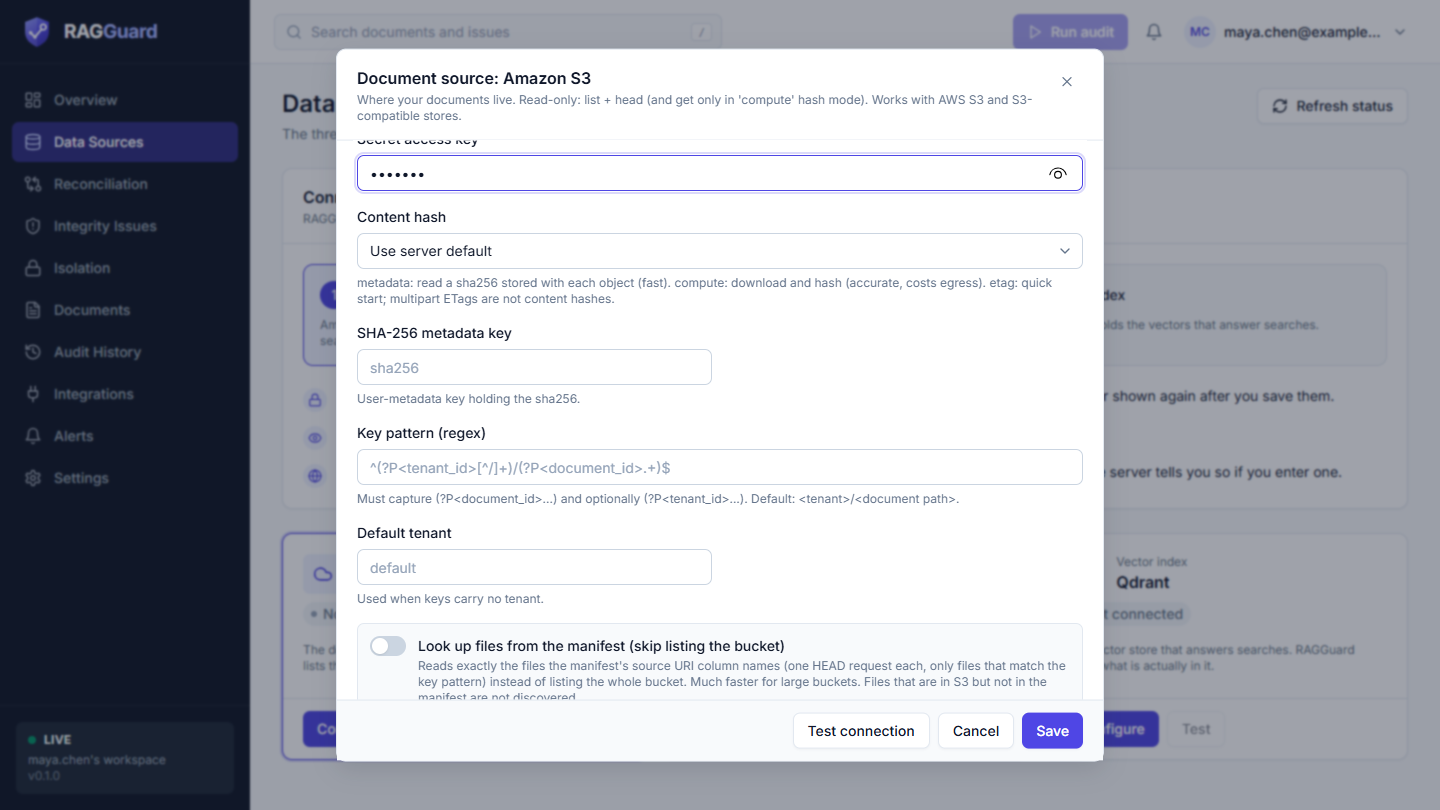
The lower half of the Amazon S3 dialog: Content hash, SHA-256 metadata key, Key pattern (regex), Default tenant and the lookup switch.
The S3 connection tells RAGGuard which documents exist right now. RAGGuard lists the objects, reads their size, modification time and a content hash, and compares that with the manifest and the index. It works with AWS S3 and with S3-compatible stores such as Supabase Storage, MinIO and Cloudflare R2.
Get the values
Bucket and region. In the AWS console open S3, then Buckets. The bucket name is in the first column. The region is shown for each bucket; type its code (for example us-east-1 or ap-south-1), not its long name.
Permissions. RAGGuard needs only two read permissions. HeadObject (how RAGGuard reads an object's hash) is authorised in AWS by the s3:GetObject permission, so both are needed:
s3:ListBucketon the bucket, ands3:GetObjecton the objects in it.
A policy for a dedicated read-only user (replace YOUR-BUCKET):
{
  "Version": "2012-10-17",
  "Statement": [
    { "Effect": "Allow", "Action": "s3:ListBucket", "Resource": "arn:aws:s3:::YOUR-BUCKET" },
    { "Effect": "Allow", "Action": "s3:GetObject",  "Resource": "arn:aws:s3:::YOUR-BUCKET/*" }
  ]
}
Access keys. In AWS open IAM, then Users, choose or create a user with the policy above, open Security credentials and press Create access key. Copy the Access key ID and the Secret access key straight away: AWS shows the secret only once. Use a dedicated user, not your root account.
S3-compatible store. Use that provider's S3 address as the Custom endpoint (Supabase Storage: https://<project-ref>.supabase.co/storage/v1/s3), and that provider's region and access keys.
The fields
Eleven fields. Required fields have an asterisk in the dialog.
| Label | Required | Secret | Default | Example |
|---|---|---|---|---|
| Bucket | Yes | No | None | my-company-docs |
| Key prefix | No | No | Empty (whole bucket) | knowledge-base/ |
| Region | No | No | None | us-east-1 |
| Custom endpoint | No | No | None (AWS S3) | https://abcd1234.supabase.co/storage/v1/s3 |
| Access key ID | Yes | Yes | None | AKIA... (about 20 characters) |
| Secret access key | Yes | Yes | None | (about 40 characters, shown once by AWS) |
| Content hash | No | No | metadata | metadata |
| SHA-256 metadata key | No | No | sha256 | sha256 |
| Key pattern (regex) | No | No | ^(?P<tenant_id>[^/]+)/(?P<document_id>.+)$ | ^(?P<document_id>.+)$ |
| Default tenant | No | No | default | main |
| Look up files from the manifest (skip listing the bucket) | No | No | Off | On |
Bucket
- What it is: the name of the bucket that holds your documents. Name only (up to 255 characters).
- What it changes: which bucket RAGGuard lists.
- Common mistakes: pasting
s3://my-bucket/or the console address; a bucket name that exists but in a different region than Region.
Key prefix
- What it is: a folder-like start of the object keys. Only keys that begin with it are audited.
- What it changes: the listing is limited to that prefix, the prefix is removed from each key before the Key pattern is applied, and a scoped audit rebuilds keys as
<prefix><tenant>/<document>. Use it to audit one area of a shared bucket. - Common mistakes: leaving out the trailing slash. With prefix
kband keykb/acme/leave.pdf, what is left for the pattern is/acme/leave.pdf, which starts with a slash, so the default pattern matches nothing;kbwould also pick upkb-old/.... Writekb/. Starting the prefix with a slash (S3 keys do not).
Region
- What it is: the AWS region of the bucket, as a code.
- What it changes: the region used to sign requests. For an S3-compatible store use that provider's region.
- Common mistakes: typing a long name instead of the code; a region that does not match the bucket. The test may then say "The secret access key is wrong, or the region does not match the bucket."
Custom endpoint
- What it is: the web address of an S3-compatible store. Leave it empty for AWS S3.
- What it changes: requests go to that address instead of AWS, and RAGGuard uses path-style addressing (the bucket name goes in the path), which these stores generally need. It must be a public
https://orhttp://address without credentials. - Common mistakes: filling it in for AWS S3; including the bucket name in it; using a private address such as a MinIO on your office network (refused, see public addresses).
Access key ID (secret)
- What it is: the public half of an access key pair.
- What it changes: who RAGGuard acts as when it reads your bucket.
- Common mistakes: using keys without
s3:ListBucketands3:GetObject; pasting extra characters; using root account keys.
Secret access key (secret)
- What it is: the private half of the pair.
- Common mistakes: losing it (AWS shows it once; create a new key instead); pasting only part of it. A wrong value gives "The secret access key is wrong, or the region does not match the bucket."
Content hash (drop-down: Use server default, metadata, compute, etag)
- What it is: how RAGGuard learns the content fingerprint (a SHA-256 hash) of each document. RAGGuard compares that fingerprint with the one your pipeline recorded to find documents that changed after they were indexed.
- The three choices, in plain words:
metadata(the default): read a SHA-256 that is stored with each object, either as user metadata under the key in SHA-256 metadata key, or as S3's own SHA-256 checksum. It costs one small request per object and is fast. If an object has neither, RAGGuard falls back to its ETag.compute: the hash is calculated by reading the object. In the current build RAGGuard first looks for a stored SHA-256 or S3 checksum and only reads (downloads) the object when it finds none, so withcomputean object that already carries a stored hash is trusted as it is. Reading costs data transfer and time. File contents are hashed and thrown away, never stored.etag: use the ETag S3 reports. This is the quickest to start with and needs no extra requests, but ETags of multipart uploads are not content hashes. Such documents are marked "hash unreliable", and stale-embedding findings for them are lowered to medium severity.
- What it changes: how accurate changed-document detection is, how many requests an audit makes, and (for
compute) how much data is read. - Common mistakes: choosing a mode whose value your pipeline does not copy into the manifest (
source_hashcolumn) and the Qdrant payload (source_hashfield). They must be the same value, or every document looks stale.
SHA-256 metadata key
- What it is: the name of the user-metadata entry that holds the hex SHA-256 of the object (S3 shows user metadata as
x-amz-meta-<name>). Compared without regard to capitals. - What it changes: where RAGGuard looks for the hash in
metadatamode (and first incomputemode). - Example: upload with
aws s3 cp report.pdf s3://my-bucket/acme/report.pdf --metadata sha256=<hex digest>. - Common mistakes: storing the hash under a different name than this field says; storing a base64 digest in the metadata (it must be the hex text, because RAGGuard uses it as it is).
Key pattern (regex)
- What it is: a regular expression (a text pattern) that turns an object key into a tenant and a document id. It must contain a named group
(?P<document_id>...)and may contain(?P<tenant_id>...). It is matched from the start of the key, after the prefix is removed. - What it changes: which objects count as documents, and what each one is called. Keys that do not match are ignored. Keys ending in
/(folder markers) are ignored. - Examples: the default turns
acme/policies/leave.pdfinto tenantacme, documentpolicies/leave.pdf. For a bucket with no tenants use^(?P<document_id>.+)$and set Default tenant. To audit only PDF files:^(?P<tenant_id>[^/]+)/(?P<document_id>.+\.pdf)$. - Common mistakes: forgetting the document id group (the form refuses it); a pattern that is too strict, so most keys are ignored (the test shows "N of M sampled keys match"); a bucket layout where the key cannot be rebuilt from tenant and document id, such as
bills/<folder>/<file>.pdf(audits of specific documents then list the prefix instead of fetching exact keys).
Default tenant
- What it is: the tenant name used for S3 keys when the pattern has no
tenant_idgroup. - What it changes: the tenant that the S3 side reports for every document.
- Common mistakes: assuming it also applies to the manifest and to Qdrant. It does not. Those use the Default tenant on the Policy tab of Settings (see Settings). When your bucket has no tenants, set both to the same name, or every document will look present in one system and missing in the others.
Look up files from the manifest (skip listing the bucket) (switch)
- What it is: a speed option for very large buckets. Instead of listing every object, RAGGuard reads the manifest first and then looks up exactly the files the manifest names, one small request each.
- What it changes: the cost no longer grows with the size of the bucket. The trade-off: a file that is in S3 but not in the manifest is not discovered, so "document the pipeline never picked up" findings disappear. It needs the manifest's
source_uricolumn to be mapped (see the manifest columns). It acceptss3://bucket/key,https://bucket.s3.region.amazonaws.com/keyandhttps://host/bucket/keyaddresses, keeps only files in this bucket that fit the Key pattern, and skips files that do not exist. In the current build full audits and whole-tenant audits use it; an audit of specific documents checks those documents directly. - Common mistakes: turning it on when
source_uriis empty or points to another bucket (nothing is found); expecting it to find files the pipeline missed.
What Test connection checks (S3)
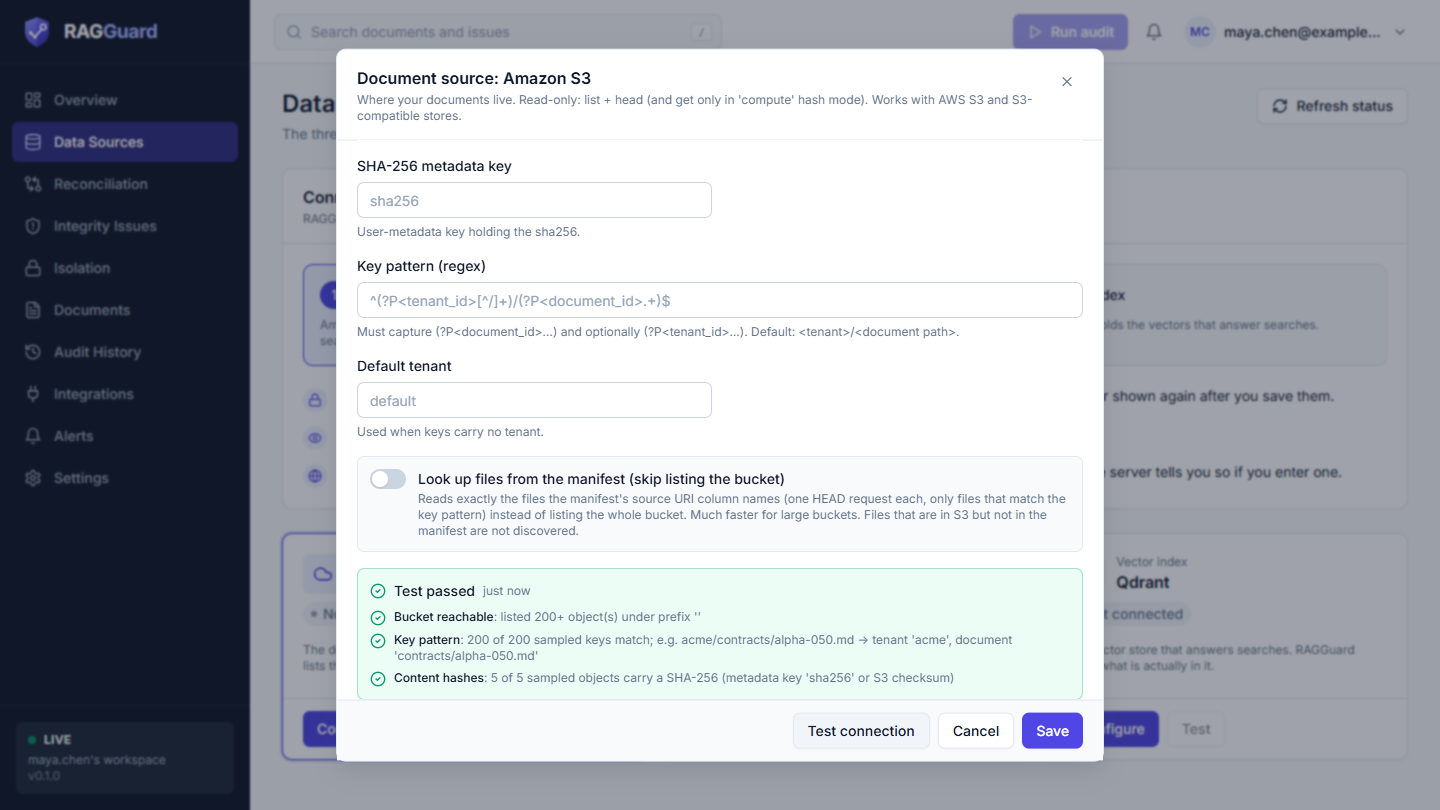
Result of Test connection for S3: a verdict and one line per check.
| Check line | Passed | Warning | Failed |
|---|---|---|---|
| Bucket reachable | "listed N object(s) under prefix '...'" (N has a + after it when there are more than the 200 sampled) | n/a | The bucket could not be listed. The detail is one of the explanations in the table below |
| Documents found | not shown | "No objects under this bucket/prefix yet. The audit will report an empty source." The test stops here | n/a |
| Key pattern | "N of N sampled keys match; e.g. <key> -> tenant '...', document '...'" | "N of M sampled keys match": some keys do not fit the pattern and will be ignored | "None of the sampled keys (e.g. ...) match the key pattern. Adjust 'Key pattern' so it captures document_id (and optionally tenant_id)." The test stops here |
| Object metadata | not shown | n/a | Reading an object's details failed (usually a missing s3:GetObject permission). The test stops here |
| Content hashes | metadata mode: "5 of 5 sampled objects carry a SHA-256 ..." ; compute mode: "hash mode 'compute': objects are streamed and hashed during each audit (egress cost)" (the wording is older than the behaviour described under Content hash above) | metadata mode when fewer than the 5 sampled objects carry a hash ("the others fall back to the ETag, which is flagged unreliable for multipart uploads"); etag mode always ("ETags are not content hashes for multipart uploads") | n/a |
The test samples the first 200 keys under the prefix and checks the details of up to 5 of them. Messages for Bucket reachable and Object metadata failures:
| Message | What it means and what to do |
|---|---|
| Could not connect to the S3 endpoint. Check the endpoint URL (leave it empty for AWS S3) and that it is reachable from the internet. | The address is wrong or unreachable. Check Custom endpoint |
| No usable credentials: fill in both the access key ID and the secret access key. | One of the two keys is missing |
| The bucket does not exist (check the name and region/endpoint). | Wrong Bucket, Region or Custom endpoint |
| Access denied: the key needs s3:ListBucket on the bucket and s3:GetObject on its objects (AWS requires GetObject for the HEAD requests that read content hashes). Both are read-only. | Fix the IAM policy |
| The access key ID is not recognised by this endpoint. | Wrong key, or a key for another provider |
| The secret access key is wrong, or the region does not match the bucket. | Re-enter the secret, check Region |
| Access denied: check the access key permissions. / Not found: check the bucket name. | Generic 403 and 404 answers |
| A line starting with an error type name | Anything else: the type and the first part of the message |
Worked example
Your documents sit in acme-kb in Europe, laid out as <customer>/<folder>/<file>.pdf, and your pipeline stores a SHA-256 in object metadata named sha256.
- Bucket:
acme-kb - Region:
eu-west-1 - Access key ID and Secret access key: from a user with the policy above
- Leave Key prefix, Custom endpoint, Content hash (
metadata), SHA-256 metadata key (sha256), Key pattern and Default tenant as they are.
Press Test connection. A green Key pattern line such as "e.g. acme/runbooks/restart.pdf -> tenant 'acme', document 'runbooks/restart.pdf'" tells you the tenant and the document id are read the way you expect.
Common mistakes (S3)
- Missing
s3:GetObject: the listing works but the object details fail. - The key layout does not match the Key pattern (the test says so).
- A prefix without a trailing slash.
- A hash mode that does not match what the pipeline records.
- Forgetting that Default tenant here and on the Policy tab are two different settings.
PostgreSQL manifest
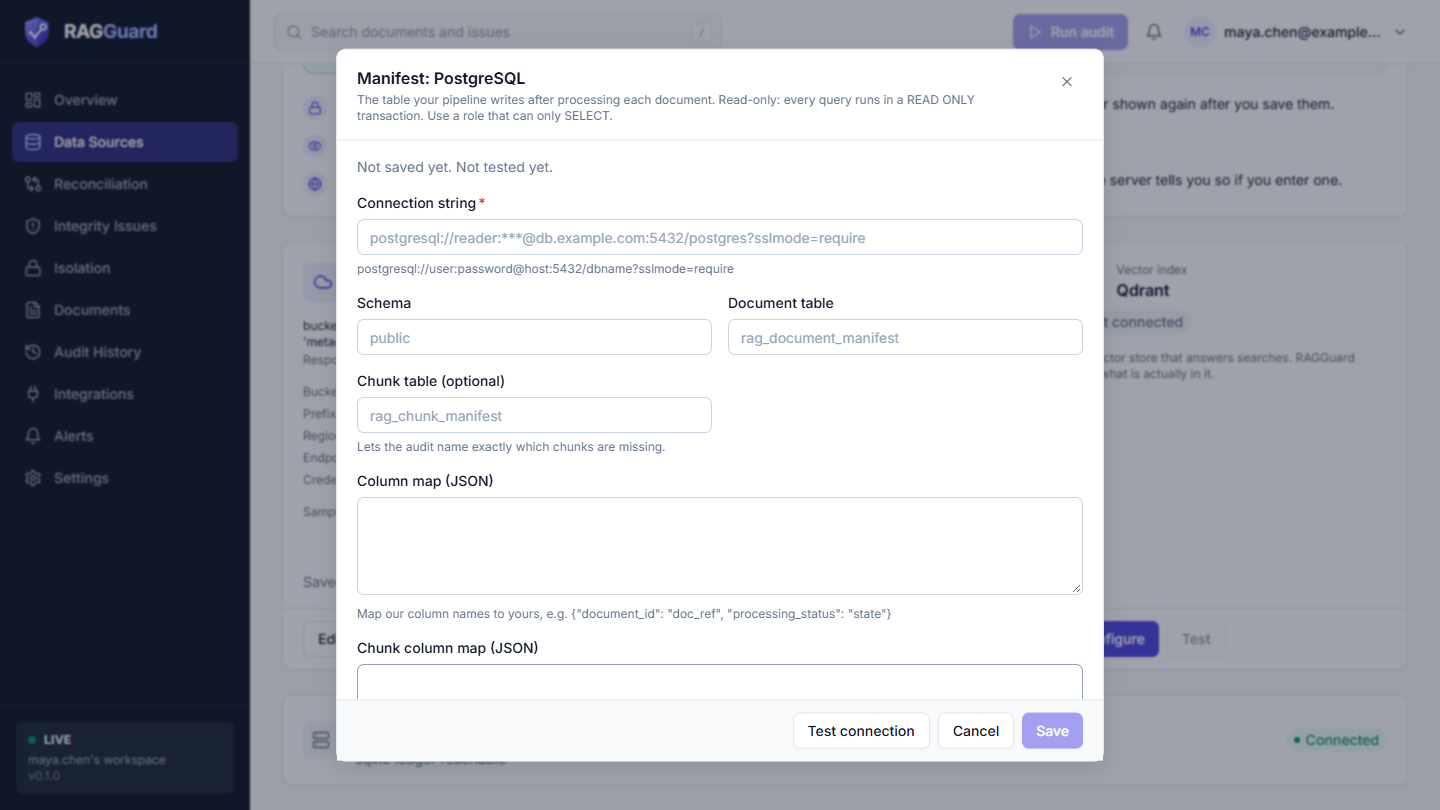
The PostgreSQL dialog: connection string, schema, tables and the two column maps.
The manifest is the table where your pipeline writes down what it did with each document: "I processed this file, this version, into this many chunks, with this embedding model, and the result was a success." RAGGuard reads it to find the cases where the pipeline believes one thing and the index shows another, such as a pipeline that reported success for a document that has no vectors.
RAGGuard only reads the manifest. Every query runs inside a read-only transaction and each query is stopped after 45 seconds, so a slow table cannot hang an audit.
Get the values
Connection string. The format is:
postgresql://USER:PASSWORD@HOST:5432/DATABASE?sslmode=require
- Supabase: open your project, then Project Settings, then Database, then Connection string. The transaction pooler (port 6543) works as well as the direct connection.
- Other providers: use the host name, port, database name, user and password your provider shows you. Cloud databases usually need
?sslmode=requireat the end. - If the password contains characters such as
@,/or:, write them in percent-encoded form (for example@becomes%40), otherwise the address cannot be read correctly.
Use a read-only database user. Create a role that can only select from the manifest tables, rather than your administrator account. For example (change the table names to yours):
create role ragi_reader login password '<generate one>';
grant usage on schema public to ragi_reader;
grant select on public.rag_document_manifest, public.rag_chunk_manifest to ragi_reader;
-- only if row level security is turned on for those tables:
create policy ragi_read_manifest on public.rag_document_manifest for select to ragi_reader using (true);
create policy ragi_read_chunks   on public.rag_chunk_manifest    for select to ragi_reader using (true);
If row level security is on and the role has no policy, PostgreSQL shows that role no rows at all, and the test will say the manifest table is empty even though it is not.
The fields
Six fields.
| Label | Required | Secret | Default | Example |
|---|---|---|---|---|
| Connection string | Yes | Yes | None | postgresql://ragi_reader:***@db.example.com:5432/postgres?sslmode=require |
| Schema | No | No | public | public |
| Document table | No | No | rag_document_manifest | rag_document_manifest |
| Chunk table (optional) | No | No | None | rag_chunk_manifest |
| Column map (JSON) | No | No | Empty (your columns have RAGGuard's names) | {"document_id": "doc_ref", "processing_status": "state"} |
| Chunk column map (JSON) | No | No | Empty | {"chunk_id": "piece_id"} |
Connection string (secret)
- What it is: the address, user and password for the database.
- What it changes: where the manifest is read from. It is stored encrypted and never shown again.
- Rules: it must start with
postgresql://(postgres://is also accepted), have a network host, point to a public host, and use only the optionssslmode,connect_timeoutandapplication_name. - Common mistakes: a private or local host (refused, see public addresses); extra options such as
pgbouncer=true(refused); a user that can write (works, but the test warns you); forgettingsslmode=requireon a cloud database (the test says "SSL negotiation failed: try adding ?sslmode=require to the connection string."); unencoded special characters in the password.
Schema
- What it is: the PostgreSQL schema that holds the tables. Letters, digits and underscores only, starting with a letter or underscore, at most 63 characters.
- What it changes: where the document and chunk tables are looked for.
- Common mistakes: using a name with a hyphen or a dot. The form answers "Schema: Invalid Schema '...': only letters, digits and underscores are allowed".
Document table
- What it is: the table with one row per document. Same character rules as Schema. Names are case-sensitive:
Manifestis notmanifest. - What it changes: which table RAGGuard reads.
- Common mistakes: leaving the default when your table has another name (the test says the table "was not found or has no mapped columns").
Chunk table (optional)
- What it is: a second table with one row per expected chunk of each document (see the chunk table).
- What it changes: with it, an audit can say exactly which chunks are missing. Without it, partial indexes are found by comparing counts and by looking for gaps in the chunk numbers, which is less certain. The test shows an amber Chunk manifest line when it is empty. That warning is normal if you do not keep such a table.
- Common mistakes: naming a table that has no
document_idandchunk_idcolumns.
Column map (JSON) and Chunk column map (JSON)
- What they are: a translation list, written as a JSON object. The left side is RAGGuard's name for a column, the right side is your column name. See the column map.
- What they change: which of your columns is read as which RAGGuard column.
The manifest table contract
"Contract" means: this is what RAGGuard expects to find, and what it does with it. Only document_id is mandatory. Any other column that your table does not have is simply skipped, and the matching checks become weaker.
The document table
One row per document, per tenant. RAGGuard looks for these 21 columns by default. If your names differ, translate them with the Column map.
| Column | Type to use | What it holds | What RAGGuard does with it | How much it matters |
|---|---|---|---|---|
document_id | text | The document's stable id, the same one S3 and Qdrant produce | The join key for everything. Without this column the test fails | Required |
tenant_id | text | The tenant (customer or business unit) | Joins per tenant. When absent, every row gets the Default tenant from the Policy tab | Strongly recommended with more than one tenant |
source_hash | text | SHA-256 of the source content as the pipeline last processed it | Spots a manifest that lags behind the source, and is the fallback for detecting stale vectors when Qdrant has no hash | Very important (the test warns when missing) |
processing_status | text | The pipeline's own verdict, for example success, failed, processing | Decides whether the pipeline "claimed success" (which raises severity), is still working (grace period) or failed. See status values | Very important (warned when missing) |
expected_chunk_count | integer | How many chunks the document should have produced | Finds partially indexed documents without a chunk table | Very important (warned when missing) |
indexed_chunk_count | integer | How many chunks the pipeline believes it indexed | Compared with the real count in Qdrant. For a document that has no vectors at all, a number above zero counts as the pipeline claiming success, which raises the severity | Very important (warned when missing) |
updated_at | timestamp | When the row last changed | Drives the grace period: a row that is "in progress" and was updated recently counts as pending, not broken | Strongly recommended |
source_uri | text | Where the original lives, for example s3://bucket/key | Needed for Look up files from the manifest. Also shown in reports | Needed only for that option |
indexed_version | text | The source version the pipeline marked as active | Compared with the source version; a difference raises a low-severity note | Optional |
acl_hash | text | A hash of the document's permissions | Compared with the permissions hash in the index; a difference is a high severity finding | Optional, valuable if you filter by permissions |
parser_version, chunking_version, chunk_size, chunk_overlap, embedding_model, embedding_model_version, embedding_dim, preprocessing | text or integer | The fingerprint: how the document was processed | Used to detect pipeline drift against the target on the Pipeline tab. Where a vector's own payload lacks a fingerprint value it inherits the manifest's | Optional, needed for drift checks |
source_version | text | The version or ETag the pipeline last processed | Read and kept; no check depends on it today | Optional |
parsed_hash | text | Hash of the extracted text | Read and kept; no check depends on it today | Optional |
last_verified_at | timestamp | When your pipeline last verified the document | Read and kept; no check depends on it today | Optional |
Use integer for counts and a real timestamp type (with time zone is best) for the two timestamps. RAGGuard reads values as they are; text that is not a number in a count column is treated as missing.
A table you can copy (the product's example):
create table public.rag_document_manifest (
  tenant_id text not null, document_id text not null,
  source_uri text, source_version text, source_hash text, parsed_hash text,
  parser_version text, chunking_version text, chunk_size integer, chunk_overlap integer,
  embedding_model text, embedding_model_version text, embedding_dim integer, preprocessing text,
  expected_chunk_count integer, indexed_chunk_count integer, indexed_version text,
  processing_status text, last_verified_at timestamptz,
  updated_at timestamptz not null default now(), acl_hash text,
  primary key (tenant_id, document_id)
);
A sample row: tenant acme, document policies/leave.pdf, source hash 9f2c..., status success, expected chunks 7, indexed chunks 7, updated a minute ago.
The chunk table
Optional. One row per expected chunk of each document.
| Column | What it holds | What RAGGuard does with it | How much it matters |
|---|---|---|---|
document_id | The document id | Links the chunk to its document | Required |
chunk_id | A stable id for the chunk, the same id the pipeline writes into the Qdrant payload as chunk_id | Lets the audit list exactly which chunks are missing, and which indexed chunks are unexpected | Required |
tenant_id | The tenant | Joins per tenant (default tenant when absent) | Recommended |
chunk_index | The chunk's position (0, 1, 2, ...) | Used to compare when the Qdrant payload carries no chunk ids | Recommended |
chunk_hash | A hash of the chunk text | Read and kept; no check depends on it today | Optional |
create table public.rag_chunk_manifest (
  tenant_id text not null, document_id text not null, chunk_id text not null,
  chunk_index integer, chunk_hash text,
  primary key (tenant_id, document_id, chunk_id)
);
If the chunk table lacks document_id or chunk_id, the test fails with "<table> needs document_id and chunk_id columns".
Status values the product understands
The processing_status text is compared without regard to capitals.
| Meaning | Values |
|---|---|
| Success | success, succeeded, indexed, completed, complete, done, ready, ok, processed, true |
| In progress | pending, queued, processing, running, in_progress, indexing, parsing, embedding |
| Failed | failed, error, errored, failure |
| Deleted | deleted, tombstoned, removed |
true counts as success, so a true/false column such as is_indexed can be mapped as the status. A false is not recognised as anything, so it means "no completed record". Values that are not on the list are not an error; they are simply not treated as success, progress, failure or deletion.
The column map
Use it when your column names are not RAGGuard's. It is a JSON object: RAGGuard's column name on the left, your column name on the right.
Example. Your pipeline writes a table ingest_log like this:
| Your column | Meaning |
|---|---|
doc_ref | the document id |
customer | the tenant |
state | the status |
content_sha256 | the source hash |
chunks_expected | expected chunks |
chunks_written | indexed chunks |
touched_at | last update |
Set Document table to ingest_log and Column map (JSON) to:
{
  "document_id": "doc_ref",
  "tenant_id": "customer",
  "processing_status": "state",
  "source_hash": "content_sha256",
  "expected_chunk_count": "chunks_expected",
  "indexed_chunk_count": "chunks_written",
  "updated_at": "touched_at"
}
Rules:
- Left-hand names must be exactly RAGGuard's (the 21 above, or the 5 chunk columns for the chunk map). An unknown name is rejected when you run the test: "Unknown manifest column '...'; valid: ...".
- Right-hand names must be plain identifiers: letters, digits and underscores, starting with a letter or underscore, up to 63 characters. A name with a hyphen or space is rejected by the test as "Invalid column for ...".
- A column you do not mention keeps its RAGGuard name.
- If a mapped column does not exist in your table it is skipped. Only a missing
document_idfails the test. - The same rules apply to the Chunk column map (JSON) for the chunk table.
What Test connection checks (manifest)
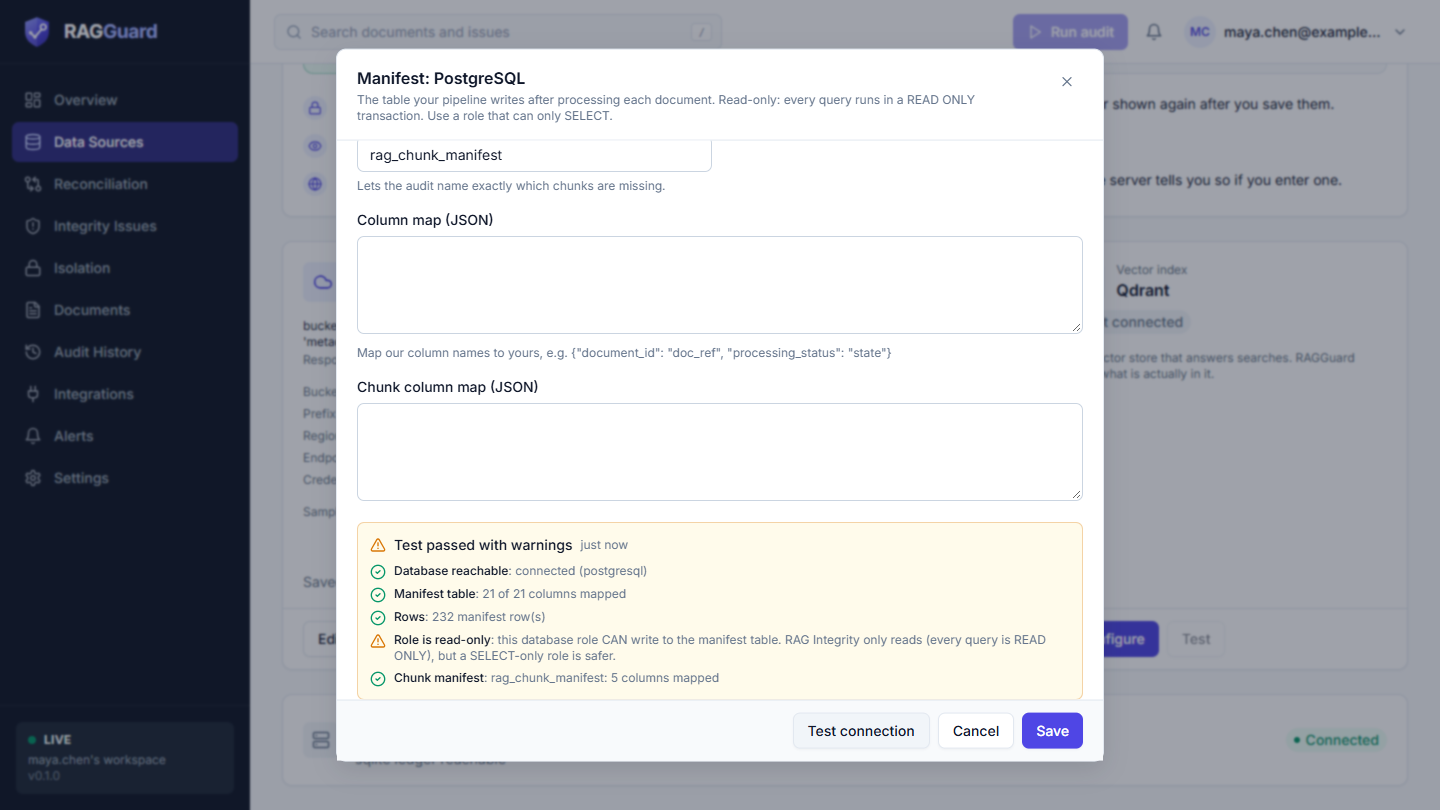
Result of Test connection for the manifest: reachable, table found, columns mapped, rows counted.
| Check line | Passed | Warning | Failed |
|---|---|---|---|
| Database reachable | "connected (postgresql)" | n/a | One of: "Authentication failed: check the user name and password in the connection string." / "Connection timed out: the host is unreachable from the internet or a firewall blocks this server." / "The host name could not be resolved." / "SSL negotiation failed: try adding ?sslmode=require to the connection string." / "Permission denied: the role cannot read this table." / a database message such as "database ... does not exist" / otherwise an error type and its first words. The test stops here |
| Manifest table | "N of 21 columns mapped" | n/a | "could not inspect <table>: ... Check schema/table names and that the role can read them." / "table schema.table was not found or has no mapped columns." / "no column for document_id (looked for '...'). Map it with the column map." The test stops here |
| Columns used for checks | not shown | "missing source_hash, processing_status, ...: the related checks (stale / partial / false-success detection) are reduced." Lists any of source_hash, processing_status, expected_chunk_count, indexed_chunk_count that are not mapped | n/a |
| Rows | "N manifest row(s)" (shown as "100000+" above 100,000) | "the manifest table is empty" | The row count could not be read (a message like those for Database reachable) |
| Role is read-only | "this role has no write privileges on the manifest table" | "this database role CAN write to the manifest table. RAG Integrity only reads (every query is READ ONLY), but a SELECT-only role is safer." | n/a. If the privilege check itself cannot run, the line is left out |
| Chunk manifest | "<table>: N columns mapped" | "not configured: partial indexes are detected from chunk counts and index gaps instead of exact chunk ids." | "<table> needs document_id and chunk_id columns", or an error reading the table |
The message for the read-only warning still says "RAG Integrity", the product's earlier name.
Common mistakes (manifest)
- Using a private or local database address (refused in hosted mode).
- A database user that can write. It works, but use a read-only role.
- Row level security on, with no policy for the role: the test reports an empty table.
- The map written the wrong way round (your name on the left). The left side must be RAGGuard's name.
- Naming the chunk table but not mapping
chunk_idwhen your column has another name. - A
source_hashthat is computed differently from S3's hash (see the three systems must agree).
Qdrant
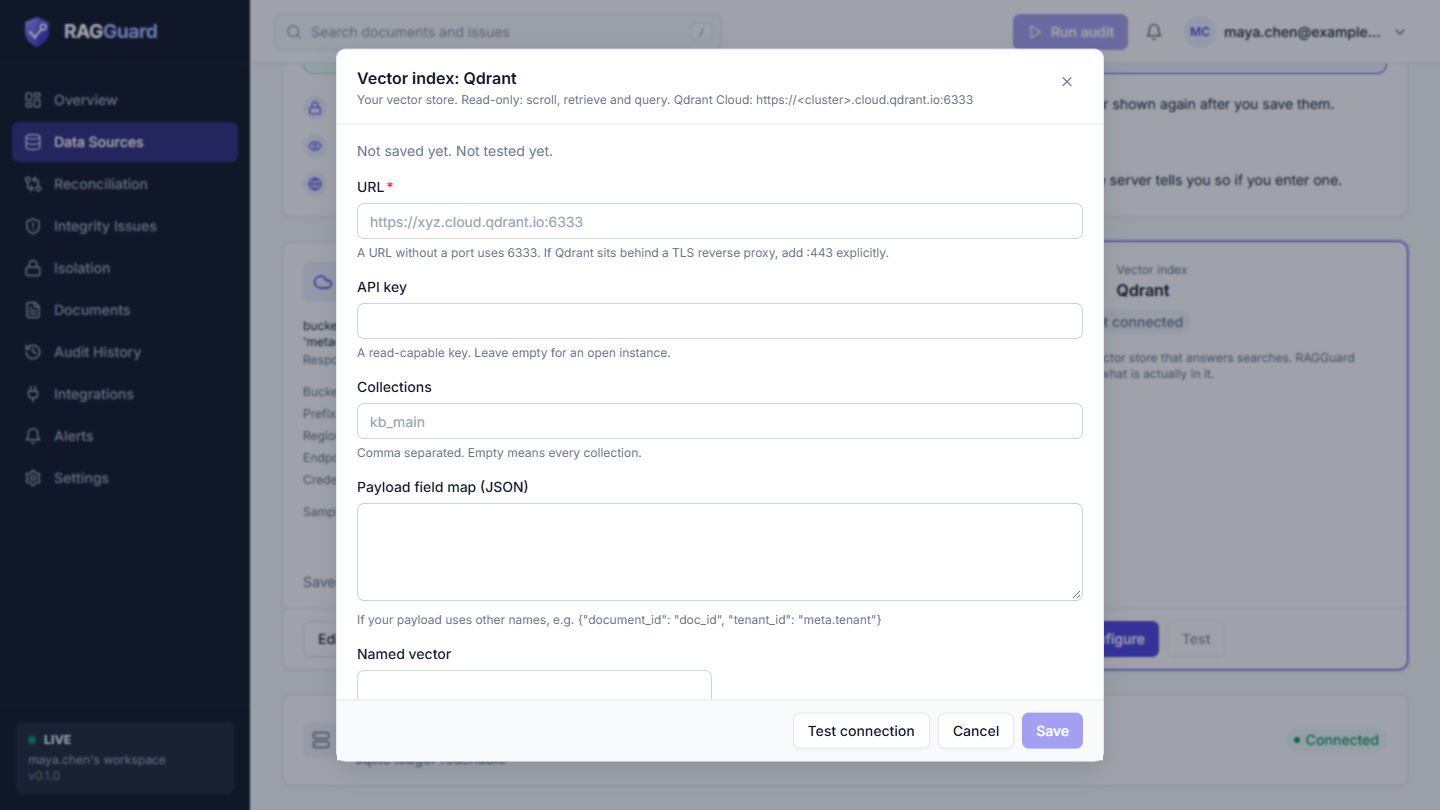
The Qdrant dialog: URL, API key, collections, payload map, named vector and the empty-embeddings switch.
Qdrant is the vector store: it holds one point for each chunk of each document, made of the chunk's vector (its embedding) and a payload (extra facts about that chunk, such as the document it came from). RAGGuard reads the payloads page by page and checks them against the source and the manifest. It uses only reading calls (scroll, retrieve and query). It never writes or deletes.
Get the values
- URL. The cluster address with its port. Qdrant Cloud shows it as
https://<cluster>.cloud.qdrant.io:6333. A self-hosted server is usuallyhttps://your-host:6333. - API key. Create or copy one in your Qdrant console. A key that can read is enough. An open instance needs none.
- Collection name. A collection is a named set of points inside Qdrant (for example
kb_main). Find the names in Qdrant's own dashboard (the Collections page) or ask whoever set up your pipeline. You can also let RAGGuard show you: enter only the URL (and the API key), leave Collections empty, press Test connection, and read the first line, Qdrant reachable, which lists up to eight collection names. - Payload names. Open one point in Qdrant's dashboard (or fetch one with the API) and look at its payload. You will use these names for the payload field map if they differ from RAGGuard's.
The fields
Six fields.
| Label | Required | Secret | Default | Example |
|---|---|---|---|---|
| URL | Yes | No | None | https://xyz.cloud.qdrant.io:6333 |
| API key | No | Yes | None | (the key from your console) |
| Collections | No | No | Empty (every collection) | kb_main or kb_main,kb_archive |
| Payload field map (JSON) | No | No | Empty (your payload uses RAGGuard's names) | {"document_id": "doc_id", "tenant_id": "meta.tenant"} |
| Named vector | No | No | None | text_dense |
| Detect empty embeddings | No | No | Off | On |
URL
- What it is: the address of your Qdrant server.
- What it changes: where RAGGuard reads the index from. It must be public (see public addresses).
- Rules: an address without a port uses
6333, even forhttps. If Qdrant sits behind a TLS reverse proxy on the normal HTTPS port, add:443. - Common mistakes: leaving out
:443behind a proxy (the connection times out); typing the dashboard address; a private address; usinghttp://for a server that only acceptshttps://.
API key (secret, optional)
- What it is: the key that proves RAGGuard may read.
- What it changes: whether requests are accepted. You can use Remove saved value to delete it.
- Common mistakes: a key with no read rights ("Qdrant rejected the API key (a read-capable key is required)."); a key for another cluster.
Collections
- What it is: the collection names to audit, separated by commas. Letters, digits,
_,-and.only, up to 255 characters per name. - What it changes: which points RAGGuard reads. Empty means every collection on that Qdrant. A document is expected to appear in at least one of the collections you list.
- Common mistakes: leaving it empty on a server that also holds other applications' collections (their points show up as vectors for documents that do not exist); spaces inside a name; a name that does not exist (the test says "not found: ... Existing: ...").
Payload field map (JSON)
- What it is: a translation list for payload names, like the manifest's column map. See the payload field map.
Named vector
- What it is: the name of the vector to read, for collections that store several vectors per point under names.
- What it changes: which vector is used when RAGGuard checks vector size, looks for empty embeddings and probes a search.
- Common mistakes: filling it in for a collection that has one unnamed vector.
Detect empty embeddings (switch)
- What it is: also fetch each point's vector, to find points whose vector is missing, empty or all zeros. Such a point can never match a search.
- What it changes: the audit can raise empty embedding issues. It is slower and heavier for Qdrant because vectors are large.
- Common mistakes: leaving it on for a very large collection without need.
The payload fields RAGGuard reads
RAGGuard reads up to 16 named values from each point's payload. Only the ones you map or that already have these names are used. A value that is missing or empty simply counts as "not present".
| Field | What it holds | What RAGGuard does with it | How much it matters |
|---|---|---|---|
document_id | The id of the document the chunk came from | Joins the point to its document. A point without it is reported as a vector with no document id (collection-level, high severity), and the test fails if sampled points lack it | Required |
source_hash | The content hash of the source the chunk was built from | The main test for stale vectors: it is compared with the hash S3 reports | Very important (the test warns if missing; freshness checks then rely on the version or the manifest) |
tenant_id | The tenant | Joins per tenant and catches vectors filed under the wrong tenant (a critical finding). When absent, the Default tenant from the Policy tab is assumed | Required in practice with more than one tenant |
chunk_id | A stable id for the chunk | Finds duplicates and missing chunks (together with the chunk table) | Strongly recommended |
chunk_index | The chunk's position | Finds gaps (suspected partial indexes) and duplicates when there is no chunk id | Recommended |
source_version | The source version or ETag | A fallback for freshness when there is no source_hash | Optional |
acl_hash | A hash of the document's permissions | Compared with the manifest's acl_hash | Optional |
parser_version, chunking_version, chunk_size, chunk_overlap, embedding_model, embedding_model_version, embedding_dim, preprocessing | The pipeline fingerprint of the chunk | Compared with the target pipeline to find drift. A missing value is taken from the manifest row | Optional, needed for drift checks |
chunk_hash | A hash of the chunk text | Read and kept; no check depends on it today | Optional |
The minimum useful payload is document_id and source_hash, plus tenant_id if you have several tenants. The Required payload fields setting on the Policy tab decides which of these a vector must carry (see Settings).
The payload field map
If your payload uses other names, translate them with a JSON object: RAGGuard's name on the left, your payload key on the right. Use a dotted path to reach a nested value.
Example. Your points look like {"doc_id": "policies/leave.pdf", "meta": {"tenant": "acme", "sha256": "9f2c..."}}:
{
  "document_id": "doc_id",
  "tenant_id": "meta.tenant",
  "source_hash": "meta.sha256"
}
Rules:
- Left-hand names must be one of the 16 names in the table above. An unknown name is accepted when you save but fails when the connection is used, with a message such as "ValueError: Unknown payload field '...'; valid fields: ...".
- Right-hand values are your payload keys.
meta.tenantmeans thetenantkey insidemeta. - A field you do not mention keeps its RAGGuard name.
What Test connection checks (Qdrant)
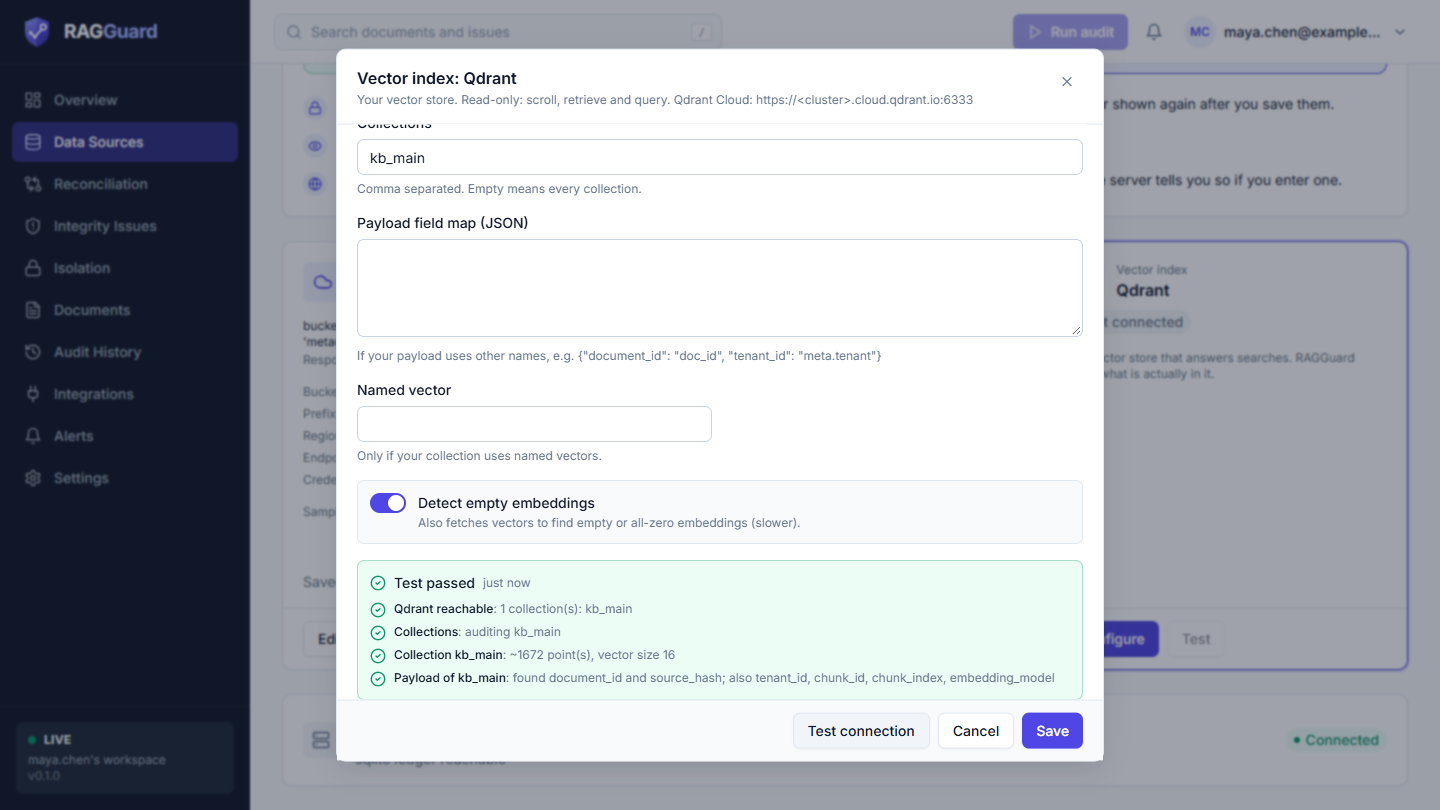
Result of Test connection for Qdrant: reachable, collections found, point counts, payload sample.
| Check line | Passed | Warning | Failed |
|---|---|---|---|
| Qdrant reachable | "N collection(s): a, b, c" (the first eight names, or "none yet") | n/a | The server could not be asked. See the messages below. The test stops here |
| Collections | "auditing a, b" (the ones you named, or all of them) | "this Qdrant has no collections yet." | "not found: x. Existing: a, b." The test stops here |
| Collection <name> (up to the first 5) | "about N point(s), vector size S" | "the collection is empty" | An explained error while reading it |
| Payload of <name> (a sample of 20 points) | "found document_id and source_hash; also tenant_id, chunk_id, ..." | "sampled points lack source_hash: freshness checks will be limited." | "sampled points carry no document_id. Map the payload field names with the payload map." |
Messages for failures reading Qdrant:
| Message | What it means and what to do |
|---|---|
| Qdrant rejected the API key (a read-capable key is required). | Missing, wrong or read-less key |
| Qdrant timed out. Check the URL and port (Qdrant Cloud uses https://<cluster>:6333). On a very large collection, filtering by a field that has no payload index is slow: ask the cluster owner to create a keyword index on the document id field (for example source_id). | Wrong port or a proxy that needs :443; or a slow filter on a huge collection |
| The host name could not be resolved. | A typo in the host name |
| Connection refused: check the URL and port. | Nothing is listening there |
| Not found: check the collection name. | Wrong name |
| Qdrant needs a payload index on the field used to filter by document (strict mode). Ask the cluster owner to create a keyword index on it, or turn off 'Only audit documents found in the source (S3)'. | Can appear during an audit when the Policy option for auditing only source documents is on and the cluster is in strict mode |
| A line starting with an error type name | Anything else |
Common mistakes (Qdrant)
- Empty Collections on a shared server.
- The wrong port, or no
:443behind a proxy. - Payload names that do not match RAGGuard's, and no map.
- A payload
source_hashthat differs from the S3 hash in kind (for example hex in one place and base64 in the other). - Turning on Detect empty embeddings by default on a huge collection.
The Setup check
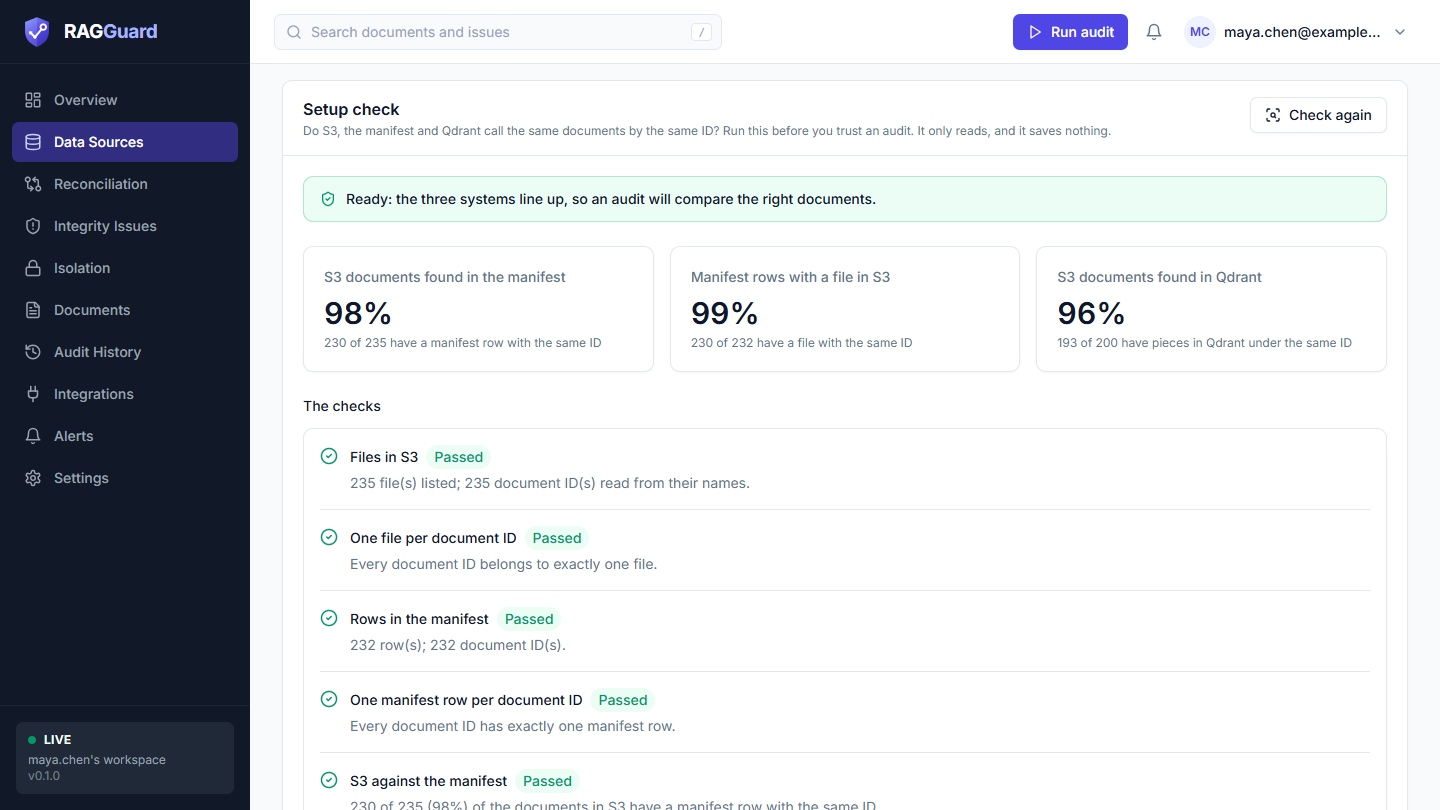
A clean result: a green Ready banner, three coverage tiles, and every check Passed.
What it is for. An audit matches documents by their ID. If a file is called 2329961.pdf but the manifest says bill-2329961, every document looks missing and the audit is just noise. The Setup check answers one question before you trust an audit: do S3, the manifest and Qdrant call the same documents by the same ID, and do the numbers add up? It is not an audit. It stores nothing (no audit run, no issue, no alert) and changes nothing in your systems.
Where it is. A card called Setup check on this page, below the three system cards. It appears once all three connections are saved (on a single-user server it is always there). There is no menu item for it. Press Check setup.
What happens when you press it. RAGGuard reads, and only reads:
- S3: the names of the files only (a listing: nothing is downloaded or hashed), at most 200,000 files.
- The manifest: its rows, at most 500,000.
- Qdrant: the document and tenant IDs of a random sample of 1,000 points, the approximate size of the collection, and a lookup of 200 of your S3 documents by ID.
While it works the button shows a spinner and cannot be pressed again, and a line says "Reading your three systems." It takes seconds on a small system and up to two minutes on a large one. You can stay on the page. Anything that was cut short is listed at the bottom of the result. In a hosted workspace you can run it 20 times in 10 minutes, because each run opens connections to your systems. After the first run the button reads Check again.
Reading the result
From top to bottom:
- The banner. One sentence, coloured by the verdict. Ready (green): the three systems line up, so an audit will compare the right documents. Almost ready (amber): they mostly line up, with some things worth a look. Not ready yet (red): something must be fixed before an audit can be trusted; the sentence names the first thing to fix.
- Three tiles. S3 documents found in the manifest, Manifest rows with a file in S3 and S3 documents found in Qdrant (of up to 200 looked up). Each shows a percentage and the real numbers behind it. They are green from 80%, amber from 20% to 79% and red below 20%. A tile reads n/a when there was nothing to compare or the number could not be measured.
- What to do next. Every fix, in order, in plain words. It is missing when there is nothing to fix.
- The checks. One row for each question the check asked (the table below). A row has an icon, a name, a badge (Passed, Worth a look, Needs fixing or Not applicable) and a sentence with the real numbers. When they apply it also has example IDs or file names in a grey box, a small hint marked with an i, and What to do. Rows that need attention come first, the red ones before the amber ones. The rows that passed are tucked into one line, "N checks passed or not applicable", which you can open.
- IDs at a glance. Five real document IDs from each of S3, the manifest and Qdrant, side by side. Compare them by eye: the same document should have the same ID in all three. Under the Qdrant column a line says how the IDs are stored there (as text, as whole numbers, as text made of digits, or as decimals).
- Notes. What was read (for example "S3: 235 documents from 235 files.") and any limit, such as "this Qdrant server cannot sample at random, so the first points of each collection were used". At the very end: when it ran, how long it took, and "Nothing was changed or saved."
The checks, one by one
Some rows are missing, depending on your setup (for example the two lookup rows only appear when Look up files from the manifest is on).
| Check | What it asks | Needs fixing when | Worth a look when |
|---|---|---|---|
| Files in S3 | Do the file names give document IDs? | The bucket cannot be read, there are no files, or no file name matches the key pattern (examples are shown) | More than half of the files do not match. Skipping some is normal when the pattern is meant to select only some files |
| One file per document ID | Does each ID belong to one file? | 5% or more of the IDs are shared by several files | Fewer than that are |
| Rows in the manifest | Can the manifest be read, and do the rows have IDs? | It cannot be read, has no rows, or no row has an ID | Some rows have no ID |
| One manifest row per document ID | Does each ID have one row? | 5% or more of the IDs have several rows | Fewer than that do |
| S3 against the manifest | What share of S3 documents has a manifest row with the same ID? | Fewer than 20% | 20% to 80%. It shows IDs found on one side only and, if they look like the same document, how they differ |
| Manifest against S3 | What share of manifest rows has a file? | Never | Many rows have no file. It then recommends Only audit documents found in the source (S3) |
| Files the manifest names | (Lookup mode only.) Do a sample of the files the manifest names exist in S3? | Fewer than 20% exist, or no manifest row names a file of this bucket | Never |
| Files without a manifest row | (Lookup mode only.) A reminder that a file with no manifest row is not seen | Never | Always, while that setting is on |
| Tenant names agree | Do the sides use the same tenant names? | Two sides share no tenant name at all, so their documents cannot match. The hint says when the same IDs exist under another tenant name | Never |
| Document IDs in Qdrant | Do the points carry a document ID, and how is it stored? | Qdrant cannot be read, the collection is empty, or no sampled point carries the mapped payload field | Some points have no ID, some IDs are decimals, or numbers are mixed with text |
| S3 against Qdrant | Of 200 S3 documents, how many have pieces in Qdrant under the same ID? | Fewer than 20% | 20% to 80% |
| Qdrant against S3 | What share of the sampled points belongs to a document that S3 or the manifest knows? | Never | Most of the index belongs to other documents, unless Only audit documents found in the source (S3) is on. Then those points are ignored and the row passes: it is information, not a problem |
"Passed" starts at 80% on purpose. The gaps inside a pass are real documents that an audit reports one by one. This check is about whether IDs can be matched at all, not about how well your pipeline is doing. The overall verdict is Not ready yet if any row needs fixing, Almost ready if any row is worth a look, and Ready otherwise.
It never guesses. When the unmatched IDs on two sides differ only by capital letters, spaces or leading zeros, or one contains the other (a prefix or a suffix), the check says so, with examples. RAGGuard still compares IDs exactly: an ID clean-up rule is not available yet. Make both sides write the ID the same way, or change the Key pattern (see Amazon S3).
Example: a few ID defects
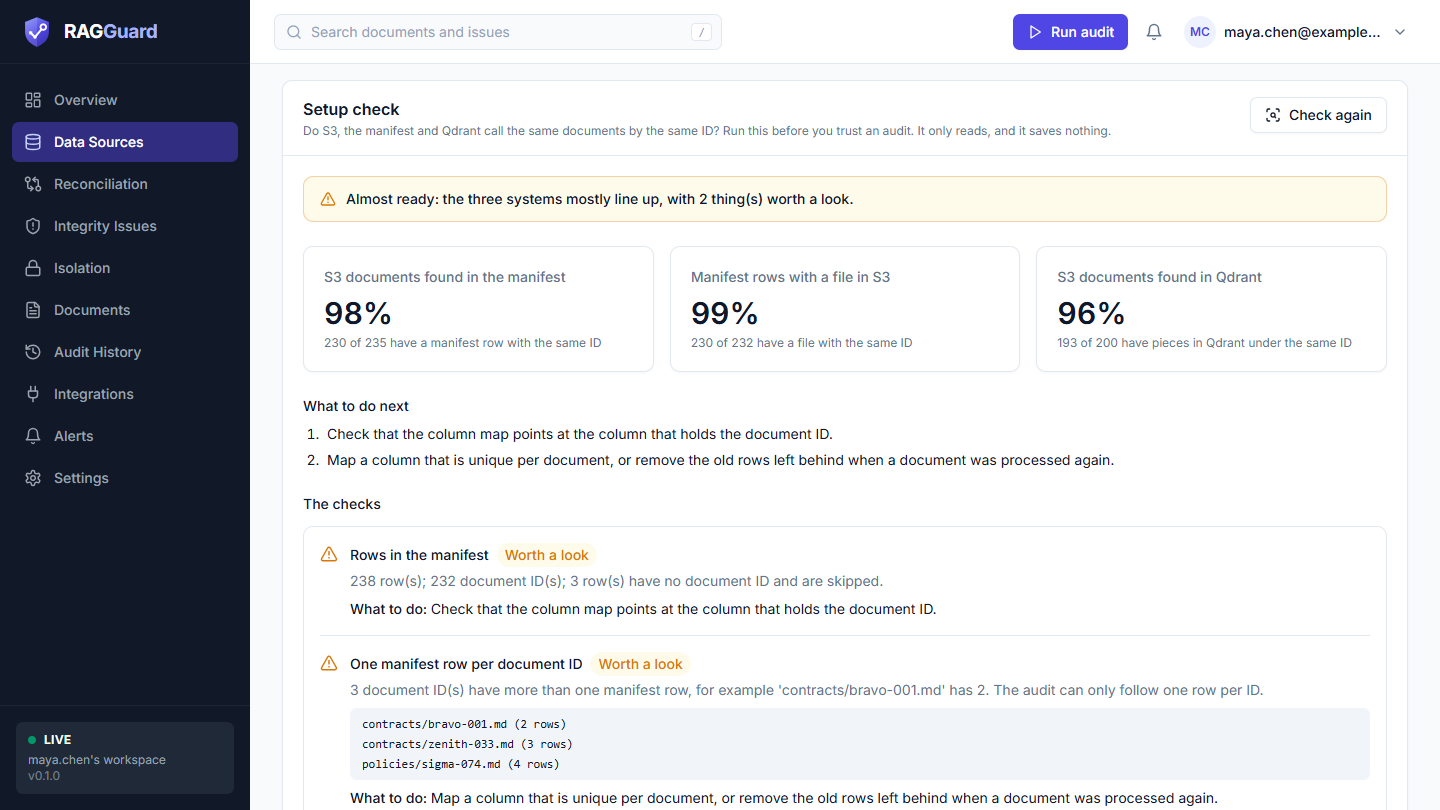
Almost ready: three manifest rows have no ID, and three IDs have more than one manifest row. The examples name the IDs and how many rows each has.
Here S3 and Qdrant agree with the manifest (98%, 99% and 96%), so the verdict is amber, not red. The two things worth a look are about the manifest: some rows have nothing in the document ID column and are skipped, and some IDs have several rows, so the audit can follow only one of them. The same problems appear as warnings on the Overview and on the audit's own page (Audit history) after the next audit.
Example: the key pattern matches nothing
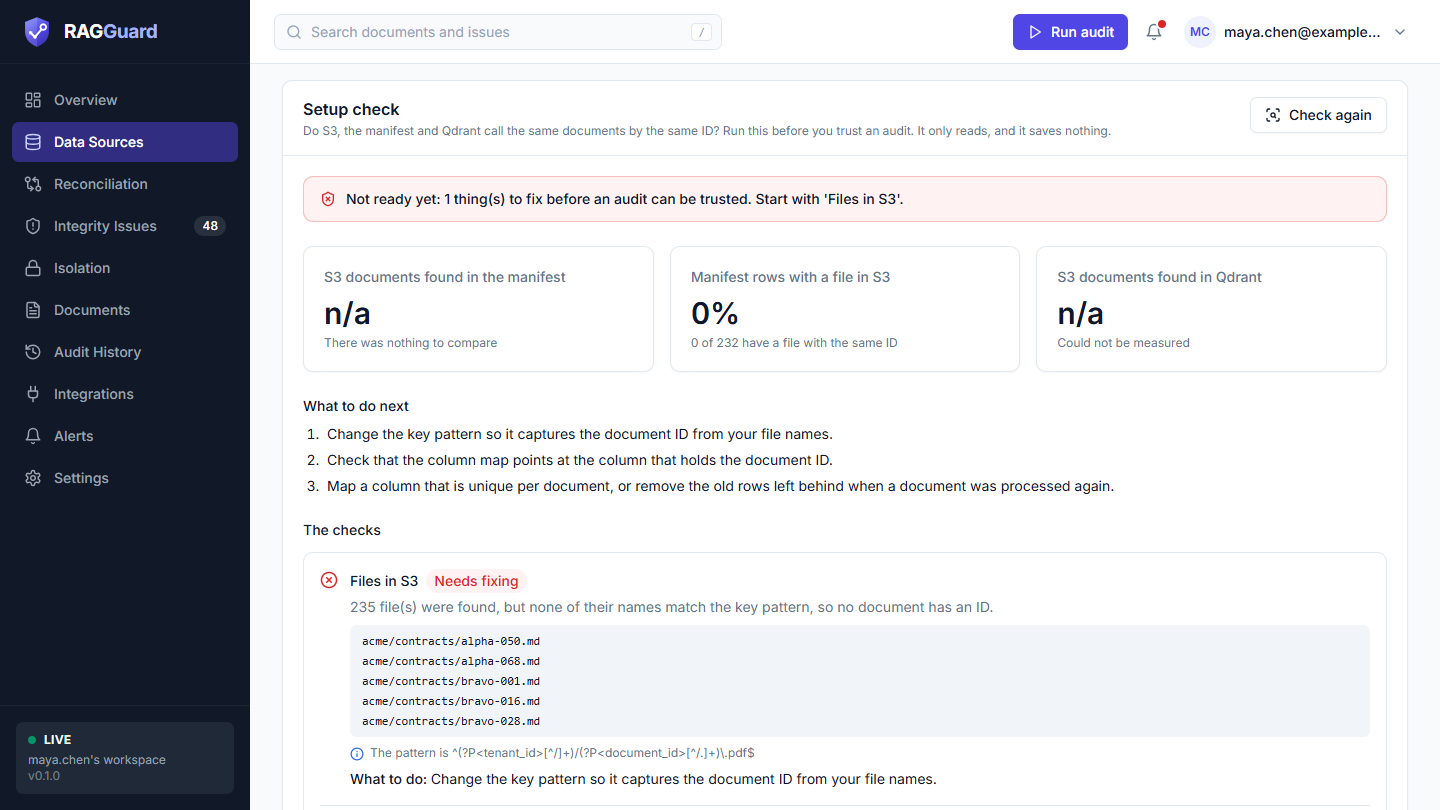
Not ready yet: the key pattern expects .pdf files but the bucket holds .md files, so no file has an ID.
The bucket was read, but the Key pattern only accepts names ending in .pdf, so no file gets a document ID. The check shows real file names, quotes the pattern, and says what to do. The first and third tiles read n/a because nothing could be compared, and the second reads 0%. Fix the pattern in the S3 dialog, save, and run the check again.
Other ways to run it
The same check is available as the command ragi setup-check (add --json for the full result; it exits with code 1 when the result is Not ready yet), and as POST /api/setup-check with a session or an API key and no body. See GUIDE.md for every field of the result.
The Issue ledger card
The Issue ledger card (the wide card below the Setup check card) is different: you do not configure it. It shows where RAGGuard keeps your audit runs, issues and repair plans. The text reads "Where audit runs, issues and repair plans are stored. The server manages it." followed by the engine name (for example "Engine: supabase/postgres") and the result of a quick reachability check, such as "postgresql ledger reachable". The badge is Connected (green) or Error (red; the red text says why). If it is red, the problem is on the RAGGuard server, not in your systems. Contact whoever runs the server. The card appears once at least one connection is saved, because that is when the page asks the server for connection health.
Single-user mode: a read-only page
Some servers run for one team with no accounts. They are in live or demo mode (see Concepts you need), and their connections are set by the server's operator in environment variables whose names start with RAGI_. In that case:
- A note at the top says "Configured by the server's environment variables (RAGI_*)" and "The connections below are read-only here. To change them, change the server's environment."
- There is no guide card, and no Configure, Edit or Test button.
- Each card shows its badge and the live status text from the server's own check, but not the settings rows.
- Refresh status still works.
- The Setup check card is shown, always, because the connections are set by the server.
- The Issue ledger card is shown.
To change a connection on such a server, ask the person who runs it.
States you may see
| State | What you see | What to do |
|---|---|---|
| Loading | Three grey placeholder cards while the saved settings load. A single card shows two grey bars while its live check runs, with the Checking badge | Wait a moment |
| Nothing connected | The guide card and three Not connected cards | Follow Step by step |
| Partly connected | The guide shows green checks for saved steps and highlights the next one. A card saved with missing required fields says "Setup is incomplete. Still needed: ..." | Press Edit on that card and fill in what is listed |
| All connected | Three green Connected cards, the Issue ledger, and the "How RAGGuard connects" card | Run an audit |
| Setup check running | The Check setup button shows a spinner and the card says "Reading your three systems." | Wait. It takes up to two minutes on a large system |
| Setup check says Not ready yet or Almost ready | A red or amber banner, a What to do next list and the checks that need attention first | Follow the list, then press Check again. See The Setup check |
| A connection has an error | A red Error badge with a red message | Read it, press Edit, fix, Save, Refresh status |
| The page itself cannot load | A message "We couldn't load this" with the reason and a Try again button | Press Try again. If it keeps failing, the RAGGuard server may be down |
| A rejected value | A red box in the dialog starting with the field label | Change that field |
| Too many tests | "Too many connection tests. Try again in a few minutes." | Wait about ten minutes |
| Too many setup checks | "Too many setup checks. Try again in a few minutes." | Wait a few minutes |
Mistakes that affect all three connections
- The three systems do not agree on ids or hashes. Check the table in What you need before you start, then run the Setup check: it shows the IDs of all three side by side.
- Two default tenants. The S3 Default tenant and the Policy Default tenant are separate. Set both when your data has no tenants.
- Testing before saving, then forgetting to save. Test connection never saves. The Save button is the only thing that stores your values.
- Trusting "Connected" too much. It means reachable. An audit judges the data.
- A write-capable account. It works, but use read-only accounts everywhere.
- Expecting a lost secret to come back. It cannot. Create a new credential and type it in.
Related chapters
- Getting started: the shortest path from sign-up to a first audit
- Concepts you need: source, manifest, index, tenant, document id, fingerprint, grace period
- Sign in and find your way around: the menu, the top bar and the Run audit button
- Overview: what you see after the first audit
- Integrations: the repair webhook and API keys
- Alerts: the alert webhook
- Settings: the target pipeline and the audit policy, including the default tenant and the required payload fields
- Troubleshooting: what to do when a test or an audit fails