Getting started
RAGGuard tells you when your RAG index is wrong, before your users do. It compares the documents you meant to index, the record your pipeline keeps of what it indexed, and the vectors that are really searchable, and it shows you exactly what drifted, how serious it is and how to fix it safely. This chapter explains what problem RAGGuard solves, who it is for, what you need before you start, and how to get from a new account to your first audit result. It also tours the public landing page and explains how to read the rest of this guide.
On this page
- What RAGGuard is
- The problem it solves: silent RAG failures
- What RAGGuard does and does not do
- Who it is for
- Before you start
- Three ways RAGGuard can run
- What demo data means
- Ten-minute quick start
- The landing page
- How to read this guide
- Tips and common mistakes
- Related chapters
What RAGGuard is
RAGGuard is an independent checker for a RAG system. RAG stands for retrieval-augmented generation: an application answers questions by first searching an index of your documents, then giving the best matches to a language model. The index is only useful if it is correct.
RAGGuard reads three places and compares them. It always reads. It never writes to them.
| Word in RAGGuard | System | What it represents |
|---|---|---|
| Source | Amazon S3 (or an S3-compatible store) | What exists right now: your documents |
| Manifest | A table in PostgreSQL | What your pipeline believes it did: one row per document |
| Index | Qdrant | What is actually searchable: your vectors |
Comparing them is called an audit. An audit produces:
- Issues: each disagreement it found, with evidence. There are 11 types.
- A status for every document, and one health score for the whole index.
- Repair plans: a list of what to fix, with estimated cost.
When you ask for a repair, RAGGuard does not change your systems. It sends a signed request to your own worker and then checks the real index again to see whether the fix worked. Removing old vectors needs your explicit approval.
Every term in bold is explained in Concepts you need.
The problem it solves: silent RAG failures
A RAG system can go wrong while every background job reports success. The application keeps running and nobody sees an error, but users get incomplete, outdated or wrong answers. The landing page lists six ways this happens:
| What goes wrong | What it looks like |
|---|---|
| Documents that were never embedded | The file sits in storage, but nothing about it is searchable. |
| Updated documents with old vectors | The source changed. The index keeps serving the previous version with full confidence. |
| Deleted documents that stay searchable | Withdrawn or deleted content can still be returned to your users. |
| Half-indexed documents | Only some chunks made it in, so answers are quietly incomplete. |
| Duplicates and empty vectors | Retries double-count chunks. Zero vectors can never be retrieved. |
| Drift nobody planned | The embedding model, the chunking or the permissions changed. Old documents did not. |
An example. Your ingestion job processes a new HR policy and records the status success. A crash halfway through means no vectors reached Qdrant. The job is green, the dashboard is green, and the assistant never mentions the policy. RAGGuard sees a document in S3, a manifest row that claims success, and zero vectors in the index. It reports Missing embeddings as Critical, because the pipeline said it worked.
What RAGGuard does and does not do
| RAGGuard does | RAGGuard does not |
|---|---|
| Read your S3 bucket, manifest table and Qdrant index, read-only | Write to, change or delete anything in those systems |
| Find 11 kinds of disagreement, each with evidence | Parse documents, create embeddings or host a vector database |
| Show how serious each issue is and whether bad content can really be retrieved | Run a chatbot |
| Plan repairs and estimate their cost | Carry out repairs itself: your worker does that |
| Send signed repair requests to your worker and verify the result against the real index | Remove vectors without your approval |
| Notify you in the app and by email after every audit, alert you through a Slack-compatible webhook, and run audits from scripts through API keys | Connect to Slack, Jira or PagerDuty directly (marked Not available yet in the interface) |
Who it is for
RAGGuard is for teams who run a production RAG pipeline over Amazon S3, PostgreSQL and Qdrant and need to know three things: whether the index is trustworthy, which exact documents are wrong and why, and what it will cost to fix them.
| If you are... | You will mostly use... |
|---|---|
| An engineer connecting RAGGuard | Connect your data sources, Settings, Integrations |
| An on-call engineer investigating an alert | Overview, Integrity issues, Documents |
| An owner of the data pipeline | Repair plans, Impact analysis, Audit history |
| A security or compliance owner of a multi-tenant product | Isolation, Integrity issues |
| Someone automating checks in CI | Integrations (API keys), Alerts |
RAGGuard works with S3-compatible stores such as MinIO, Cloudflare R2 and Supabase Storage, with PostgreSQL including Supabase, and with Qdrant self-hosted or on Qdrant Cloud.
Before you start
You need two things that already exist in your own environment, plus an account. A third, the manifest, is optional.
1. An S3 bucket with your documents
- A bucket (or a folder inside one, set with Key prefix) that holds the documents your users should be able to search.
- A read-only access key for it. On AWS, the key needs
s3:ListBucketon the bucket ands3:GetObjecton its objects. - Object keys that RAGGuard can split into a tenant and a document id. The default Key pattern expects
tenant/path/to/document.pdf, for examplecustomer-a/policies/leave-policy.md. For a bucket with no tenants, set the pattern to^(?P<document_id>.+)$. - A way to know when a file changes. The simplest is a SHA-256 stored with each object under the metadata key
sha256. Alternatives are Content hashcompute(RAGGuard downloads and hashes) oretag(quick start, less reliable).
2. A PostgreSQL manifest table (optional)
Skip this if your pipeline records nothing. Audits work without a manifest: RAGGuard compares your files with the vector index directly (see The manifest is optional). This is the table your ingestion pipeline writes after it processes each document. By default RAGGuard looks for rag_document_manifest in the public schema, and you can change both. You can also map your own column names.
- Minimum: a
document_idcolumn. It is the only mandatory column, and any other column your table lacks is simply skipped. - Recommended:
tenant_id,source_uri,source_hash,source_version,processing_status,expected_chunk_count,indexed_chunk_count,indexed_versionandupdated_at. Add the pipeline columns (parser_version,chunking_version,chunk_size,chunk_overlap,embedding_model,embedding_model_version,embedding_dim,preprocessing) andacl_hashif you have them. - Optional: a second table with one row per chunk (
tenant_id,document_id,chunk_id,chunk_index,chunk_hash), which lets RAGGuard name exactly which chunks are missing. - A database role that can only
SELECT. RAGGuard also opens every transaction read-only.
3. A vector index: a Qdrant collection, or a pgvector table
Vectors in PostgreSQL with pgvector (Supabase, Neon, AWS RDS) work too: choose pgvector on Data Sources and give it the table.
- A Qdrant URL that RAGGuard can reach. For Qdrant Cloud it looks like
https://your-cluster.cloud.qdrant.io:6333. Add an API key if the cluster requires one. - Minimum payload on every vector:
document_idandsource_hash(the same value your pipeline stored in the manifest), plustenant_idif you have more than one tenant. - Recommended:
chunk_idandchunk_index(so partial indexes can be found), and the pipeline fieldsembedding_model,embedding_dim,chunking_versionand the like (so drift can be found). - If your payload uses other names, a Payload field map translates them.
What the three must agree on
RAGGuard can only compare what lines up. For each document:
- The tenant and the document id must be the same in S3, the manifest and the index.
- The hash your pipeline records must be the same value RAGGuard reads from S3, in the manifest and in each vector's payload.
If they do not match, every document looks stale, missing or orphaned. The Test connection button on Data Sources checks this for you with a sample.
What each kind of check needs
| To detect... | RAGGuard needs... |
|---|---|
| Missing embeddings | The S3 file and no vectors for it. The manifest only decides the severity: Critical if it claims success. |
| Stale versions | A hash or version on the vectors (or a hash in the manifest) to compare with S3. |
| Partial indexes | A chunk table, or expected_chunk_count in the manifest, or chunk_index values on the vectors. |
| Orphan vectors | Vectors whose document is gone from S3. |
| Wrong-tenant vectors | A tenant_id on the vectors and a tenant in the S3 key. |
| Pipeline drift | A Target pipeline in Settings, and fingerprint fields on the vectors or in the manifest. |
| Empty embeddings | Detect empty embeddings switched on in the Qdrant settings. |
| Documents still being processed | updated_at and processing_status in the manifest, or a recent S3 modified time. |
Network and account
- In hosted mode RAGGuard only connects to public addresses. Hosts on a private network or on localhost are refused. Your S3 endpoint, Qdrant URL and database must be reachable from the internet.
- You need an email address and a password of 10 to 128 characters to create an account. See Sign in and find your way around.
- A current web browser.
Three ways RAGGuard can run
The person who runs the server chooses a mode. You can tell which one you are using from what you see first.
| Mode | What you see first | Sign-in | Connections |
|---|---|---|---|
| Hosted | The landing page, then the sign-in and Create account screens | Email and password. Each account gets a private workspace. | You enter them yourself in Data Sources |
| Live (single-user) | The app straight away, or an API key required screen if the server is protected | None | The server's environment variables. Data Sources is read-only. |
| Demo (single-user) | The app straight away, with an amber Demo data banner | None | A built-in synthetic knowledge base |
Everything in this guide applies to all three, except sign-in, the account menu's Sign out and the connection forms, which only exist in hosted mode.
What demo data means
Demo data is a synthetic knowledge base that RAGGuard can run on its own: invented documents in several tenants, with faults put in on purpose. It lets you explore every screen without connecting anything. On a demo server:
- An amber banner on every page says Demo data. This server is running a synthetic knowledge base so you can explore the product. Nothing here comes from your own systems.
- The environment card at the bottom of the sidebar shows DEMO, with an amber dot.
- Settings > General has a Reset demo data button that regenerates the data and clears the results.
The screenshots and the video that go with this guide come from a hosted test workspace connected to test systems that hold synthetic documents with deliberately injected faults. They are examples of what the screens look like. The numbers you see on your own data will be different, and wherever this guide quotes a number it says "for example".
Ten-minute quick start
If your systems are ready, you can reach your first result in about ten minutes. The audit itself takes as long as your corpus needs. Each step names the chapter that explains it in detail.
- Open RAGGuard and create your account. Press Create your workspace on the landing page, type your email and a password of at least 10 characters, and press Create account. You land on the Overview, which asks you to connect your data. See Sign in and find your way around.
- Connect your source and your index. Open Data Sources. For Amazon S3 and for your vector index (Qdrant, or pgvector: choose it under Where are your vectors stored?) press Configure, fill in the form, press Test connection, read the result lines, then press Save. A manifest is optional. See Connect your data sources. The Run audit button stays disabled, with the tooltip "Connect your data sources first", until the source and the index are saved.
- Run your first audit. Press Run audit in the top bar, or Run first audit on the Overview. A notice appears when the audit starts and another when it finishes. See Sign in and find your way around and Reconciliation.
- Read the results. Start on the Overview: the health score, the number of open issues and the worst problems. Then open Integrity Issues to read each issue's evidence (Integrity issues), Isolation to check that no customer's documents are indexed under another customer (Isolation), and Documents to see every document's state (Documents).
- Fix what you found. Create a repair plan from the issues you want fixed, send it to your worker, verify it and approve cleanup (Repair plans). Your worker must be set up first (Integrations). To see what a pipeline change would affect before you make it, use Impact analysis.
- Keep watching. Set up Alerts, create an API key to run audits from CI or a scheduler (Integrations), and tune the grace period and target pipeline in Settings. Every audit is recorded in Audit history.
For one continuous worked example, read End-to-end journey. For common tasks, see Practical use cases.
The landing page
If you open a hosted RAGGuard server without being signed in, the page at the root address (/) is a public landing page. It says only things that are true of the product: there are no customer logos and no statistics. Single-user servers have no landing page; they open the app directly. A signed-in user who opens the root address goes to the Overview.
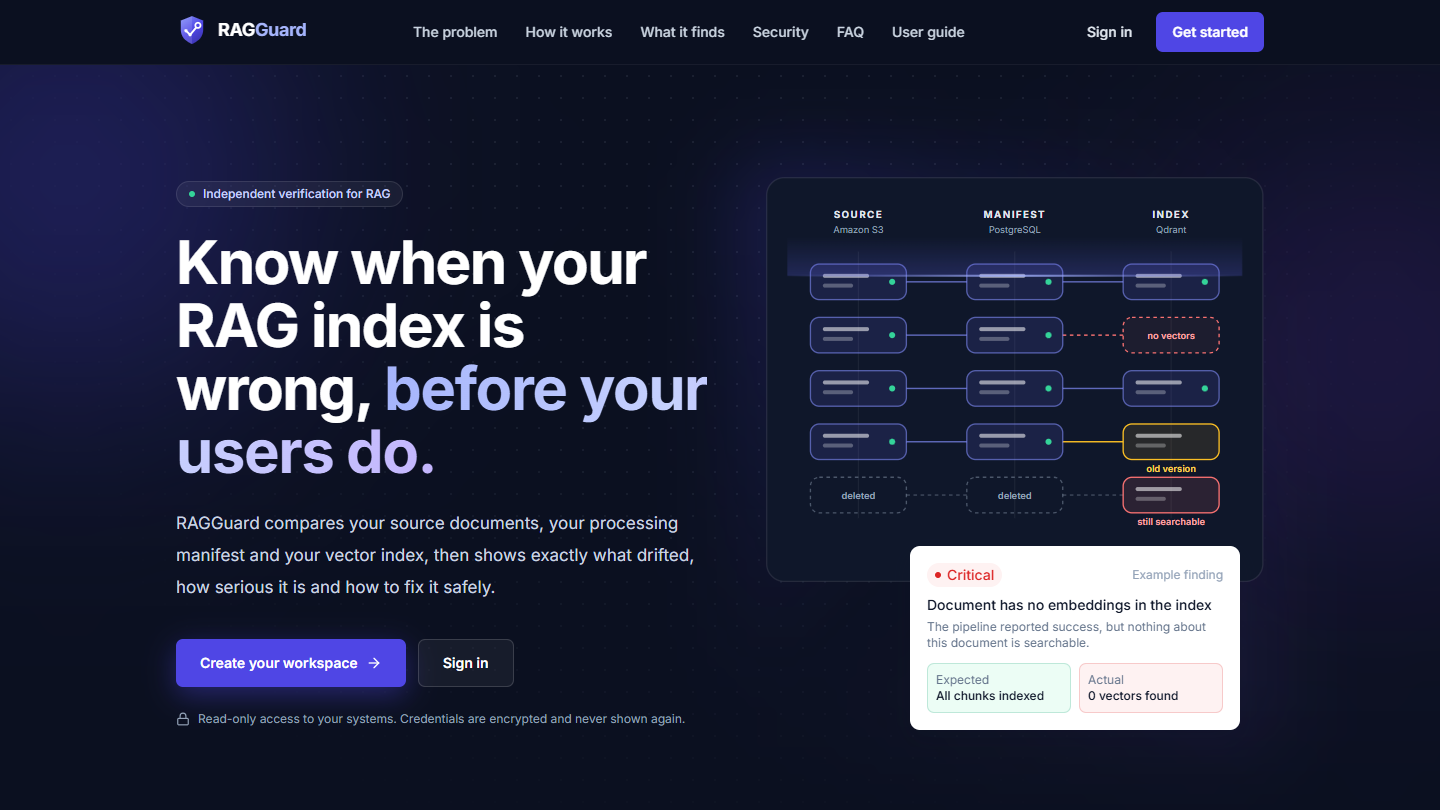
The top of the landing page: headline, the two buttons, the three-rail illustration and the "Example finding" card.
The top bar and the hero
| Element | What it says | Where it goes |
|---|---|---|
| Logo | The RAGGuard mark | The top of the landing page |
| Menu links The problem, How it works, What it finds, Security, FAQ | Section names. Hidden on narrow screens. | Scroll to that section of the same page |
| Menu link Guides | Hidden on narrow screens. | The how-to guides (/guides): eight ways a RAG index drifts from its documents, each with a check you can run yourself, and how to use RAGGuard from an AI assistant. Public. |
| Menu link User guide | Hidden on narrow screens. | The Help pages (/help): the video walkthrough and every chapter of this guide. You can read them without an account. |
| Sign in | The Sign in screen (/login) | |
| Get started | The Create account screen (/signup). Shown only when sign-ups are open. | |
| Tag line | "Independent verification for RAG", next to a green Free during beta label | |
| Headline | "Know when your RAG index is wrong, before your users do." | |
| Sub-heading | RAGGuard compares your source documents with your vector index, in Qdrant or pgvector, then shows exactly what drifted, how serious it is and how to fix it safely. No processing manifest needed; connect one for extra checks. | |
| Create your workspace | The Create account screen. Shown only when sign-ups are open. | |
| Book a free audit | Opens your email program with a message to kishore.knaresh07@gmail.com, already titled "Free RAGGuard audit", that asks where your documents and vectors are and roughly how many documents you have | |
| Sign in (hero) | Shown only when sign-ups are closed (the top bar always has one). | The Sign in screen |
| Promise line | "Read-only access to your systems. Credentials are encrypted and never shown again." | |
| Illustration | Three rails labelled SOURCE (Amazon S3), MANIFEST (PostgreSQL (optional)) and INDEX (Qdrant or pgvector), with documents traced across them. One has "no vectors", one has "old version", one is "still searchable" after being "deleted". It is an illustration, not real data. | |
| Example finding card | A Critical badge, "Document has no embeddings in the index", "The pipeline reported success, but nothing about this document is searchable.", Expected "All chunks indexed", Actual "0 vectors found". An example of what an issue looks like. |
The sections
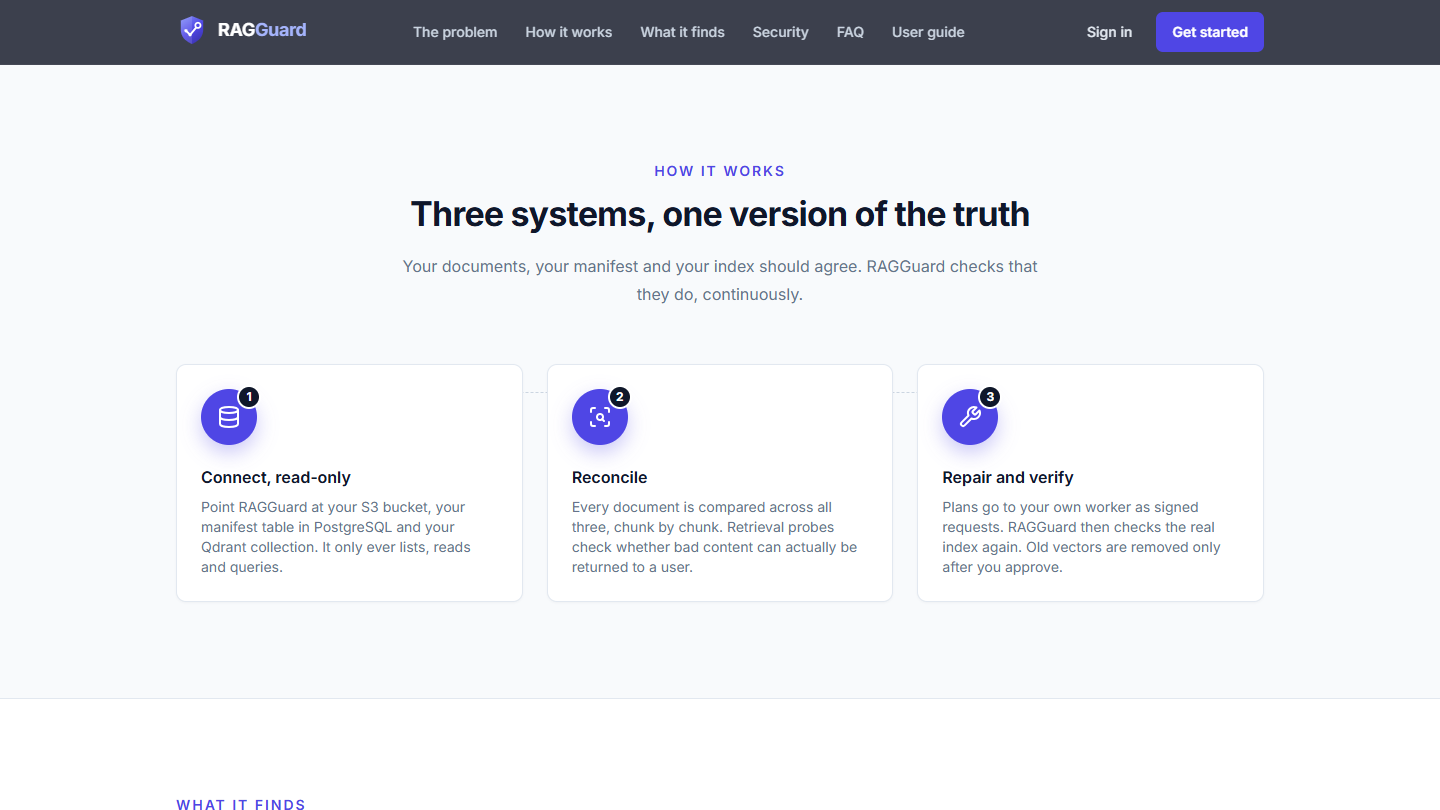
The "How it works" and "What it finds" sections of the landing page.
| Section | Heading | What it says |
|---|---|---|
| The problem | "Your pipeline says success. Your users get the wrong answer." | The six silent failures in the table earlier in this chapter. |
| How it works | "Your documents and your index, one version of the truth" | Three numbered steps: 1 Connect, read-only (point RAGGuard at S3 and your vector index in Qdrant or pgvector, plus the manifest table if you have one; it only lists, reads and queries), 2 Reconcile (every document is compared across the systems you connected, chunk by chunk, and retrieval probes check whether bad content can really be returned), 3 Repair and verify (plans go to your own worker as signed requests, then RAGGuard checks the real index again; old vectors are removed only after you approve). Below the steps, See it working plays the six-minute walkthrough from the video chapter; it loads only when you press play. |
| What it finds | "11 kinds of silent failure, each with evidence" | One card per issue type with a one-line meaning and the systems it involves: Missing embeddings, Partial index, Stale document version, Superseded vectors active, Orphan vectors, Duplicate chunks, Metadata mismatch, Pipeline drift, Empty embeddings, Tenant mismatch, Orphan manifest row. |
| What you get | "Everything you need to act on it" | Six benefits: a health score, evidence for every finding, cost estimates before you fix, blast radius, safe and verified repairs, and alerts and automation. |
| Security | "Safe to point at production" | Six promises: read-only by design, credentials stay secret, workspaces are isolated, private networks are blocked, repairs are signed and removals approved, and hardened sessions. |
| Works with | "The tools you already run" | Two connections are enough to start: Amazon S3 (and S3-compatible stores) and the vector index, Qdrant (self-hosted or Cloud) or pgvector (any PostgreSQL, including LangChain and LlamaIndex tables). The PostgreSQL manifest is marked optional. |
| FAQ | "Questions, answered" | Seven questions, each of which expands when you click it: does RAGGuard change my data, what do I need to connect, how does it know what my index should contain, how much does it cost (nothing during the beta), what is a free audit, can I run audits from CI or on a schedule, and how are my credentials protected. |
| Closing call to action | "See what your index is really serving." | "Free during beta", the two buttons again, and the line "Questions first? Read the FAQ or email kishore.knaresh07@gmail.com." |
| Footer | The RAGGuard mark and a one-line description | Sign in, Create account (only when sign-ups are open), FAQ, Guides, User guide, Book a free audit, Contact, Privacy and Terms. |
Where the buttons and links go
| Button or link | Destination |
|---|---|
| Every Sign in | The Sign in screen, address /login |
| Get started, Create your workspace, Create account | The Create account screen, address /signup |
| Read the FAQ, footer FAQ, menu FAQ | The FAQ section of the landing page |
| Menu User guide, footer User guide, More in the user guide under the video | The Help pages, address /help |
| Every Book a free audit | A pre-filled email to kishore.knaresh07@gmail.com titled "Free RAGGuard audit" |
| Footer Contact, the email address in the closing section | An email to kishore.knaresh07@gmail.com |
| Footer Privacy, footer Terms | The Privacy Policy (/privacy) and the Terms of Service (/terms). Both are public and are also reachable while you are signed in. |
If the server has closed sign-ups, the hero and the closing section show Sign in next to Book a free audit, and the Create account choices disappear everywhere. See Sign in and find your way around.
How to read this guide
- Bold text is a label exactly as it appears on screen: a button, a menu item, a field, a column heading or a status. Where the menu and the page title differ in capitals (for example the menu item Data Sources and the page title "Data sources"), this guide uses whichever you are looking at.
Code styleis a value you type, a column name, an address or a status code.- Menu paths such as Settings > General mean: open Settings, then the General tab.
- Numbers that come from an audit are examples. Your numbers depend on your data.
- Anything the interface marks Not available yet is described as exactly that. This guide never promises it.
- The screenshots show structure. They are not a record of your data.
The chapters in order
| Chapter | Read it to learn... |
|---|---|
| 1. Getting started | What RAGGuard is and how to start (this chapter) |
| 2. Concepts you need | Every term, with an example |
| 3. Sign in and find your way around | The sign-in screens, the sidebar, the top bar, search and the three states of every page |
| 4. Connect your data sources | Connecting S3, PostgreSQL and Qdrant |
| 5. Overview | The dashboard: every card and chart |
| 6. Reconciliation | Running audits and the three-way comparison |
| 7. Integrity issues | Reading, filtering and ignoring issues |
| 8. Repair plans | Planning, triggering, verifying and cleaning up |
| 9. Impact analysis | What a change or a failure would touch |
| 10. Documents | Every document and its state |
| 11. Audit history | Every audit, and the activity log |
| 12. Integrations | The repair webhook and API keys |
| 13. Alerts | Getting told about new problems |
| 14. Settings | Pipeline target, audit policy, security and account |
| 15. End-to-end journey | One continuous worked example |
| 16. Practical use cases | Recipes for common situations |
| 17. Reference: every value | Every label, status and setting in one place |
| 18. Troubleshooting | What to do when something looks wrong |
| 19. The video walkthrough | The narrated demo, scene by scene |
| 20. Isolation | Whether your index keeps customers apart: the checks, the drill and the evidence report |
Suggested reading orders
- First look (15 minutes): this chapter, the ten-minute quick start, then Overview.
- Setting up: chapters 1 to 4, then 6 and 14.
- Fixing a problem: chapters 7, 8 and 10, with Concepts you need open beside them.
- Automating: chapters 12 and 13.
Tips and common mistakes
- Connect your source and your index before you expect results. Run audit stays disabled until both are saved. The manifest is optional.
- Make the hash match. The most common reason every document looks stale is that the hash your pipeline stores is not the one RAGGuard reads from S3. Use the same value in all three places.
- Check the key pattern. If most documents show as missing or orphaned, the tenant and document id RAGGuard derives from S3 keys probably differ from the ones in your manifest and index. Test connection shows an example key and what RAGGuard made of it.
- Do not judge a fresh upload. A document changed in the last few minutes shows as Pending, not broken. That is the grace period working.
- Use a read-only database role and a read-only S3 key. RAGGuard does not need more, and the connection test warns you about a role that can write.
- Expect empty screens before the first audit. Most pages say "No audit has run yet" and offer a Run audit button.
Related chapters
- Concepts you need: the words used throughout
- Sign in and find your way around: create your account and learn the frame
- Connect your data sources: step by step connection of the three systems
- End-to-end journey: the whole workflow in one story
- Contents: the full list of chapters